Activity
See everything your organization sent, received and blocked, follow each email on its route, and find out why one did not arrive. Activity is for administrators.
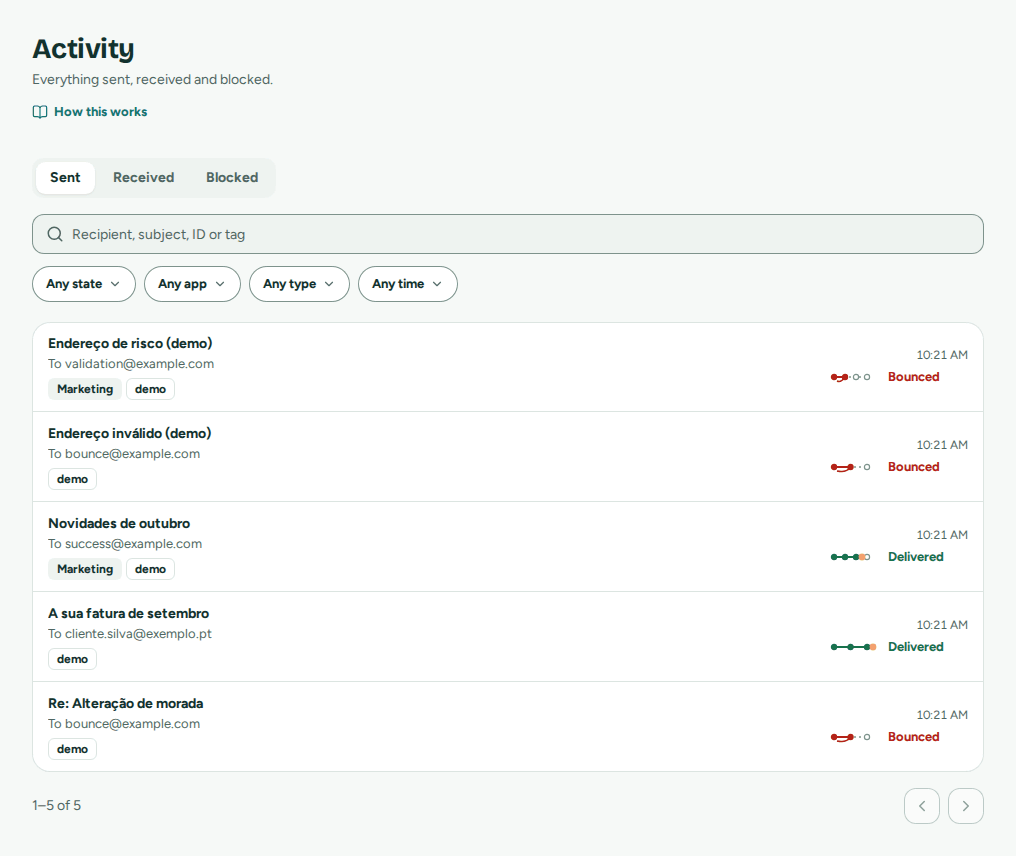 Each send with its route, searchable by recipient, subject, ID or tag
Open Activity in the tab bar or the sidebar (under Manage when your organization both receives and sends; its sending addresses also have their own view, Sending). It covers every email within the time your organization keeps mail (Plan), in three tabs: Sent, Received and Blocked. The first page updates by itself every 15 seconds.
Finding an email
- Sent has one row per send: the recipient (To … and N more), the subject, a Marketing badge for marketing email, the send's tags, the time and its route. The search box finds sends by Recipient, subject, ID or tag. Three filters apply at once:
- State: Accepted, Sent, Delivered, Opened, Delayed, Bounced, Not sent or Blocked. Each finds every send its row labels with that word, so Bounced also finds emails marked as spam.
- App: the sends of one of your apps.
- Type: Transactional or Marketing.
- Period: Today, Last 7 days or Last 30 days.
- Received has every email that arrived at your addresses, with the sender and the address it reached. Search by Sender, subject or ID, and filter by Period.
- Blocked lists the addresses Mailroomly does not send to (Blocked addresses).
Select a row to open its page. From a conversation in the inbox, Details › See its route opens the same page.
The route of a send
Every send shows its route, always in the same words:
| State | Means |
|---|---|
| Accepted | Mailroomly has it and it is waiting its turn to go out. |
| Sent | It is on its way to the recipient's server. |
| Delivered | The recipient's server took it: it is in their inbox. |
| Opened | The recipient opened it, or selected a link in it. Only for email that tracks opens or clicks; a message that is not tracked ends at Delivered. |
| Delayed | The recipient's server asked to try later. Mailroomly keeps trying on its own; you don't need to do anything. |
| Bounced | The recipient's server refused it, or the recipient marked it as spam. |
| Not sent | It could not be sent. Its page says what went wrong. |
| Blocked | It was never sent: the address is blocked, or the send was refused before it went out. |
Opens are an estimate: they are recorded when the recipient's mail program loads a tiny invisible image, and some programs block images while others load them before anyone reads. Email written in the inbox is never tracked.
A send's page
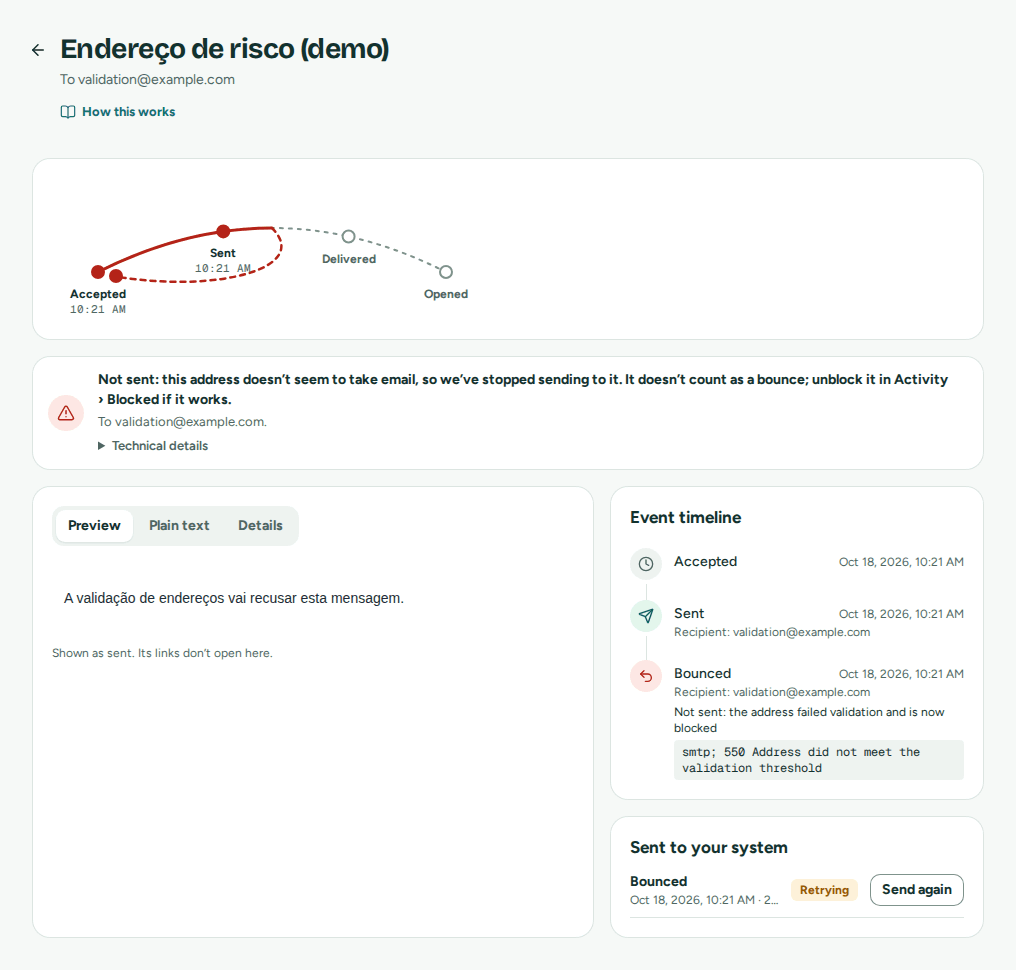 What happened to one email, and what to do about it
A send's page shows, under its subject and recipients:
- Open the conversation, when the email belongs to a conversation of an address that receives and that you can open in the inbox.
- Send it again, for a transactional email you sent, to the same recipients or to a corrected address (Send it again). A send that repeats an earlier one links to it, and the earlier one links to its repeats.
- The route, with the time of each stop: accepted, sent, delivered and first opened.
- When something went wrong, the problem in plain words and what to do (below). The details stay folded under Technical details.
- What was sent, in three tabs: Preview, the email as it was sent (its links don't open there, and its images wait until you show them); Plain text; and Details, which holds the next two:
- Summary: From, To, Cc, Bcc, Reply to, Direction, Type, App, Key (the app's key it was sent with), Address, Created, Sent, Tracking (opens and clicks), and Blocked recipients (not sent) when some recipients were left out. Below are the Message-ID header and the Sending id, each with a copy button, for the developers of your apps.
- Tags and metadata, with the attachments.
- The Event timeline, beside them: Accepted, Sent, Delivered, Delivery delayed, Opened, Link clicked, Bounced (with the type and reason), Marked as spam, Refused, Failed, Blocked, Unsubscribed and Received, each with its time and, when it concerns one recipient, that recipient.
- Sent to your system, for administrators: the webhook events about this email, each with what your system answered. One still being tried, or given up after its tries, has Send again, which sends it now (Webhooks).
What went wrong, and what to do
| The page says | What to do |
|---|---|
| This address doesn’t exist. Check that it is spelled right; we’ve stopped sending to it. | Check the address with the person. It is now blocked; once you have the right address, send to that one. |
| The recipient’s mailbox is full. Try again later or reach them another way. | Send again later, or reach the person another way. After 3 such refusals in 7 days, the address is blocked for that type of email. |
| The recipient’s server refused it for now and we gave up after several tries. Try again later. | Send again later. After 3 such refusals in 7 days, the address is blocked for that type of email. |
| Not sent: this address is blocked after an earlier bounce, complaint or refusal. Unblock it in Activity › Blocked if it works again. | Nothing reached the recipient. Unblock the address only if you know it works now (Unblocking an address). |
| Not sent: this address doesn’t seem to take email, so we’ve stopped sending to it. It doesn’t count as a bounce; unblock it in Activity › Blocked if it works. | The address was refused before sending as unlikely to be delivered. Unblock it only if you know it works. |
| The recipient marked this email as spam. We’ve stopped sending to them. | Don't send this type of email to them again. Check that everyone on your list asked for your email. |
| We refused this email before sending it. See the technical details. | Technical details says why, for example that sending is paused for the organization or this type of email. Fix the cause, then send again. |
| This email couldn’t be sent. See the technical details, or send it again. | Technical details says why, for example that the sending address is not ready yet. Fix the cause, then send again. |
| Delivery is delayed. We keep trying on our own; you don’t need to do anything. | Wait. The route moves on once the recipient's server takes it. |
Newsletters and recipients left out
- Blocked addresses are checked again right before sending. If an address is blocked while the email waits to go out (the person unsubscribed, complained or bounced in the meantime), it is left out and the timeline shows Blocked for it. When no recipient is left, the email ends as Blocked.
- A newsletter goes out as one copy per recipient. If sending stops partway, for example because the sending service is briefly unavailable, Mailroomly later sends only the copies still missing.
- When one newsletter recipient is refused (for example an invalid address), only that recipient fails and the others still get their copy. A newsletter that reached at least one recipient shows Sent, and the timeline shows Failed for each recipient who did not get it.
- On a domain that sends through the platform, recipients whose domain cannot receive mail are left out too, and so are marketing recipients with disposable addresses. They are listed with the blocked recipients and do not count towards your daily limit.
Blocked addresses
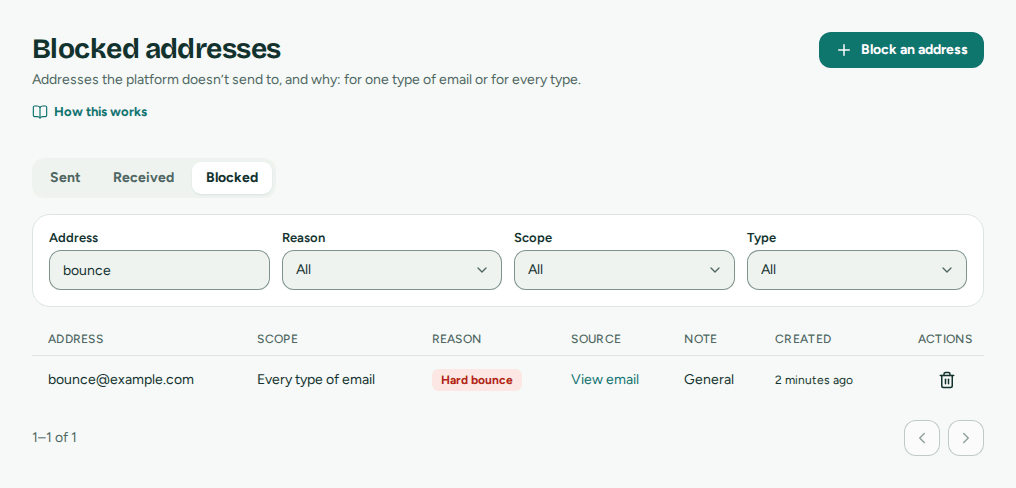 Each address with its scope, reason and the email that caused it
Activity › Blocked (Blocked addresses) lists the addresses Mailroomly does not send to, and why. Filter them by Address, Reason, Scope and Type. Each row shows the address, its scope (Every type of email, or the domain and type it applies to), the reason, View email to open the email that caused it, the note and when it was added.
Email to a blocked address is not sent: the send shows Blocked for that recipient, and the other recipients still get it. A send whose recipients are all blocked is refused (Nothing was sent: every recipient is a blocked address. See Activity › Blocked.).
Why an address is blocked
Mailroomly adds addresses on its own, to protect your sending from addresses that bounce or don't want your email:
| Reason | When | Blocked for |
|---|---|---|
| Hard bounce | The address does not exist. | Every type of email |
| Refused by validation | The address was refused before sending as unlikely to be delivered (it does not exist, or looks disposable or random). It does not count as a bounce. | Every type of email |
| Complaint | The recipient marked an email as spam. | The type of email it came from |
| Repeated soft bounces | The recipient's server refused it for now 3 times in 7 days. | That type of email |
| Unsubscribed | The recipient used the unsubscribe link of a marketing email (Unsubscribing). | Marketing email of that domain |
| Added manually | An administrator or an agent blocked it. | Whichever was chosen |
A type of email is one domain's transactional or marketing email: each keeps its own blocked list, so an address that complained about your newsletter still gets your invoices.
Unblocking an address
Unblock an address only when you know it works and the person wants your email: sending again to an address that bounces or complains harms your organization's sending.
In the web app
In Activity › Blocked, find the address and select Remove. Confirm with Remove in Unblock …?: Mailroomly sends to the address again (Address unblocked.).
Ask your agent
"Unblock ana@example.com: she confirmed her mailbox works again." The agent uses list_suppressions, then remove_suppression. It needs a token with Manage blocked addresses (Administration scopes).
Blocking an address yourself
Block an address when a person asks you to stop writing to them, or to keep a known bad address off your lists.
In the web app
In Activity › Blocked, select Block an address. Enter the Address, choose the Scope (Every type of email, or One type of email and then its Type), add a Note if you like, and select Block.
Ask your agent
"Block joao@example.com for the marketing email of mail.example.com: he asked us to stop." The agent uses add_suppression. It needs a token with Manage blocked addresses (Administration scopes).
Erased addresses
An address whose data you erased is blocked too, but it is not listed: Mailroomly keeps no copy of it (Erasing a person's data). The page says how many there are, for example 2 erased addresses are blocked. Erased addresses aren’t listed. When the person asks to hear from you again, an administrator selects Allow an erased address again…, types the address and confirms with Allow email to this address.
Addresses blocked by the platform
On domains that send through the platform, an address that hard-bounced for any organization on the platform (it does not exist) is not sent to either, for 180 days. Such a recipient shows as blocked on the send. The address is not listed with your blocked addresses, but searching for the exact address shows it as Blocked by the platform (hard bounce), for Domains sending through the platform, with Only the platform team can remove it. instead of Remove. You never see where it bounced. If the address works again, ask the platform team.
Good to know
- Administrators open Activity, and someone who runs some domains sees theirs. Other members follow the status of the messages they send in the inbox, under Details.
- Received emails have no route: they arrived. Open their conversation from the inbox.
- Activity keeps emails for as long as your organization keeps mail; a send's page is gone once its email is deleted.
- Sends that bounce or are marked as spam push up your bounce and complaint rates. When they get too high, you get a notice and, past a level, that type of email is paused (Notices).