Contacts and lists
Keep the people you send marketing to, with when and how each one agreed, in lists you choose, and grow them with sign-up forms on your website. This page is for administrators.
Contacts
Campaigns › Contacts lists everyone you can send newsletters to. Across the top, All and each of your lists filter the page; search finds a contact by the start of their address or name, and the states filter it further. Each row shows the address, the name, the lists, the state and where the person came from.
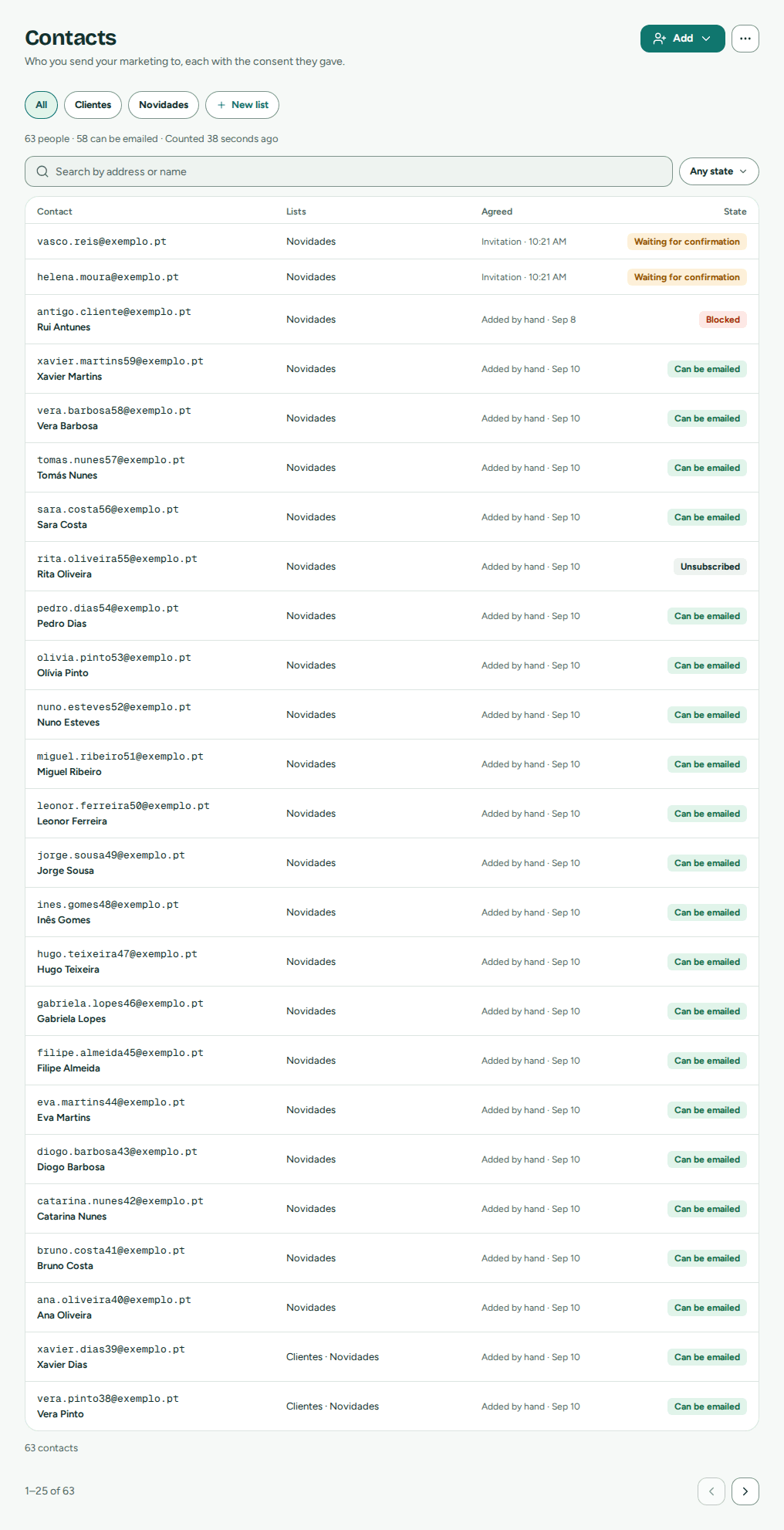 Your contacts by list, with how each one agreed and their state
A contact is someone who agreed to receive your marketing. Each one keeps its opt-in: how they agreed (a sign-up form, an import, your app, added by hand, an invitation) and when. Keep it accurate: it is what you show if someone asks why they get your email.
What each state means
| State | Means |
|---|---|
| Can be emailed | They agreed to your marketing and nothing blocks the address. |
| Waiting for confirmation | They signed up and got an email to confirm. They receive nothing until they do. |
| Unsubscribed | They left your marketing. Emails about their account and your conversations still reach them. |
| Blocked | The address bounced or the person complained: marketing doesn't go to it (Blocked addresses). |
Only people who Can be emailed receive newsletters. A newsletter's review says how many it leaves out, and why (Review and send).
Adding people
Add offers three ways:
In the web app
- Add one person: the email and the first name are enough. The opt-in says Added by hand, today; change it under Advanced, with the last name, the lists and your own fields. Or choose Ask them to confirm by email: they get an invitation, and stay Waiting for confirmation until they confirm.
- Import a CSV: a spreadsheet of many people at once (below).
- Sign-up form: let people add themselves from your website (Sign-up forms).
Ask your agent
"Add ana@example.com to the Clients list; she signed up at our stand on 3 October." The agent uses upsert_contact with the opt-in, or confirm: true to ask her to confirm by email.
A contact's page shows their details, which you can edit, their lists, the opt-in, the state and what it means, and the newsletters they received, each opening its results. Remove takes the person off your contacts; their emails and any block stay.
Note
An address whose data was erased cannot be added again (Erase a person's data).
Lists
Lists group your contacts as you like: clients, the newsletter, an event. A contact can be on several lists, and a newsletter goes to everyone who can be emailed or to one or more lists, each person once.
- + New list, at the end of the chips, creates one.
- Lists renames or deletes them. Deleting a list keeps its contacts.
- On a contact's page, or by selecting contacts, add them to a list or take them off.
Each list shows how many people are on it and how many can be emailed.
Your own fields
Fields adds up to 20 fields of your own, such as Company or City. They can be filled by hand, by an import or by your app, and your emails can show them (Personal fields).
Importing a CSV
Add › Import a CSV takes you through three steps:
- Upload a CSV file, up to 200 MB and 1,000,000 rows. A comma, a semicolon or a tab separates the columns; the first row names them.
- Match the columns: the first rows are shown, and email, first name and last name are matched from the column names; match the rest to your own fields. Say how these people agreed: a note for the whole file, such as Clients who accepted our newsletter when signing up, and the date as a column or one date for the file.
- Choose a list, if you want, and start.
The import runs on its own; you can leave the page and come back. When it ends, it says how many people were added, updated and not added, with the reason for each row left out: an address that isn't valid, a date it couldn't read, a value too long, the same address twice in the file, an address whose data was erased, or the contact limit reached. Rows are named by their number, never by address. Mailroomly deletes the file once the import ends, and an upload left at its columns for a day is canceled and deleted.
Important
Import only people who agreed to receive your marketing. No bought, rented or scraped lists: it is one of the commitments in the terms of service, and those lists bounce and collect complaints.
How many contacts your plan includes
| Free | Solo | Team | Business |
|---|---|---|---|
| 1,000 | 50,000 | 250,000 | 1,000,000 |
People who unsubscribed don't count. On Free you can import the list you already have, as on the other plans, with when and how the people agreed. Plan shows how many you have against the limit. Past it, imports, your apps and people added by hand can't add more (an import lists the rows over it as contact limit), sign-ups from your forms still come in, and administrators get a notice (Plan).
Sign-up forms
Campaigns › Forms makes a form people fill in on your website to receive your newsletter.
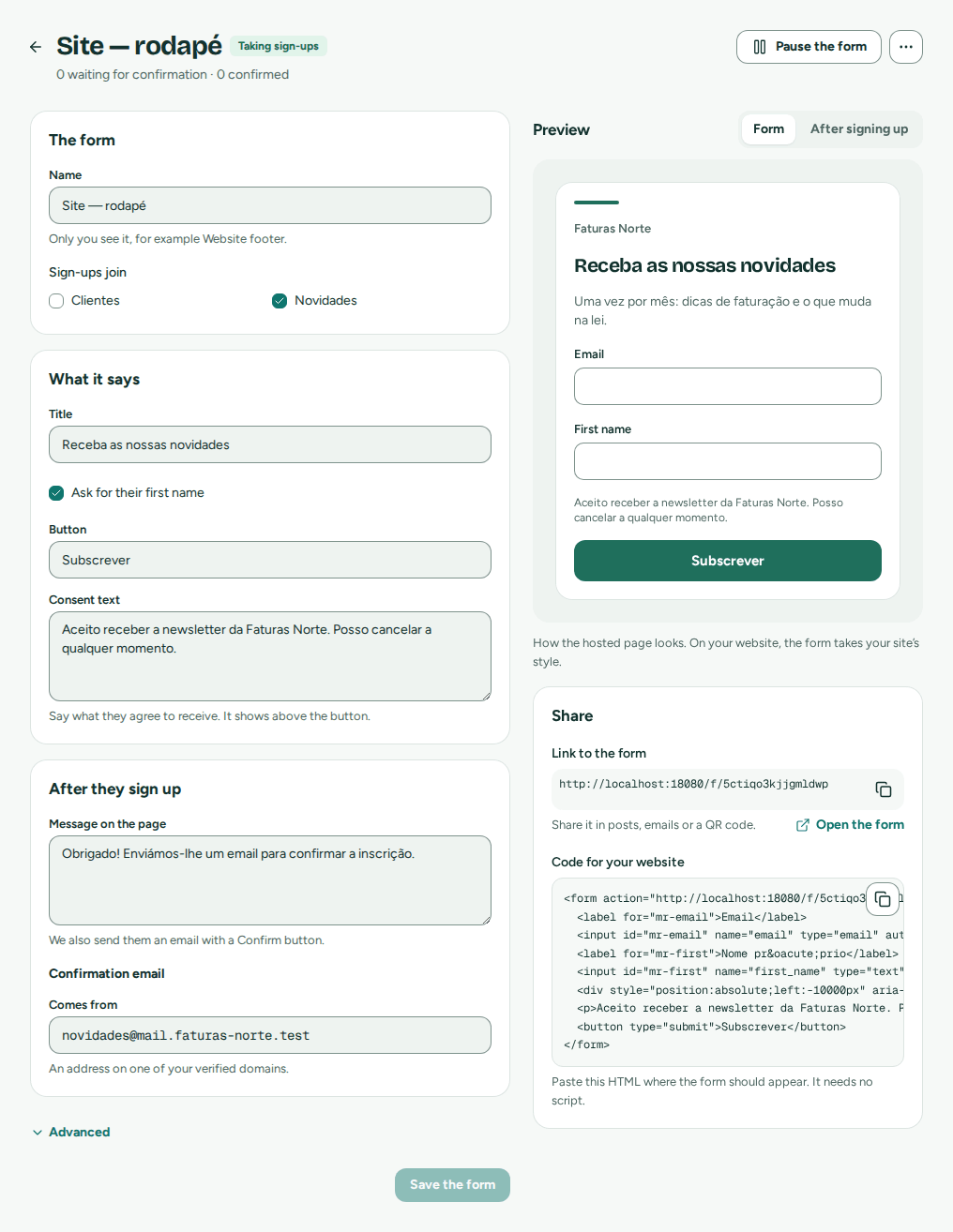 The form’s texts on one side, and how visitors see it on the other
- New form: choose the list people join, and whether you ask for their first and last name.
- Write the title, the text, the button and the consent line, and what people see afterwards: a message, or a page of your website to go to. The preview on the right shows the form as people will see it.
- Choose the address the confirmation email comes from.
- Share gives you two ways to use it:
- The link: a page Mailroomly hosts, in your colors and in the visitor's language. Put it in your email signature, on social media or behind a button.
- The code: a plain HTML form to paste into your website. It needs no script.
The form's page shows how many people are waiting for confirmation and how many confirmed. Pause stops it taking sign-ups; Delete removes it, and the contacts who signed up stay.
Every sign-up is confirmed by email
Someone who signs up gets an email asking them to confirm, from the address you chose, in your sender details' language. Until they click Confirm subscription, they are Waiting for confirmation and receive nothing else. Confirming means they cannot be signed up by someone else, and that the address is real.
- The link works for 7 days. A sign-up never confirmed is deleted then.
- The same address gets at most one confirmation email a day, however many times the form is sent.
- Someone who had unsubscribed and signs up again, and confirms, can be emailed again: it is their own request.
- The form ignores robots: a hidden field, a minimum time to fill it in and limits per form and per visitor.
Tip
People you add yourself can confirm too: Ask them to confirm by email when adding them, or Invite to the newsletter from a conversation (How Campaigns connects).