Finding your way
How the web app is laid out on phones and computers, how to reach any screen or action in a few keystrokes with Where to?, how to switch between your organizations, and what your role lets you see.
One menu, by your addresses
What you see follows your organization's addresses, by what each one does:
| Your organization | Tab bar on a phone | On a computer |
|---|---|---|
Receives email (an address like support@), and sends only from it |
Home, Inbox, Campaigns, Activity, More | Home, Inbox and Activity, then Campaigns and Manage |
| Receives email, and also sends from an app or from an address that only sends | Home, Mail, Campaigns, Apps, More | Home, then Conversations and Sending, then Campaigns and Manage |
| Only sends, from its apps | Home, Mail, Campaigns, Apps, More; Home is All sending | Home, then Sending, then Campaigns and Manage |
- Conversations lists the addresses that receive: each opens its inbox, with its unread conversations.
- Sending lists All sending, then each address that only sends: each opens its sending view (Sending). An address that needs you is marked.
- Mail, on a phone, lists the same addresses in the same two groups.
- Campaigns holds Newsletters, Automations, Contacts, Forms and Templates: a section of the menu on a computer, and on a phone a tab with those places across the top (Campaigns and marketing).
An address that receives keeps all its mail in its conversations, even the emails your app sends from it. Mailroomly no longer asks which screen to open on: there is no Main screen setting any more.
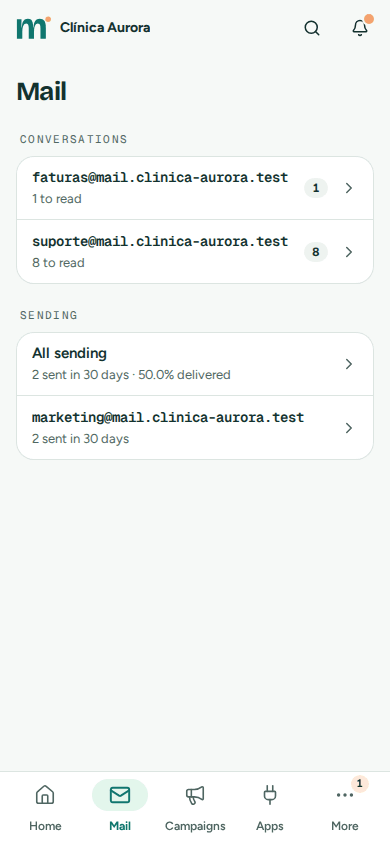 Conversations and Sending: each address opens the view that fits it
Members, the people without administrator rights, get Inbox and More: the addresses they were given, and their own account in Settings.
On a phone or tablet
On screens narrower than 1024 px:
- The top bar shows your organization's name (it opens Home), a search button that opens Where to? and, for administrators, Notices, with a dot when a notice is open.
- The tab bar, at the bottom, holds your organization's main places (above).
- More, the last tab, lists every other place you can open, each with one line saying what it is for, such as Who works here and what they can open under Team. It also has Help, Organizations when you belong to two or more (Switching organization) and, at the bottom, Your account (your name and email) and Sign out.
For administrators, the plan meter (Emails this month) sits on Home.
On a computer
From 1024 px, a sidebar on the left holds, from top to bottom:
- Your organization's name.
- Where to?, with its shortcut, Ctrl K.
- Compose: a new email from your address, or a test email when you don't use the inbox.
- Home, then your addresses (Conversations and Sending) or, when your organization only receives, Inbox and Activity. Each address shows its unread conversations, or a mark when it needs you; the address you have open shows its boxes (Inbox, Sent, Archived, Spam) underneath (Addresses and boxes).
- The Campaigns group, for administrators: Newsletters, Automations, Contacts, Forms and Templates.
- The Manage group: Apps, Activity, Addresses, Team, Plan, Notices and Settings, with any other place you can open. Notices shows how many notices are open.
- The plan meter, Emails this month: the emails your organization sent and received this month against your plan. It opens Plan (Plan and limits).
- The account menu, under your name: Organizations (when you belong to two or more), Account and settings, My agents (when your organization allows personal tokens), Language, Help and Sign out.
Where to?
Where to? takes you to any screen or action by typing. Open it with Ctrl K (⌘ K on a Mac) from anywhere in the app, with the Where to? button in the sidebar, or with the search button on a phone. Type a few letters, then choose with the arrow keys and Enter, or with a tap. Ctrl K again, or Esc, closes it.
It has three groups:
- Go to: every place you can open, All sending included.
- Do: the common actions.
- Inboxes: your addresses, to open one directly.
| Action | What it does |
|---|---|
| Compose | Writes a new email from your address, or opens the test email when you don't use the inbox. |
| Add an address | Opens New address (New address). |
| Connect an app | Connects an app and gives you its API key (Apps and keys). |
| Get events in my system | Sets up an app's webhook (Webhooks). |
| Connect an AI agent | For administrators, asks who the agent works for: the organization, or you. For anyone else, opens My agents (AI agents). |
| See the calls of my apps and agents | Opens Requests: every call your apps and agents made, with its result (Requests). |
| Move over from Postmark | Opens the guide for code written for Postmark (Moving from Postmark). |
| Move over from SendGrid | Opens the guide for code written for SendGrid (Moving from SendGrid). |
| Move over from Mailgun | Opens the guide for code written for Mailgun (Moving from Mailgun). |
| Invite someone | Opens the invitation in Team (Invite someone). |
| Send a test email | Sends one email as you, to check an address or your content (Test email). |
| Use the light theme, Use the dark theme, Follow the system theme | Switches the theme on this device. |
| Open the manual | Opens this manual. |
You see only the places and actions your role allows.
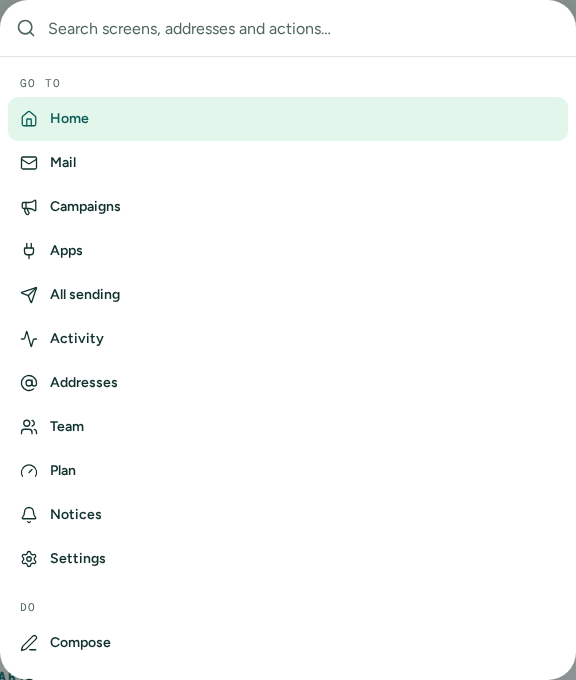 Where to?: places, actions and your inboxes, by typing
Switching organization
One Mailroomly account can belong to several organizations, for example one for each client you run email for. You work in one at a time, and see only its addresses, conversations, apps and people.
When you belong to two or more:
- On a computer, the account menu lists them under Organizations, with a check on the one you're in. Choose another to switch.
- On a phone, More lists them under Organizations, the same way.
Switching says You're now in
To open another organization of your own, for a new client for example, choose New organization in the account menu, or in More on a phone: name it, accept the terms on its behalf, and you are its administrator, on Free, in its Home. You join someone else's organization when one of its administrators invites you (Inviting someone), and you leave one in Settings › Organization (Leaving an organization). An AI agent token belongs to the organization you created it in, and works only there (AI agents).
If you leave your last organization, Mailroomly says you're not in an organization right now: create one of your own there, or wait until an administrator invites you again.
Roles
What you see depends on your role. Places you cannot use are hidden, and the server refuses them anyway.
| Role | Can |
|---|---|
| Member | Use what an administrator gave them: addresses in the inbox, with Read only or Read and reply, the domains and apps they run with their All sending and Activity, and Campaigns (What each person can reach). Manage their own account in Settings, including their own AI agents when the organization allows personal tokens. |
| Administrator | Everything in the organization: Home, every address in the inbox, Activity, Sending, Campaigns, Addresses, Apps, Team, Plan, Notices and Settings. |
An organization always keeps at least one active administrator. To change someone's role, see Roles.
The Mailroomly team reviews new organizations, sets their plans and limits, and keeps the platform's sending healthy. They never read your mail: your organization's own screens show No access to them.
Language
The web app is in English and in Portuguese (Portugal). Until you choose, it follows your browser: Portuguese when your browser prefers Portuguese, English otherwise.
- Settings › Your account › Language: Same as browser, Português (Portugal) or English, then Save changes.
- On a computer, the account menu's Language switches at once.
Your choice is saved to your account and follows you to every device you sign in to. Same as browser goes back to following each browser. The sign-in pages have their own PT / EN switch. The emails Mailroomly sends you, such as password resets and notices, are in your language.
Theme
Mailroomly follows your device's light or dark theme until you choose. In Settings › Appearance, choose Same as device, Light or Dark; the choice is remembered on that device. Where to? switches it too.
Help
This manual is one step away wherever you are:
- On a computer: the account menu › Help.
- On a phone or tablet: More › Help.
- Anywhere: Where to? › Open the manual.
Developers will find the API references in REST API, Webhooks and MCP server.
Links and bookmarks to the screens of earlier versions, such as the dashboard, the message log or the administration pages, open the matching screen today.