Newsletters
Write a newsletter in your brand's design or in your own HTML, send it now, later or spread over a few hours, and see who received, opened and clicked it. This page is for administrators.
A new newsletter
Campaigns › Newsletters › New newsletter asks what to start from: a blank email, one of the designs (Newsletter, Announcement, Plain note), one of your templates, or a newsletter you sent before. Then the newsletter's page has four parts, filled in with what most newsletters use:
- To: Everyone who can be emailed, with how many people that is, or one or more of your lists. Someone on two of the lists gets it once.
- From: the address it comes from (your sender details' address the first time), the name people see, and Replies go to, where answers arrive as conversations.
- Content: the subject, the preview line inboxes show after it, and the email itself, with Edit (Writing the email).
- When: Now or Later, at a date and time in your time zone, and Spread over a few hours (below).
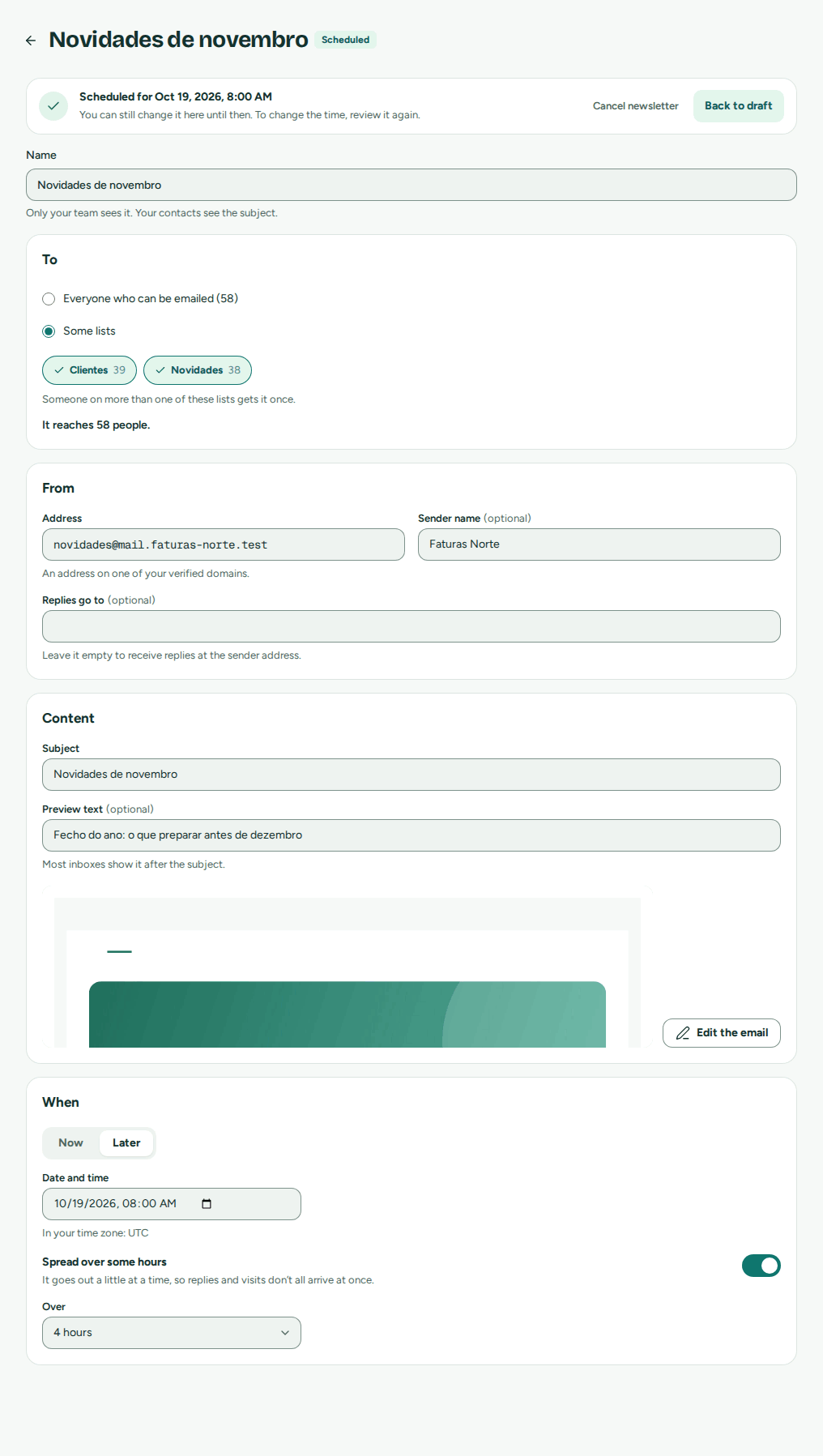 To, From, Content and When, filled in with what most newsletters use
Everything is saved as you go. Send a test sends it to you, or to up to five addresses, with a contact's fields filled in; tests don't count in the results.
Spreading a newsletter over a few hours
Spread over 2, 4, 8, 12 or 24 hours sends the newsletter little by little instead of all at once: the first people get it at the start, the last at the end, at an even pace. Spread a large newsletter when your website or your team would get many visits or replies at once, or to keep a new domain's sending steady. Pausing a spread newsletter stops its clock: when you resume, it carries on at the same pace.
Review and send
Review shows, before anything goes out:
- who it reaches: how many people, and how many are left out because they unsubscribed, are blocked or haven't confirmed yet. While your organization is new, a newsletter goes out over a few hours, 100 people first (The marketing warm-up);
- the emails left this month, against how many it sends;
- what needs fixing first, each with the way to fix it: the postal address in your sender details, a plan with marketing sends, the terms of service, a DMARC record for the sender's domain, a domain still being verified, an audience nobody can be emailed in, or a subject or content missing.
The button names what happens: Send to 1,198 people, or Schedule for 21 October, 09:00, and asks you to confirm. A scheduled newsletter can be brought back to a draft until it starts.
While it goes out
The newsletter's page shows how far it is: 612 of 1,198, and for a spread newsletter until when. Pause stops it (emails already on their way still go), Resume carries on, and Cancel stops it for good: the people not reached yet don't get it.
A newsletter pauses on its own, and tells you, when something stops it from sending: this month's emails run out, the domain's marketing is paused, or a check it passed at the start no longer holds. The page says why and how to fix it, and you get a notice (Notices).
A newsletter started by an app or an AI agent waits 15 minutes first: the page says Started by an AI agent. It begins at 09:15, unless an admin cancels it., with Cancel and Send now (Marketing from your apps and agents).
Results
Once it starts, the newsletter shows:
- Delivered, Opened, Clicked and Unsubscribed, each with its share, and the bounces and complaints. Opened and clicked count people, not opens.
- The links people clicked most, without what follows the
?in their addresses. - The recipients, filtered by what happened: delivered, opened, clicked, bounced, complained, unsubscribed, not sent or waiting. Each one opens its email's page, with its timeline (A send's page).
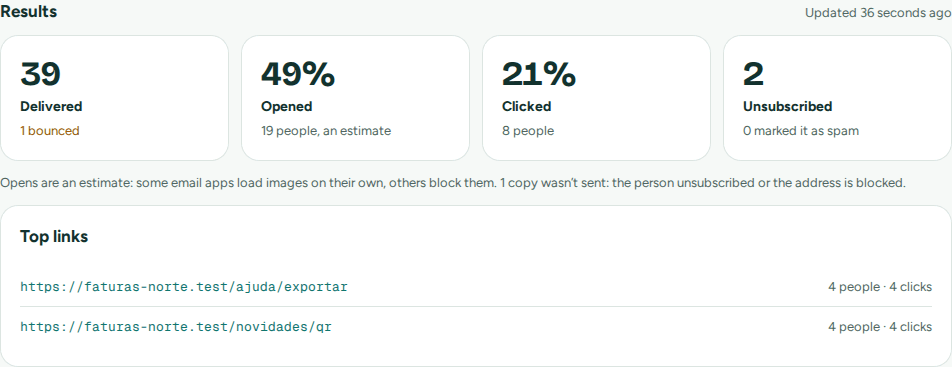 Delivered, opened, clicked and unsubscribed, as shares of who received it
The figures are updated every minute or so while it goes out, and for a week afterwards.
Note
Opens are an estimate. An open is counted when the person's mail program loads a tiny image: some programs load it on their own, others block it. Clicks are exact.
Writing the email
Edit opens the editor, full screen: the email on one side, and on the other the preview as people will see it, on a computer or a phone, light or dark. On a phone, Edit and Preview switch between the two.
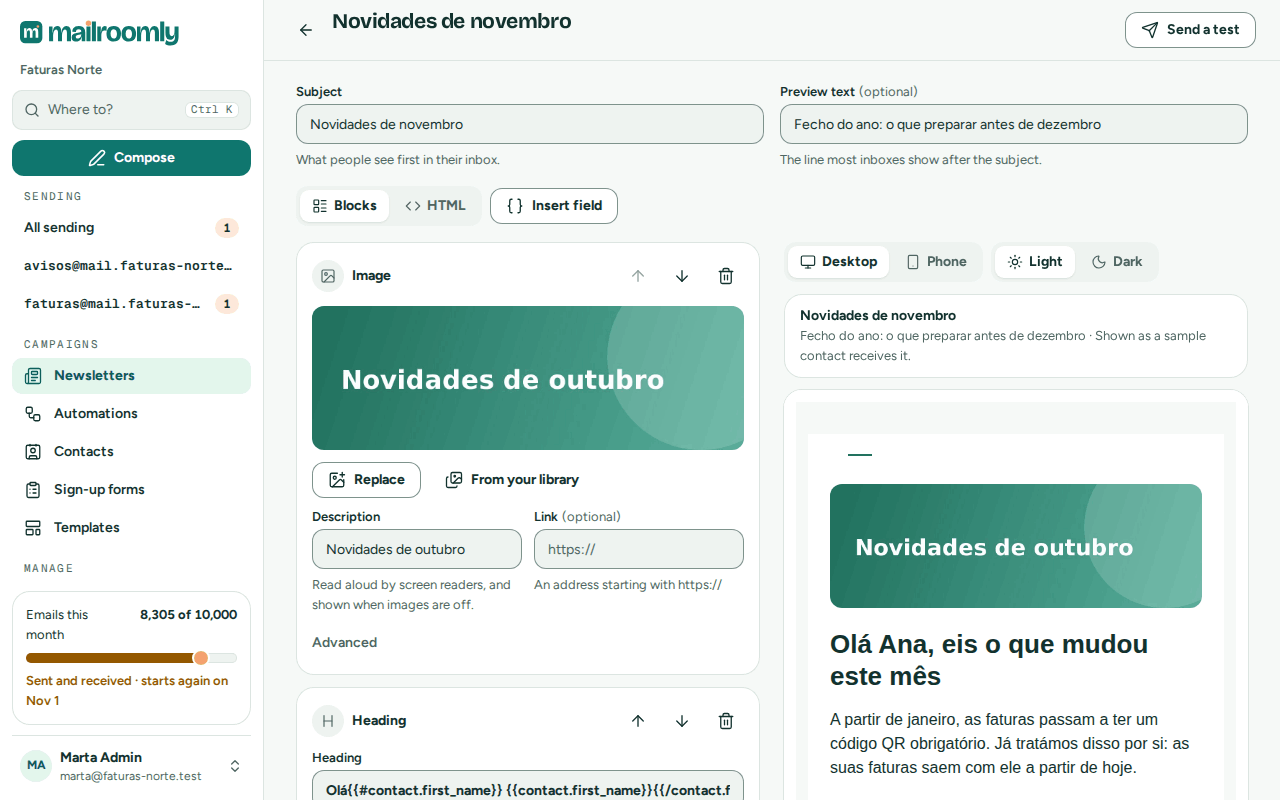 The blocks on one side, the preview on the other
The email is made of blocks, in your brand's design: Heading, Text, Button, Image, Divider and Space. Add block adds one; Move up and Move down reorder them; each one is edited where it is. The footer, with your organization's name, postal address and the unsubscribe link, is added on its own; on Free, a small Sent with Mailroomly line goes below it (“Sent with Mailroomly” on Free).
Personal fields
Insert field puts a contact's first name, last name, email or one of your own fields in the subject or the text, such as Hi Ana. For the first name, choose what shows when a contact has none (Hi there). Your emails can use the fields of your apps' templates too (Templates).
Images
Drop an image into an image block, paste it, or pick it from your computer or your Image library. Mailroomly prepares it for email:
- turned the right way up, as the photo was taken;
- at most 1,200 pixels wide, sharp on high-resolution screens;
- its hidden details removed (camera, location);
- saved in the smaller format, and the editor says what it saved: Optimized: 2.4 MB → 180 KB.
JPEG, PNG, GIF and WebP images are accepted, up to 10 MB each; an animated GIF up to 2 MB stays as it is. Your organization can keep 1 GB of images. Images are hosted by Mailroomly, at an address only your emails know.
Warning
Deleting an image from the library breaks it in every email already sent that shows it.
Your own HTML
HTML instead of Blocks lets you paste the email's full HTML, for example a design your agency made or one your AI agent wrote. The preview shows it next to the code. Mailroomly removes what email programs don't run (scripts, forms) and keeps your styles. Put {{unsubscribe_url}} where your unsubscribe link goes; if your HTML has no unsubscribe link or no postal address, the standard footer is added, and the editor says so. On Free, the Sent with Mailroomly line is added at the end whatever your HTML holds.
Templates
Campaigns › Templates keeps the designs you start from: New template begins from one of Mailroomly's designs or from blank, in the same editor. A template is saved as you go, and can be duplicated or deleted.
A template is also what your apps send with. Under Advanced, give it an alias, such as welcome: your app sends it by that alias, with the values its fields take, through the REST API (templateAlias and model), the Postmark-compatible API (TemplateAlias and TemplateModel) or MCP (Postmark compatibility). A template your app sends can use any field of its own, such as {{order.number}}.
Starting a newsletter from a template copies it: changing the template later doesn't change newsletters already made.
Ask your agent
An AI agent can prepare and send newsletters with its token's Prepare campaigns or Send campaigns (Let your agent administer the organization):
In the web app
New newsletter, choose the lists in To, write it, Review, then Send to … people.
Ask your agent
"Write October's newsletter about the new opening hours, with the photo I attached, and send it to the Clients and Newsletter lists over four hours." The agent uses upload_image, create_newsletter with the final HTML and the lists by name, send_newsletter_test to you, and send_newsletter with spreadHours: 4. It waits 15 minutes while administrators can cancel it.