Sending
See whether the email your apps send goes out and arrives, what failed and what to do about it, and find any one send in seconds, with its whole history.
Your addresses, in one menu
Mailroomly lists each of your addresses by what it does:
- Conversations: the addresses that receive email, like
support@. Each opens its inbox, where you and your agents answer (Inbox). - Sending: All sending, then each address that only sends, like
no-reply@ororders@. Each opens its sending view, on this page.
An address that receives keeps all its mail in its conversations, even the emails your app sends from it. An address that only sends, and an address your app sends from without setting it up, belong to Sending.
On a computer, both groups are in the sidebar, under Home. On a phone, open Mail: it lists them the same way. An organization that only sends opens on All sending; one that only receives keeps Inbox in its tab bar, as before (Finding your way).
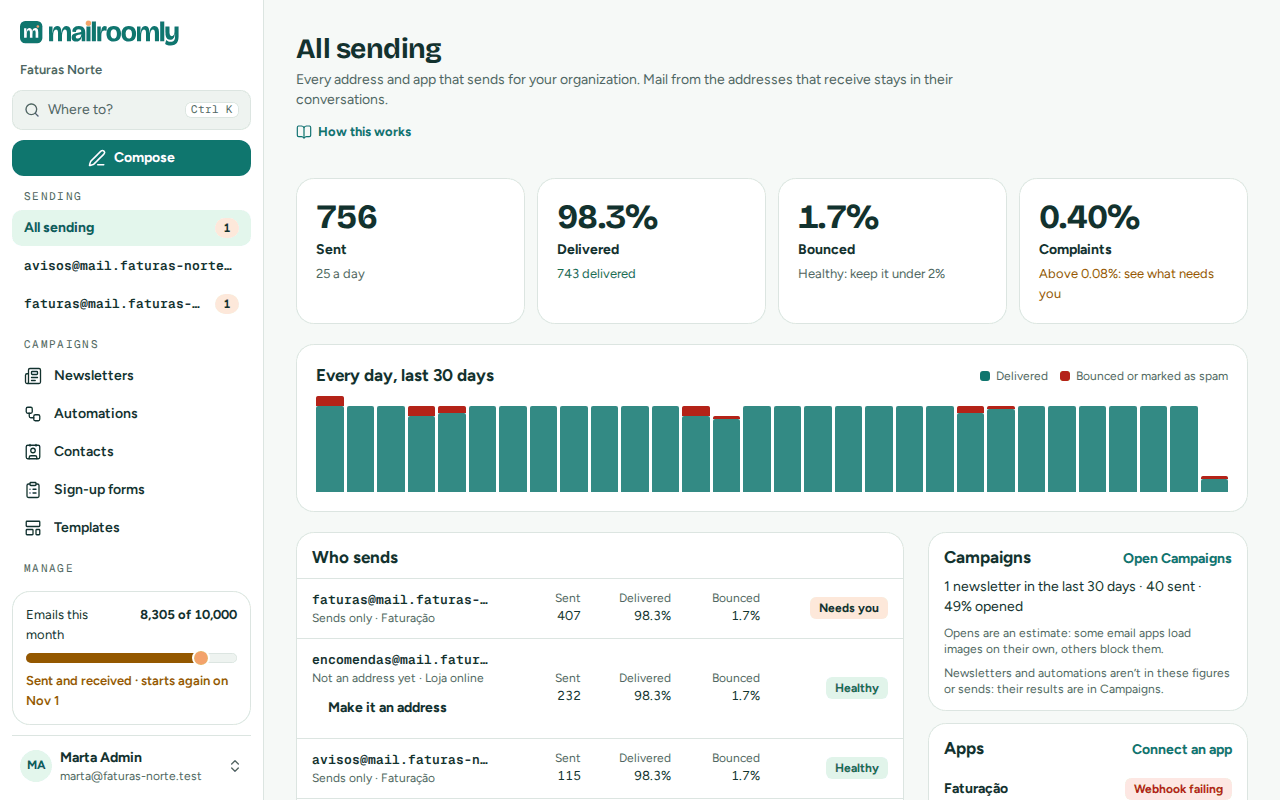 All sending: the last 30 days, who sends, what needs you
All sending
All sending covers every send that isn't from an address that receives. From top to bottom:
- Waiting to be sent: for administrators, while email waits in the queue, how much of it per type of email, with Cancel… (Canceling what is waiting).
- Last 30 days: how many were sent, and how many were delivered, bounced or marked as spam (Complaints). Bounces and complaints say whether they are healthy: under the level at which your sending would be reviewed, shown on each card.
- Every day, last 30 days: a bar per day, what was delivered and what bounced or was marked as spam.
- Who sends: each sending address with its last 30 days and its apps; one that sent only before then shows 0. An address your app sends from without setting it up says Not an address yet, with Make it an address: it becomes one of your addresses, sending only, with its own settings.
- Needs you: what needs a person, each with what to do (Needs you).
- Apps: each app with its keys, its last request, and whether its webhook or its calls are failing (Apps and the API).
- Domains: each domain and whether it is verified.
- Blocked addresses: how many, and why (Blocked addresses).
- Every send: the sends of every sending address, to search (Finding a send).
A sending address
Open an address under Sending to see the same for it alone: its last 30 days against the healthy levels, a bar per day, what needs you and every send it made. Address settings opens its settings; Send a test sends a test email from it (Send a test email).
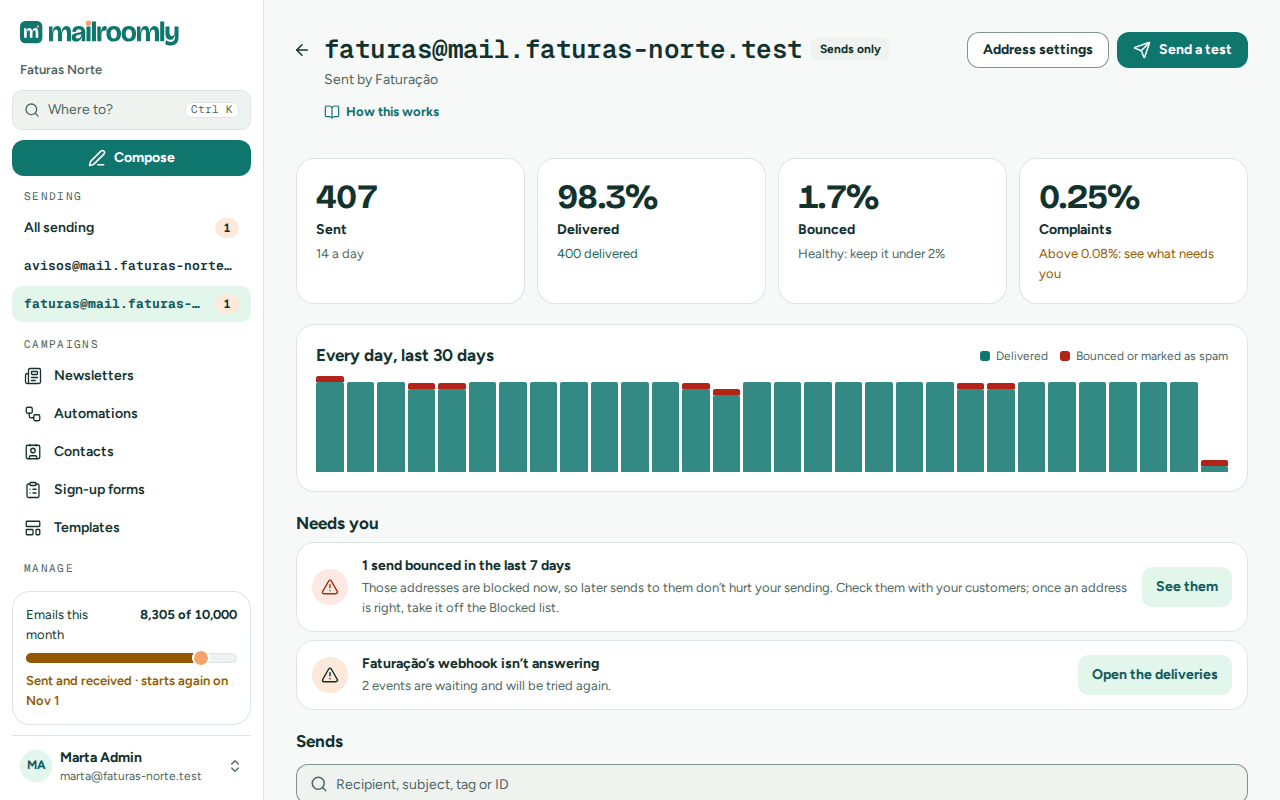 One address: its figures, what needs you and its sends
Needs you
| Notice | What to do |
|---|---|
| Sends bounced in the last 7 days | The addresses don't exist or refuse mail. They are blocked now, so later sends to them don't hurt your sending. Check them with your customers; once an address is right, take it off the Blocked list and send again. |
| People marked your email as spam | They are blocked from now on. Send only what people asked for, and make it easy to stop. |
| Sends couldn't go out | Open one to see why, then send it again once it's fixed. |
| An app's webhook isn't answering | Its events wait and are tried again. Fix the address your app listens on, then send the ones given up again (Webhooks). |
| Calls from an app failed in the last hour | Each failed call says why (Requests). |
| A domain is waiting for its DNS records | Nothing sends from it until they are in (DNS records). |
Finding a send
Every list of sends has one search and a few chips, applied at once:
- Search: a recipient, a subject, a tag or an ID. A whole address finds the mail to or from it exactly.
- State: Accepted, Sent, Delivered, Opened, Delayed, Bounced, Not sent or Blocked (The route of a send).
- App: the sends of one app.
- Tag: the sends with one tag, exactly as your app set it. Type it, or pick one of the tags on the sends shown.
- Type: transactional or marketing.
- Period: today, the last 7, 30 or 90 days, or Pick days for a range of days. A search always covers a period; the last 30 days at first.
What you choose stays in the page's address, so a link or a bookmark opens the same list. Each send opens its page, and Back returns to the list as you left it.
In the web app
Open All sending, or a sending address, and use the search and the chips under Sends.
Ask your agent
"Find the emails we sent to ana@example.com this week." The agent uses search_messages, with from for one sending address, or appId for one app.
Send it again
A transactional email you sent can be sent again from its page: Send it again, then choose who gets it.
- The same recipients: the same email, with its attachments, as a new send. A reply stays in the same conversation in the recipient's email program.
- A corrected address: the email goes to the address you type, and only to it. A send that bounced opens on this choice, with the address that bounced ready to correct; that address stays blocked.
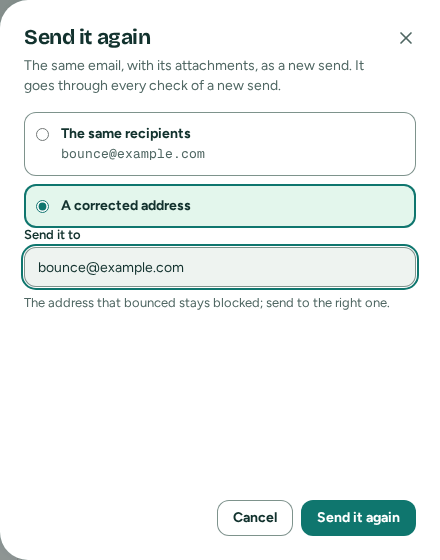 A send that bounced: the corrected address is ready to edit
The new send goes through every check of a new send, and says it repeats an earlier one; the earlier one links to it. Marketing emails, emails still going out and received mail can't be sent again, nor an email whose content is no longer kept (How long mail is kept).
In the web app
Open the send, then Send it again.
Ask your agent
"Send the order confirmation for order 10482 again, to ana.silva@example.com." The agent uses search_messages, then resend_message.
Canceling what is waiting
Email waits to be sent while its type of email is paused, while your organization is at a limit, or while a large send goes out. An administrator can cancel it, for one type of email of a domain or for all of it.
- Waiting to be sent, at the top of All sending, shows how many emails wait, per domain and type of email, while any do. Cancel… cancels one type; Cancel all… cancels everything.
- On a domain's page, each type of email that has email waiting shows how many, with Cancel….
You confirm how many emails you cancel. Those emails are never sent: they show as Canceled in Activity, with who canceled them, and they don't count in this month's emails (unless that month was already billed). What stays:
- an email being sent at that moment still goes;
- email that arrives after you cancel waits as usual;
- for a marketing email to several recipients, the recipients it reached before it was canceled;
- campaign copies, which you cancel in Campaigns (Campaigns);
- email from an address that receives, like
support@: it belongs to its conversations, as on the rest of All sending.
Pausing holds email until you resume it (Domain settings and types of email); canceling stops it for good and can't be undone. An app that wants to know subscribes to the Canceled while waiting to be sent event of its webhook (Webhooks).
In the web app
Open All sending, then Cancel… next to a type of email, or Cancel all….
Ask your agent
"Cancel everything waiting to be sent for the marketing email of shop.example.com." The agent uses get_queue, then cancel_queued. It needs a personal token with Manage domains, and every administrator gets a notice (Queued email canceled by an AI agent).
First steps for sending from your app
An organization that sends from its app sees Send from your app on All sending until its app has sent:
- Connect your domain, so your email arrives as you (Your own domain).
- Add the address you send from, sending only (New address).
- Connect your app and get its key (Apps and keys).
- Send your first email from your code: run the code shown, with your key. The step is done as soon as the email is accepted.
- Get events in your system with a webhook (Webhooks).
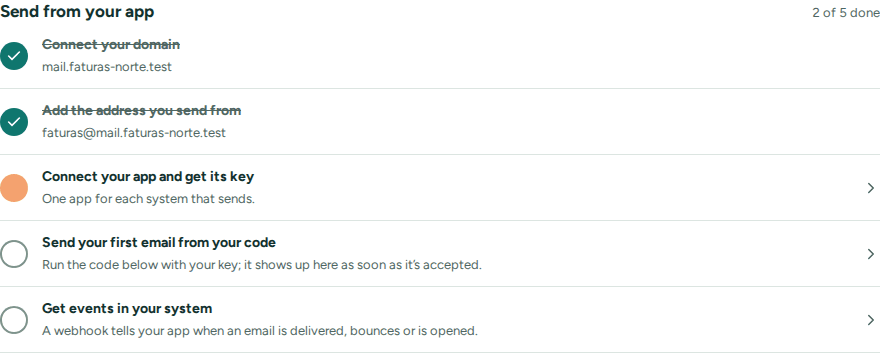 Each step done shows as done; the next one opens where it is done
Moving from Postmark, SendGrid or Mailgun? Your code can keep working as it is (Moving from Postmark, Moving from SendGrid, Moving from Mailgun).