Team
Invite the people who work with you, choose what each one can reach, turn access off when someone leaves, and leave an organization yourself.
Team (in the Manage group of the sidebar on a computer, or in More on a phone) lists the people of your organization: their name and email, what each one Can reach, status (Active, Invited or Disabled) and Last sign-in, the last time they were in your organization. Only administrators manage the team.
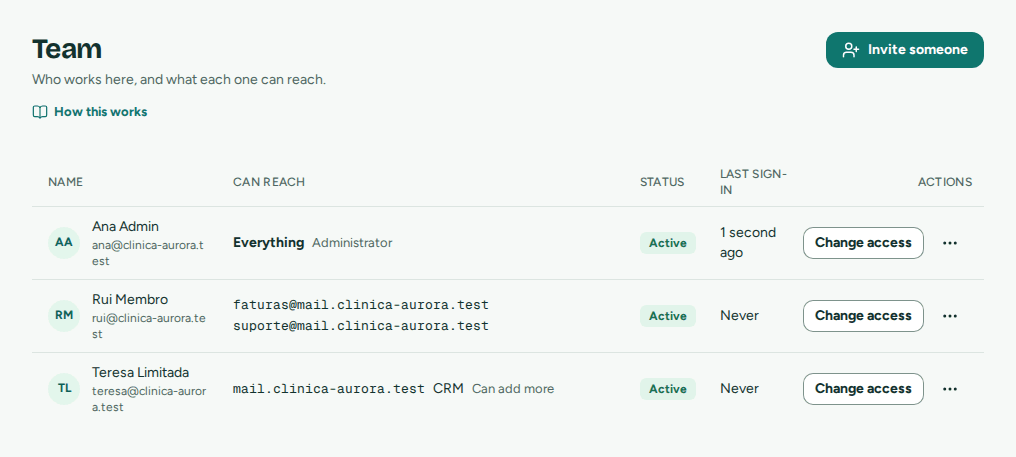 Each person with what they can reach, status and last sign-in
What each person can reach
One question decides it: Everything, or Only what you choose.
| What they reach | |
|---|---|
| Everything | An administrator: every address and its conversations, every domain and app, Activity, Campaigns, Team, Plan, Notices, and the organization's data and audit log in Settings. |
| Only what you choose | A member: nothing else in the organization shows for them. You choose any of the three below. |
Changing someone's access
Choose Change access on the person's row. The sheet ends with What they will have, which says in plain words what they get and what they don't. Save access applies it at once, with no need to sign in again.
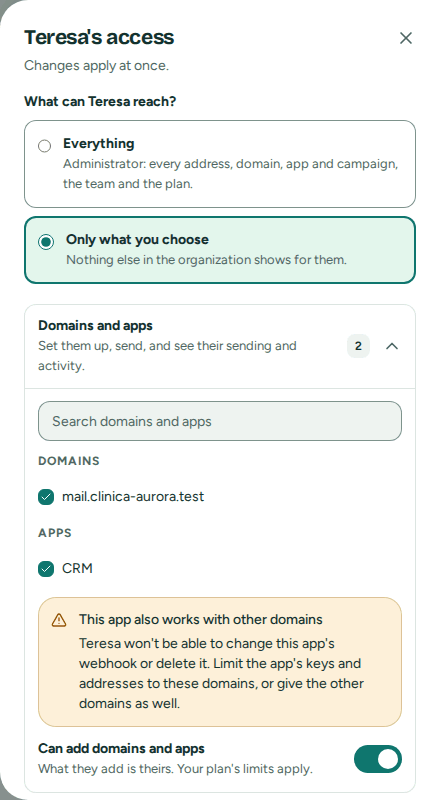 One question, three choices and what the person will have
- Domains and apps: they set these up, send tests, and see their sending and Activity. A domain comes with all its addresses and their conversations. Turn on Can add domains and apps to let them add new ones, which become theirs at once and count against your plan.
- Other addresses: addresses on other domains, each with Read only or Read and reply.
- Campaigns: No access, Prepare (up to a test) or Prepare and send. Campaigns include every contact in the organization, whatever else the person reaches. A newsletter leaves only from an address they may reply from.
Someone who reaches only a part of the organization sees a line saying so above All sending and Activity, so its figures are never read as the organization's. Settings › Your access lists what they have, and Team, Plan, the audit log and the organization's totals stay closed.
Important
An app can reach other domains: by keys that aren't limited to them, by owning an address there, or by having sent or received their mail. Then whoever you give the app to can't change its webhook or delete it, and the sheet warns you before you save. Limit the app's keys, or give the other domains as well (Apps and keys).
The organization always keeps at least one active administrator: you can't disable the last one or make them a member.
Note
Changes apply at once to the person and their AI agents. An API key they created keeps working until it is revoked: its app, not the person, holds it, and it can use your organization's templates. When you take a domain away, check that app's keys on its page.
Inviting someone
In the web app
- Open Team › Invite someone (also on Getting started, or with Ctrl K).
- Enter their Email and Name.
- Choose what they can reach, as in Changing someone's access. You can change it later.
- Choose Send invitation.
Ask your agent
"Invite Ana Silva, ana@yourcompany.com, and give her read and reply on support@." The agent uses invite_person, then set_address_access. It needs a token with Manage the team, and Manage addresses for the access (Administration scopes).
Important
An agent invites members only. Inviting an administrator, or making someone one, needs a person signed in to Mailroomly (what stays with a signed-in person).
The person receives an email, valid for 7 days, to choose a password or sign in with Google (Signing in). Until they accept, they are listed as Invited.
Someone who already has an account
People who work for several organizations, such as an agency that runs email for its clients, keep one Mailroomly account for all of them. Invite them with the email they already use: the invitation adds your organization to their account.
- The email tells them they already have an account. Its link opens Accept the invitation.
- They choose Sign in to accept and sign in as usual, with their password or with Google.
- Back on the invitation, Join
adds it next to their other organizations, and opens it.
They keep their name and their way of signing in, and switch between their organizations from the account menu (Switching organization). What they do in one organization never shows in another. Until they join, Team lists them by the name you typed in the invitation; once they join, by the name they chose.
If the invitation is opened in a browser signed in as someone else, it says so and offers Sign in as
If the invitation expired or got lost, choose Resend invitation, on their row or in their actions menu. A new link goes out and the previous one stops working. An agent can do the same with resend_invitation.
Good to know:
- An email address belongs to one person in Mailroomly, who can be in several organizations. Inviting someone already in yours is refused (This person is already in the organization.).
- Your plan includes a number of people (People on Plan). Invited and active people count; disabled people don't. On a paid plan, each person beyond those included is an extra person. On Free, invitations are refused once the limit is reached: disable someone, or contact us to change plan (Plan and limits).
Changing someone's name or role
In the person's actions menu, Edit name changes their Name; save with Save. To make someone an administrator, or a member, choose Everything or Only what you choose in Change access. Someone who also belongs to another organization keeps the name they chose: only they change it, in Settings. While they are still Invited, Edit changes the name your organization knows them by until they join.
Going from Everything to Only what you choose, or the other way round, signs them out of their sessions in your organization and revokes their AI agent tokens for it: they sign in again and create new tokens with what their new role allows. Their other organizations are not affected. Every change to your team, and who made it, is in the audit log.
Important
Making someone an administrator, or changing an administrator's role, needs a person signed in to Mailroomly. An agent never changes roles: with
update_person, it changes names, and disables or enables members.
AI agent tokens
Each person's actions menu also has:
- AI agent tokens: the tokens they created for their own agents and scripts, with when each was last used and when it expires. Revoke stops one at once. A token that administers the organization is marked, so you can revoke one you don't recognize (AI agents).
Disabling and enabling someone
When someone leaves, or should stop using Mailroomly for a while:
- In their actions menu, choose Disable.
- Confirm in Disable
? .
At once, they can no longer work in your organization and their open sessions in it end. Every AI agent token they created for it is revoked and stops working. Their conversations, the replies they sent and their access to addresses stay, so nothing is lost for the rest of the team. API keys belong to apps, not to people, so the apps they set up keep sending. If they also belong to other organizations, those stay as they are.
You can't disable yourself, nor the last active administrator.
Enable, in the same menu, lets them sign in again with their access to addresses as before. Their old tokens stay revoked: they create new ones. Enabling someone takes a place in your plan's People again, so it is refused when the plan is full.
An agent can disable or enable members with update_person. Disabling or enabling an administrator needs a person signed in to Mailroomly.
Leaving an organization
Anyone can leave an organization they no longer work in, administrators included:
- Open Settings while you are in that organization (Switching organization).
- Under Organization, choose Leave
. - Confirm with Leave the organization.
You lose access to it right away: its addresses and conversations, and your AI agent tokens for it, which are revoked. If you come back later with a new invitation, those tokens stay revoked and the sessions you had open there stay closed: you sign in again and create new tokens. The conversations you handled and the replies you sent stay with the organization. Your account and your other organizations stay as they are, and Mailroomly opens the one you were in last. To come back, you need a new invitation from one of its administrators.
The last active administrator can't leave: make someone else an administrator first (Roles), or close the organization (Exporting the data and closing the organization).
Note
Leaving your last organization keeps your account: Mailroomly then says you're not in an organization right now. Open an invitation to join one again.