Campaigns and marketing
Send newsletters and automatic emails to the people who asked for them, from Campaigns or from your apps and AI agents, with the consent, unsubscribe links and warm-up that keep them welcome and delivered. This page is for administrators.
Campaigns
Campaigns is a view of its own, next to your conversations and your sending. On a computer it is a section of the menu; on a phone it is a tab, with its places across the top:
| Place | What you do there |
|---|---|
| Newsletters | Write a newsletter, send it now, schedule it or spread it over a few hours, and read its results (Newsletters) |
| Automations | Emails that go out on their own, such as a welcome series (Automations) |
| Contacts | The people you send to, your lists and imports (Contacts and lists) |
| Forms | Sign-up forms for your website (Sign-up forms) |
| Templates | Designs you start your emails from, and that your apps send with (Templates) |
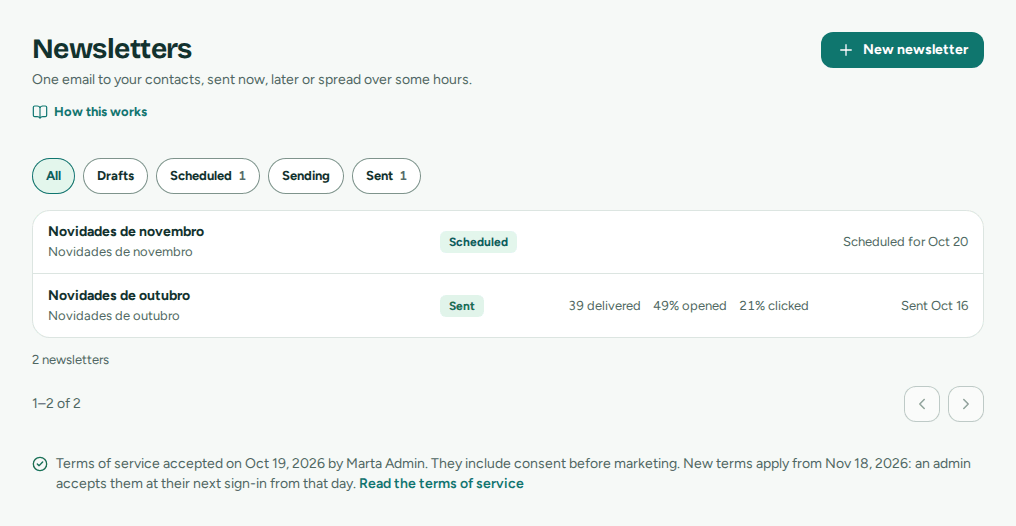 Each newsletter with its state and results, and the places of Campaigns in the menu
Administrators see Campaigns, and so do members given them (Changing someone's access). Every plan includes marketing sends, Free too; if the Mailroomly team turned them off for your organization, you can still prepare contacts, forms and templates, and sending tells you what to change in Plan.
"Sent with Mailroomly" on Free
On Free, every marketing email your organization sends ends with a small line, Sent with Mailroomly, linking to mailroomly.com. It is in the language of your sender details, it shows in the preview, and it is added to newsletters, automations, tests and the marketing your apps and agents send. Your own HTML can't remove it. Transactional email and your conversations never carry it, and paid plans don't add it.
A first campaign goes out over a few hours while your organization is new: see The marketing warm-up.
Your first newsletter
Until you send your first newsletter, Newsletters lists three steps:
- Add your contacts: import a spreadsheet, add people one by one, or put a sign-up form on your website (Contacts and lists).
- Add your sender details: your organization's name and postal address, which every marketing email shows (below).
- Create your first newsletter: start from a design, write, and send it now or later (Newsletters).
Sender details
Sender details (on Newsletters, and in Settings › Organization) say how your organization appears in marketing email:
- Organization name and Postal address: every marketing email shows them in its footer, as the law asks.
- Logo and Brand color: used by the designs, at the top and on the buttons.
- Language of the footer and confirmation emails, and the address the confirmation emails come from (Double opt-in).
A newsletter cannot be sent until the postal address is filled in.
How Campaigns connects with the rest
A newsletter's emails live in Campaigns only: they are not listed in All sending or in Activity › Sent, and they don't count in the sending figures. The other views lead to them:
- All sending has a Campaigns card with the last 30 days, and searching an address that only received newsletters says so.
- A reply to a newsletter becomes a conversation in the address it was sent from or in Replies go to, marked Reply to "…", which opens the newsletter. The person's panel shows whether they are a contact, and an administrator can Invite to the newsletter: they get an email to confirm, and nobody is added from a conversation without confirming.
- A send's page of a newsletter's email says Part of "…" and leads back to it (A send's page).
- Plan shows your contacts against your plan's limit (Plan).
- Notices tell you when a newsletter pauses, when an agent starts one, when an import leaves rows out and when you reach the contact limit (Notices).
Transactional and marketing email
Every email Mailroomly sends has a type, and each domain keeps the two apart:
| Transactional | Marketing | |
|---|---|---|
| For | Invoices, password resets, notifications, replies from the inbox | Newsletters, automations, offers, announcements |
| Opens and clicks | Not tracked by default | Tracked by default |
| Unsubscribe link | None | One per recipient, added on its own |
| Blocked addresses | Its own list | Its own list, and an unsubscribe covers all of your marketing |
| Warm-up | No | Yes, on domains that send through the platform |
| Needs | A verified domain or the free address | Your own domain, a plan with marketing sends, the terms of service accepted and, on domains that send through the platform, a DMARC record |
Keep each email in the right type. Someone who unsubscribes from your newsletter, or marks it as spam, still gets your invoices; and a newsletter that bounces a lot does not hold up your password resets. Activity shows a Marketing badge on marketing sends and filters by Type (Activity).
Marketing from your apps and agents
Newsletters, automations and the rest of Campaigns work from your apps and AI agents too:
- REST API: contacts, lists, templates, newsletters and automations (REST API). A send names a template with
templateAliasand fills it withmodel. - Postmark-compatible API:
/email/withTemplateand/email/batchWithTemplatessend your templates byTemplateAliasorTemplateId(Postmark compatibility). - MCP: an agent prepares the final email, picks the lists by name, and sends (MCP).
An app's key needs the Contacts or Campaigns permission (Apps and keys); your own agent's token needs Prepare campaigns or Send campaigns (Let your agent administer the organization).
Important
A newsletter or an automation that an app or an AI agent starts waits 15 minutes before anything goes out. Every administrator gets the notice Campaign started by an app or an AI agent, with Cancel; on the newsletter, a signed-in administrator can also Send now. An app or an agent changes drafts only: a scheduled newsletter is changed by a signed-in person, or brought back to a draft and sent again, which waits 15 minutes again.
Your apps can still send a marketing email of their own, one at a time, with the marketing type:
- REST API:
"stream": "broadcast"onPOST /api/v1/messagesor in each message of/api/v1/messages/batch. - Postmark-compatible API: a
MessageStreamthat containsbroadcast, such as"broadcast". - MCP:
send_messagewithstream: broadcast, from an agent that uses an app's API key. Personal tokens never send app email.
Tip
For a newsletter, use Newsletters: each person gets their own copy, at most once, even when they are on several of the lists. A marketing message your app sends with several recipients goes out as one copy each, but every copy keeps the full To and Cc lines.
A marketing send is refused, with the reason, when:
- the plan has no marketing sends: Marketing sends aren’t included in your organization’s plan. Contact us to change plan. (Plan);
- no administrator has accepted the terms of service yet (below);
- it comes from the free address: A free address sends transactional email only. Connect your own domain to send marketing. (Your own domain);
- its domain sends through the platform and has no DMARC record: Publish a DMARC record for the domain before sending marketing… A record of the domain itself or of its main domain counts, and
p=noneis enough to start (DNS records); - the marketing type of the domain is paused, by an administrator or automatically (Notices).
A newsletter's review lists the same reasons before you send (Review and send).
Terms of service and marketing consent
An administrator accepts Mailroomly's terms of service on the organization's behalf: the first administrator when accepting the invitation, and an administrator at their next sign-in after the terms change. The terms include four commitments for marketing email:
- marketing email goes only to people who chose to receive it, and you can show when and how they did;
- no bought, rented or scraped lists;
- every marketing email says who sends it, and every unsubscribe is honored;
- the acceptable use rules in the terms are followed.
Your organization sends marketing email only once the terms were accepted. Until then, marketing sends from Campaigns, your apps, agents and the API are refused (Marketing sends start once an admin of your organization accepts the terms of service, which include consent before marketing. An admin accepts them at their next sign-in.). Marketing already waiting to be sent stays in the queue until an administrator accepts, and transactional email is never affected. When the terms change, marketing keeps going out while an administrator has yet to accept the new version.
Newsletters and Settings › Organization data show Terms of service accepted on
Important
Only a signed-in administrator accepts the terms. An AI agent cannot accept them for the organization (What needs a signed-in person).
Unsubscribe links
Every copy of a marketing email carries its recipient's own unsubscribe link, in two places:
- In the headers. Mail programs that support one-click unsubscribe show an Unsubscribe button next to the sender. One click unsubscribes the person, with no page to visit.
- In the body. The designs of Campaigns put it in the footer, with your postal address. In your own HTML, put
{{unsubscribe_url}}(or Postmark's{{{ pm:unsubscribe }}}) where you want it: Mailroomly replaces it with the recipient's link, and adds the standard footer when your HTML has no unsubscribe link or no postal address. In transactional email these placeholders are removed.
The link opens a page on Mailroomly, in Portuguese or English as the person's browser prefers, that asks Stop receiving marketing email at …? with an Unsubscribe button. The page says that emails about their account and conversations with you keep arriving. Each link works for a year; an older one says Link not valid and points to the link in the most recent email.
When someone unsubscribes
- They leave all of your organization's marketing: newsletters, automations and the marketing emails your apps send, from every domain. The address is blocked for marketing with the reason Unsubscribed, in Activity › Blocked, where View email opens the email they unsubscribed from (Blocked addresses).
- Their contact shows Unsubscribed, and stops counting against your plan's contacts. They leave any automation they were in.
- The send's timeline shows Unsubscribed, and the newsletter's results count them.
- Your apps get an
unsubscribedevent on their webhook (Webhooks). - Their transactional email and your conversations keep arriving: invoices, password resets and replies from your addresses are not affected.
If the person subscribes again through one of your sign-up forms and confirms, they can be emailed again: confirming is their own request. Otherwise, unblock the address in Activity › Blocked only when they asked: sending marketing to people who left is the surest way to collect complaints.
Marketing warm-up
On domains that send through the platform, marketing email goes out in waves, so mailbox providers see your newsletter grow at a pace they trust:
- The first wave reaches 200 recipients.
- After a 20-minute pause, each new wave doubles, as long as fewer than 5 % of the last wave bounced as addresses that do not exist.
- From 50,000 recipients on, the warm-up is complete. It starts again after 7 days without marketing.
Emails beyond the current wave wait, shown as Accepted in Activity (for a newsletter: Waiting in its results), and go out with the next waves on their own. Plan › Sending shows where the warm-up stands (Sending trust). The warm-up and your limits can only slow a spread newsletter down, never speed it up.
If a wave bounces too much, the warm-up stops and marketing is paused: you get the notice Marketing warm-up stopped (Marketing warm-up stopped). Clean the list, removing the addresses that bounced, then ask the platform team to resume it.
Before your first newsletter
- Connect your own domain and verify it, with its DMARC record (Your own domain).
- Check that your plan includes marketing sends, in Plan.
- Fill in your Sender details, with the postal address.
- Add only people who asked for your email, with when and how they did (Contacts and lists).
- Send yourself a test, then send, and follow the results in the newsletter (Newsletters).
Good to know
- Before sending, Mailroomly checks marketing recipients on domains that send through the platform. Addresses unlikely to be delivered are refused and blocked (Refused by validation), and disposable addresses are left out. Neither counts as a bounce.
- Marketing, newsletters included, counts towards this month's emails and the daily limits like any other email (Daily limits).
- High bounce or complaint rates on marketing raise notices and can pause the marketing type of a domain, or of the whole organization (Notices).