Addresses and domains
Give your organization the addresses it needs (support@, sales@, billing@), on a free address that works today or on your own domain, and choose who can open each one.
Addresses (in the Manage group of the sidebar on a computer, or in More on a phone) lists each of your domains with its addresses underneath. A domain is verified once; every address on it works from then on. Only administrators manage addresses and domains.
Each domain shows one state:
| State | What it means |
|---|---|
| Verified | Ready: its addresses send, and receive when it is set to Sends and receives. |
| Being verified | Its records were found; the last checks or the setup are still running. Nothing to do. |
| Waiting for DNS | Its records, the DKIM record first, are not published yet. |
| Needs attention | Verification or the setup failed, or a record changed after verification. Open the domain to see what. |
The free address is marked Free. Domain settings opens a domain's page, and each address opens its own page. While your organization has no domain, the page offers Create a free address and Connect your domain.
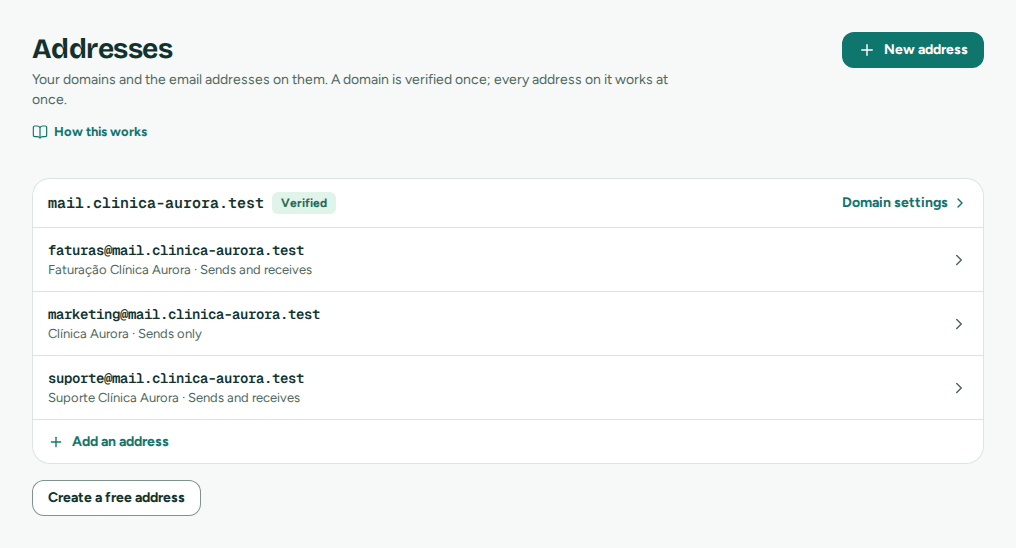 Each domain with its state and its addresses
The free address
The free address is the fastest way to start: an address on Mailroomly's own domain, <name>.<platform domain>, that sends and receives at once, with no DNS work. Each organization can have one.
In the web app
- Open Addresses › Create a free address (it is also in the New address sheet, under Need a different domain? › Use a free address, while your organization has none).
- In Create your free address, check the Name. It is suggested from your organization's name: 3 to 30 lowercase letters, digits or dashes. Common words such as
mailorsupportare reserved, and a name another organization uses is taken. - Check the full address under Your address will be, then choose Create address.
The domain and its first address are created together: hello@<name>.<platform domain> when you use Mailroomly in English, ola@… in Portuguese. It sends and receives at once. Claim your addresses, in Getting started, can create the free address too, with support@, sales@ and billing@ on it instead (Getting started).
Ask your agent
"Claim our free address as acme, then create support@, sales@ and billing@ on it." The agent uses claim_starter_address with the name you chose, then create_address for each address. It needs a token with Manage domains and Manage addresses (Administration scopes).
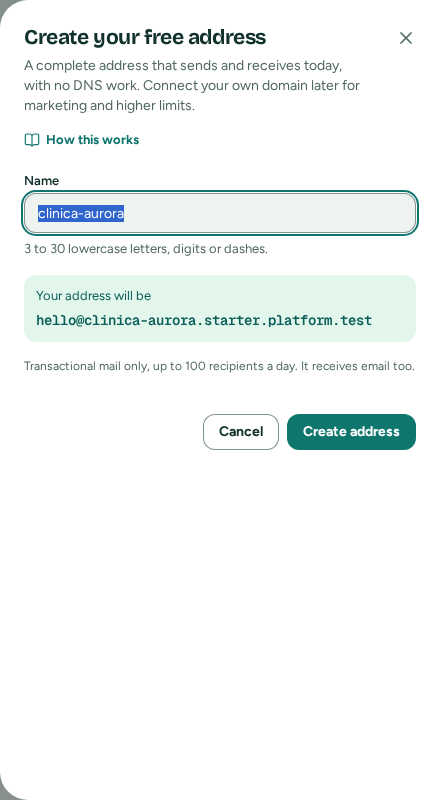 Choose the name; the full address shows as you type
What the free address does, and what it doesn't:
- Its page says DNS managed by the platform: Mailroomly publishes and maintains its records, so there is nothing to publish.
- It sends transactional email only (no marketing), to at most 100 recipients a day, whatever your organization's sending trust. The Free address line of the Sending card, on Plan, shows today's count.
- It always receives email: it stays on Sends and receives. You can create more addresses on it, as on any domain, within your plan's limit of addresses.
- Mail sent from it doesn't count towards becoming a trusted account.
- It can't use a custom tracking domain: opens and clicks are tracked through the default tracking domain.
- It doesn't count towards your plan's Own domains.
Tip
Start on the free address while your own domain waits for DNS. When you are ready for marketing email and higher limits, connect your own domain.
Your own domain
With your own domain, your addresses look like your company (support@mail.yourcompany.com), you can send marketing email, and your organization can become a trusted account.
Sending only, or receiving too
Decide first whether the domain will receive email in Mailroomly, because receiving changes where all of the domain's mail goes.
- Sending only. Any domain works, including one whose mail is hosted elsewhere. Leave Receive email off. Your existing mailboxes are not affected.
- Receiving on a subdomain, such as
mail.yourcompany.com. Use this when your main domain already has mailboxes with another email host (for example Google Workspace or Microsoft 365). Only the subdomain's mail comes to Mailroomly; your existing mailboxes keep working. Addresses look likesupport@mail.yourcompany.com. - Receiving on a dedicated domain, a domain that nothing else receives mail on. Every address of the domain is handled by Mailroomly, and addresses are short (
billing@yourcompany-billing.com).
A common setup is to send from yourcompany.com with Receive email off, and receive on mail.yourcompany.com with it on. Your apps then set the reply-to address to an address on the subdomain. To bring the mail of an address you already use, see Moving an existing mailbox's mail.
Warning
Turning on Receive email for a domain that already receives email elsewhere takes all of its mail over once you publish the MX record: its mailboxes with your current host stop receiving. If the domain already has mailboxes, use a subdomain.
Adding the domain
In the web app
- Open Addresses › Connect your domain (or New address › Need a different domain? › Connect a domain).
- In Add a domain, enter the Domain, for example
mail.yourcompany.com. - Turn on Receive email if the domain receives in Mailroomly. The sheet explains what it means; tick I understand: all mail for this domain will arrive only in Mailroomly. to continue.
- Turn on Custom tracking domain if you want opens and clicks tracked through your own domain (below).
- Choose Add domain. The domain's page opens on Connect your domain, with the records to publish.
When your organization may also send through its own account (the enterprise option), Send through chooses The platform (recommended) or that account. Otherwise the domain sends through Mailroomly.
Ask your agent
"Add the domain mail.yourcompany.com, with receiving on, and email its DNS records to dns@yourcompany.com." The agent uses add_domain, then get_domain to read the records, and email_dns_records to send them. Later, "Check mail.yourcompany.com again" uses verify_domain. It needs a token with Manage domains (Administration scopes).
Your plan sets how many own domains your organization can have (Own domains on Plan). At most 10 domains can wait for their DKIM record at once: publish their records, or delete the ones you don't use, before adding another.
If another organization also adds your domain, it doesn't stop you: the domain belongs to whoever proves it first, and only the person who controls the domain's DNS can publish the DKIM record. If the domain shows Domain already verified by another organization and it is yours, contact us.
DNS records
DNS records are short entries you publish where your domain's DNS is managed: usually the company you bought the domain from, or your web host. They tell the world that Mailroomly may send for your domain and, if you receive, where its mail goes.
While a domain waits for its records, its page opens on Connect your domain: a note saying what it waits for (Prove you own the domain, then Waiting for DNS), where your DNS is hosted when Mailroomly recognizes it, with a tip for that panel, three steps (Open your DNS panel, Add each record below, Come back here: we check every few minutes) and the DNS records.
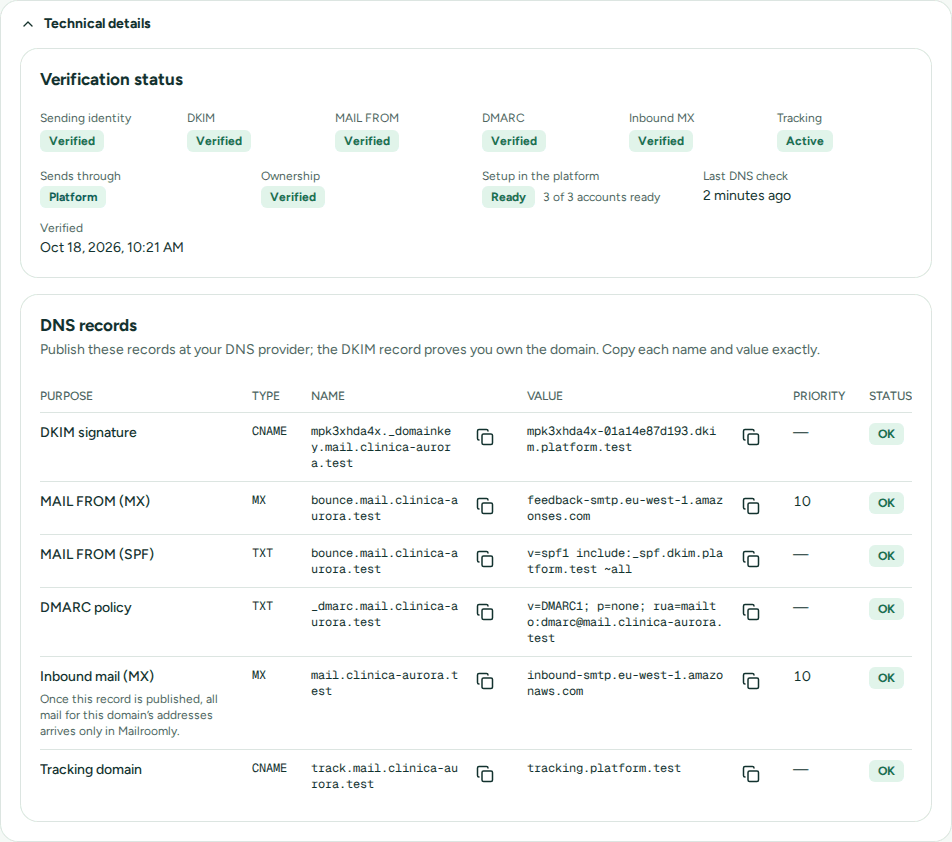 Each record with its value to copy and its status
What each record is for
Each record has a Purpose, a Type, a Name, a Value and a copy button for each. The page shows the exact values for your domain; the names below use yourcompany.com as an example.
| Purpose | Type and name | What it does | When to publish |
|---|---|---|---|
| DKIM signature | CNAME at a name ending in ._domainkey.yourcompany.com |
Signs every email Mailroomly sends for you, so receivers can check it really comes from your domain and wasn't changed. It also proves you own the domain: nothing is set up before Mailroomly sees it. | Always, first. |
| MAIL FROM (MX) | MX at bounce.yourcompany.com, priority 10 |
The return address where bounce reports come back, on a subdomain of its own. Your normal mail is not affected. | Always. |
| MAIL FROM (SPF) | TXT at bounce.yourcompany.com, starting with v=spf1 |
Says which servers may send for that return address, so your mail passes the receivers' checks under your own domain. | Always. |
| DMARC policy | TXT at _dmarc.yourcompany.com, starting with v=DMARC1 |
Tells receivers what to do with mail that fails the checks, and where to send reports. Marketing email needs one. | Only while its status is Not found. If your domain or its main domain already has a DMARC record, keep that one. |
| Inbound mail (MX) | MX at yourcompany.com itself, priority 10 |
Sends the domain's mail to Mailroomly. | Only on a domain set to Sends and receives. |
| Tracking domain | CNAME at track.yourcompany.com |
Lets opens and clicks be tracked through your own domain. | Only with Custom tracking domain on. |
With the enterprise option, the page lists three DKIM records instead of one, and a tracking certificate record before the tracking domain.
Each record shows its status: Not found (nothing published yet), OK, or Mismatch, with what is currently published so you can compare. A record marked Changed was correct after verification and has since changed or disappeared.
Note
The suggested DMARC record starts with
p=none: receivers only report, nothing is rejected. Its reports go to the address afterrua=mailto:. Change it to an address someone reads, or create that address in Mailroomly. Once the reports look clean, you can move to a stricter policy.
Publishing the records
- Open your DNS panel, at the company that manages your domain's DNS.
- Add each record with the type, name and value shown, copied exactly. Use Copy all to put every record on your clipboard, one per line, for a ticket or a chat.
- Come back to the domain's page. It checks again every 30 seconds while it is open, and Mailroomly also checks every 5 minutes on its own. Check again checks at once.
Tips that avoid most problems:
- Many DNS panels add your domain to the name on their own. If yours does, enter only the part before your domain:
bouncerather thanbounce.yourcompany.com(orbounce.mailin the zoneyourcompany.comfor the domainmail.yourcompany.com). - If your DNS panel can proxy records, keep the proxy off ("DNS only") for every record: a proxied CNAME doesn't point where it should.
- Enter the MX priority in its own field when the panel has one.
- A name can have only one SPF record. If
bounce.yourcompany.comalready has one, add theinclude:part shown on the page to it instead of adding a second record. - For Inbound mail (MX), replace the domain's other MX records instead of adding this one next to them. While another MX record remains, the domain's mail would be split between two systems, and the record stays pending.
Sending the records to whoever manages your DNS
If someone else manages your DNS (a colleague, an agency, your web host), choose Send by email on the domain's page, enter Their email and choose Send the records. They get every record and how to add it, in your language. The same records can be sent at most 5 times an hour per domain, and there is nothing to send for the free address or once every record is in place.
Verification and what to do while waiting
Most DNS panels publish a record within minutes. Some take a few hours, and at worst up to 48 hours. Then:
- Ownership. Once Mailroomly sees the DKIM record, the domain is yours.
- Setup in the platform. Mailroomly prepares the domain for sending, from a few seconds to a few minutes, with its progress (for example 2 of 3 accounts ready).
- Verified. The domain is ready: you can create addresses on it and send. The other records (MAIL FROM, DMARC, the inbound MX, tracking) keep their own status under Technical details and are checked the same way.
While anything is still being checked, the page says Everything is checked automatically. with when it last checked. You can close the page: Mailroomly keeps checking, and Addresses shows Verified once it is done.
While you wait, you can start on the free address, invite your team (Team) and connect your agents (AI agents). Addresses can only be created on a verified domain.
Technical details, folded at the bottom of the domain's page, holds the Verification status (each check, how the domain sends, the last DNS check and when it was verified) and, once the domain no longer waits for DNS, the DNS records table.
Warnings the domain's page may show:
| Warning | What to do |
|---|---|
| This domain already receives email elsewhere | Its MX records point to another email host. Don't turn on receiving for it; use a subdomain such as mail.yourcompany.com. |
| A DMARC record already exists | Keep the existing record (it may come from the main domain); don't publish a second one. |
| DNS records or verification changed | A record that was correct changed or disappeared, or the domain is no longer verified (check its DKIM record). Fix it to avoid delivery problems. A notice is raised too (DNS records changed). |
| Setup failed in one of the platform’s accounts | Mailroomly retries on its own. Check that the DKIM record is still published; contact us if it persists. |
| Receiving email is paused on the platform | Mailroomly is not receiving email for its domains right now and is fixing it. There is nothing to do on your side: it goes away by itself. |
| Domain already verified by another organization | Another organization proved this domain first, so it can't send from here. Contact us if the domain is yours. |
Receiving email
To receive, a domain needs to be set to Sends and receives and have its Inbound mail (MX) record published. You choose that when you add the domain (Receive email), and you can change it at any time, both ways, under What this domain does in the domain's Settings.
- Sends and receives: Mailroomly asks you to confirm with Turn on receiving, with the same explanation as when you add the domain. Then publish the Inbound mail (MX) record.
- Sends only: Mailroomly names the addresses that stop receiving, and you confirm with Stop receiving. Their conversations stay, and email sent to them no longer arrives. If the domain receives again, they resume on their own. Remove the Inbound mail (MX) record, or put your previous MX records back.
On a domain that only sends, New address offers only Sends only. An address that used to receive shows Not receiving: its domain only sends until the domain receives again.
Once the inbound MX record is published, Mailroomly files each email by its recipient: the address with that name, otherwise the domain's catch-all address, if it has one. Email to an address that doesn't exist on the domain, without a catch-all, doesn't reach anyone. Create every address you need before you point the domain's mail to Mailroomly.
Catch-all address
Under the domain's Settings, Catch-all address picks an address of the domain that receives email sent to any address that doesn't exist on it. Addresses that exist still receive their own mail. No catch-all (reject unknown addresses) turns it off.
Custom tracking domain
To track opens and clicks, Mailroomly adds a tiny image and rewrites links. By default they point to a shared tracking domain. With Custom tracking domain, they point to track.yourcompany.com over HTTPS, so links look like your own and don't share another sender's reputation. It adds one DNS record, Tracking domain.
Its status shows as Tracking, under Technical details: DNS pending (the domain's ownership must be proven and the track. record published), then Waiting for certificate (minutes), then Active. Until it is active, tracking keeps working through the default domain. If it shows Failed, read the detail below the status: Mailroomly retries a failed setup on its own; for a certificate problem, check the track. record, then turn the option off and on again.
You can turn Custom tracking domain on or off later, under the domain's Settings. The free address can't have one.
Domain settings and types of email
The domain's page also holds:
- Settings: What this domain does, Custom tracking domain and the Catch-all address.
- Types of email: each domain has two, Transactional (invoices, notifications, replies) and Marketing (newsletters), with separate statistics and blocked lists. Each shows the last 14 days: sent, delivered, bounced and complaints, with the Bounce rate and Complaint rate highlighted when they get high.
- Track opens and Track clicks are the default for the email your apps send (marketing tracks by default, transactional doesn't); an app can choose for each message. Email written in the inbox is never tracked. Opens are an estimate: an open is recorded when the recipient's mail program loads a tiny invisible image, and some programs block images while others load them before anyone reads.
- Paused stops one type of email from this domain, confirmed with Pause sending or Resume sending. While paused, its sends are refused and queued mail waits.
- While email waits to be sent, the type shows how many, with Cancel… for an administrator (Canceling what is waiting).
- A type of email can also be paused automatically when its bounce or complaint rate gets too high. Its Paused switch is then locked and says who can resume it. See Plan and limits.
- Marketing needs a DMARC record for the domain; until there is one, the marketing type says so.
Delete domain, at the bottom of the page, removes the domain with its types of email, its addresses and their conversations. Messages it already sent stay in Activity until your retention period ends. Afterwards, remove its DNS records, above all an inbound MX record.
Warning
Deleting a domain deletes every address on it and their conversations, and can't be undone. An agent can't delete a domain: it needs a person signed in to Mailroomly.
New address
In the web app
- Open Addresses › New address (or Add an address under a domain, or Ctrl K).
- Enter the Address (the part before the @) and choose the Domain. Domains that are not verified yet are listed but can't be chosen.
- Under What it does, choose Sends and receives (replies come to the inbox; good for
hello@orsupport@) or Sends only (for notifications, such asno-reply@). Receiving needs a domain with Receive email on. - For an address that receives, tick under Who answers the members who answer it. They get Read and reply at once. Administrators see every address anyway.
- Optionally, under Advanced, set the Name people see, for example Yourcompany Support.
- Choose Create address. The address's page opens with its Next steps.
Ask your agent
"Create support@, sales@ and billing@ on mail.yourcompany.com, shown as Yourcompany Support, Sales and Billing." The agent uses create_address for each one (sends and receives by default) and update_address to change one later. It needs a token with Manage addresses (Administration scopes).
Your plan sets how many addresses your organization can have (Addresses on Plan).
The address's page
From top to bottom:
- The address, with Copy and Open inbox.
- What this address does, in one sentence: Sends and receives, Receives only or Sends only (replies to it are not received), and the app that sends from it, if any.
- Next steps, right after you create it: send it a test email, choose who answers and open the inbox (for a sends-only address: connect an app to send from it, send a test email, choose who can send from it). Hide puts them away.
- Who answers (for a sends-only address, Who can send from it): who can open the address (below).
- Details, with Edit: the settings below.
- For developers, folded: the owning app and the inbound webhook URL (Apps and API).
- Delete this address, last.
If Mailroomly support paused receiving for the address or its domain, the page says so, with how many emails were not received (Receiving paused by support).
Address settings
Details › Edit changes:
| Setting | What it does |
|---|---|
| Display name | The name shown as the sender, for example Yourcompany Support. |
| Direction | Sends and receives, Receives only or Sends only. Receiving needs a domain set to Sends and receives. |
| How long an agent may hold a conversation | For an address that receives: how long an AI agent that picks up a conversation has to answer it before it comes back to Needs you. 15 minutes, 30 minutes (the default), 1 hour, 4 hours, or until it replies. See When an agent picks up a conversation. |
| Signature (text) and Signature (HTML) | Under Advanced. Added to replies and new emails written in the inbox. |
Important
An address's owning app and inbound webhook URL, under For developers, send the address's mail to an app. Only a person signed in to Mailroomly sets them; an agent can't (what stays with a signed-in person).
Delete address, in Delete this address, stops receiving for the address and deletes its conversations. Messages it already sent stay in Activity until your retention period ends.
Warning
Deleting an address deletes its conversations and can't be undone. Only a person signed in to Mailroomly can delete it.
Who can open each address
Administrators see and answer every address. Someone who runs a domain has all its addresses. Other members see only the addresses they are given, each with one of two permissions:
- Read only: they read its conversations.
- Read and reply: they also reply, and write new emails from it.
In the web app
- Open the address's page from Addresses.
- Under Who answers (or Who can send from it), choose the person under User and the Permission, then Add member.
- To change someone's permission, choose another one next to their name. To take it away, choose Remove next to their name and confirm.
You can also give addresses when you create the address (Who answers) or when you invite someone (Team).
Ask your agent
"Give Ana read and reply on support@ and read only on billing@." The agent finds the person with list_people and the addresses with list_addresses, then uses set_address_access (list_address_people shows who can open an address). It needs a token with Manage addresses, and Manage the team to look people up (Administration scopes).
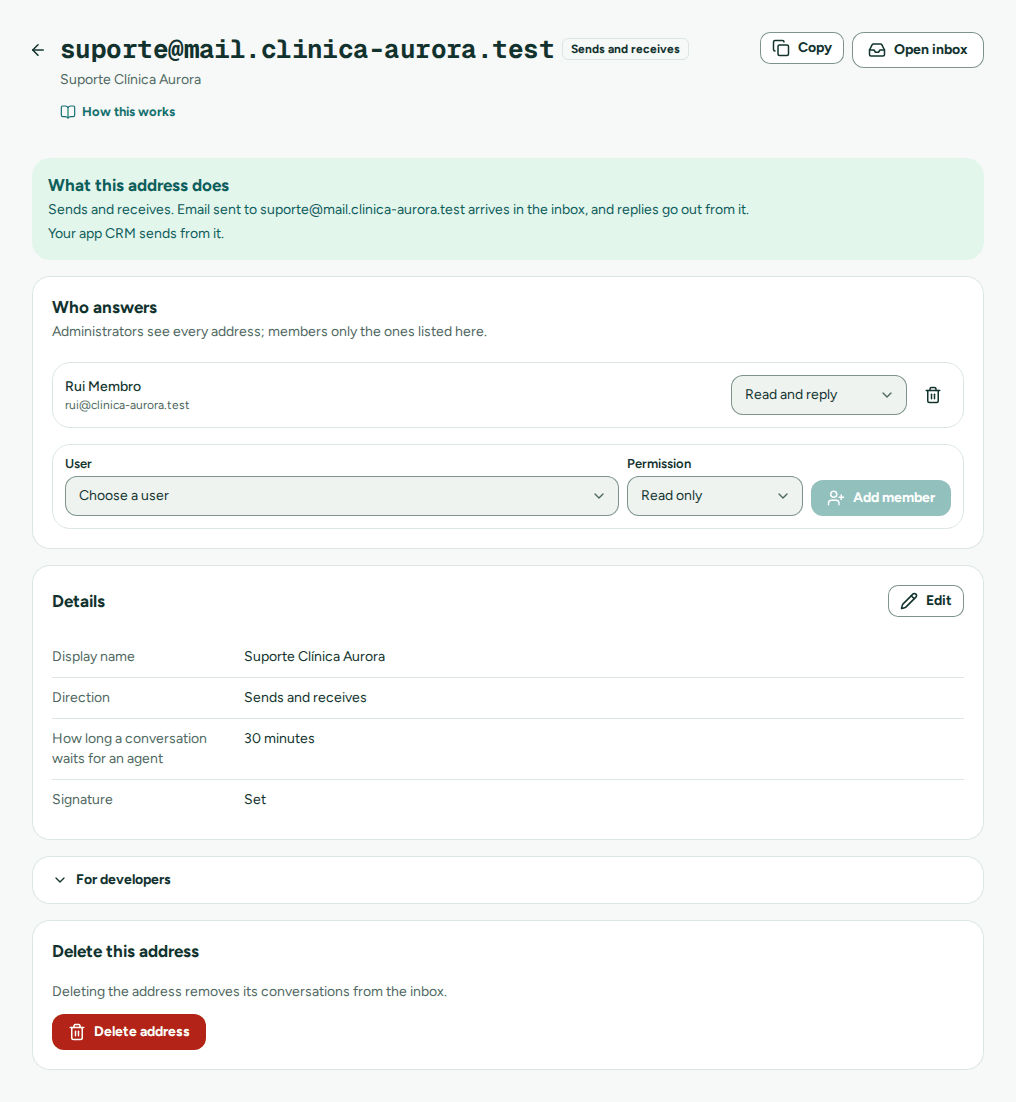 Members with their permission, and Add member
Disabled people can't be added. To see and change everything one person reaches, use Change access in Team (Changing someone's access).
Moving an existing mailbox's mail to Mailroomly
If your company already receives mail at an address, such as support@yourcompany.com with another email host, you can have that mail answered in Mailroomly. There are two ways.
| Forwarding | Pointing the domain to Mailroomly (MX) | |
|---|---|---|
| How it works | Your current host keeps receiving and forwards each email to a Mailroomly address. | The domain's MX record points to Mailroomly, which receives all of its mail. |
| What changes for other mailboxes | Nothing. | Every mailbox of the domain with your current host stops receiving. |
| Replies go out from | The Mailroomly address (for example support@mail.yourcompany.com, or your free address). |
The same address customers already write to. |
| Best for | A domain that also has people's own mailboxes. | A domain, or subdomain, used only for shared addresses. |
Mailroomly receives new mail only: messages already in the old mailbox stay there.
Forwarding
- In Mailroomly, create the address that will receive the mail, on a domain set to Sends and receives (a subdomain such as
mail.yourcompany.com) or on your free address. Give it a clear Display name. - In your current email host, set the old mailbox to forward every email to the Mailroomly address. Many hosts first send a confirmation email to the new address: it arrives in that address's inbox in Mailroomly, where you can open it.
- Send a test email to the old address from an outside address, and check that it arrives in Mailroomly.
Customers keep writing to the old address. Your replies come from the Mailroomly address, and their next replies go straight to it.
Pointing the domain to Mailroomly
Follow this order so that no email is lost:
- Check what receives mail on the domain. If people have their own mailboxes on it, don't point the domain to Mailroomly: use forwarding, or a subdomain.
- Lower the time to live (TTL) of the domain's MX records in your DNS panel, for example to 5 minutes, a day before the change. Changes then take effect faster, and so does going back.
- Add the domain with Receive email on, publish every record except the inbound MX, and wait until it is Verified.
- Create every address that receives mail today, or set a Catch-all address, and choose who answers each one.
- Replace the domain's MX records with the Inbound mail (MX) record. Remove the old MX records rather than keeping them alongside.
- Check. The record turns OK on the domain's page. Send a test email from an outside address to each address. For a day or two, keep an eye on the old mailbox too: some senders still deliver to the old records until their copy expires.
Going back
To stop receiving in Mailroomly, put the domain's previous MX records back in your DNS panel and remove the Inbound mail (MX) record, or turn off forwarding at your current host. Mail then goes back to your previous host as DNS updates. Email already received in Mailroomly stays there: you can still read and answer it, and Export the data downloads it as files any email program opens (Settings and privacy).