Plan and limits
See your plan, what your organization used this month and every limit it works within, and what to do when one is reached.
Plan (in the Manage group of the sidebar on a computer, or in More on a phone) shows, from top to bottom: your plan, Billing, this month's emails, the limits, the plans side by side, your usage and the Sending card. Administrators see all of it.
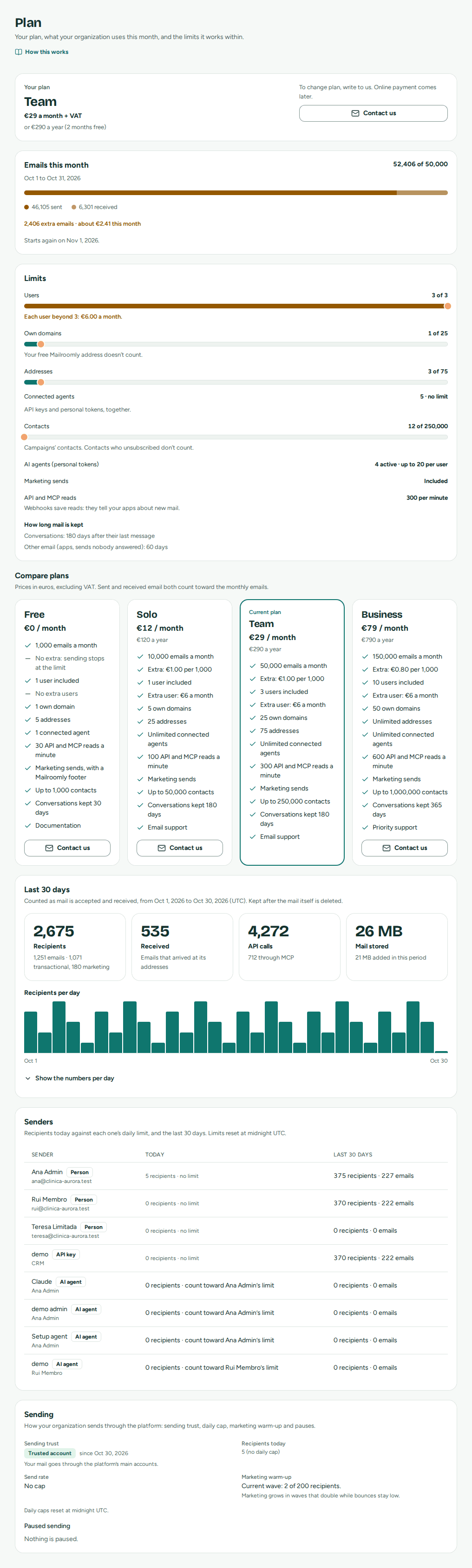 Your plan, this month's emails, the limits and Sending trust (shown without online payment, so without Billing)
Your plan and this month's emails
Your plan shows its name and price: euros a month plus VAT, or a year with 2 months free. On a paid plan it also says how you pay (monthly or yearly) and when it renews, changes or ends. Change plan opens the plans (Changing plan), and Manage billing your card, billing details and receipts (Billing and receipts). When the Mailroomly team set some of your limits apart from the plan, it says how many, and Limits shows what applies.
Emails this month counts the emails your organization sent and received this month, in one bar of two parts, under the month's dates:
- sent: every recipient of an email that was accepted for sending;
- received: each email that arrived, counted once however many of your addresses it reached. Spam, bounce reports and automatic replies don't count.
Your organization's month starts on the day of the month it began paying for its plan (at midnight UTC): bought on 20 October, its months run from the 20th to the 19th. An organization that never paid counts calendar months, from the 1st; one that goes back to Free keeps its day. In a shorter month, a day such as the 31st falls on the month's last day. Emails this month says when the month starts again. The same meter sits at the bottom of the sidebar on a computer, and on Home on a phone; it opens Plan.
- On a paid plan, nothing stops at the plan's emails: the ones above it are extra, shown with about what they come to at your plan's price per 1,000.
- On Free, sending stops when the month's emails are used up, until the month starts again. Received email always arrives, even past the limit.
Administrators get a notice at 80% and another when the month's emails are used up, once a month each (Monthly emails used up).
An agent with a token that may Read the organization answers the same questions with get_plan_and_usage ("How many of this month's emails have we used?").
Paying for a plan
Free needs no card. To move to Solo, Team or Business, an administrator chooses the plan on Plan (Choose a plan, or Choose Solo under it in Compare plans), picks Monthly or Yearly (2 months free) and selects Continue to payment. You pay on Stripe's secure page, in your language:
- enter the card, your organization's billing address and, for a company, its VAT number;
- a promotion code, when you have one, goes in Add promotion code;
- you pay the full price today, and your plan renews on this day each month (or each year). Your emails count from today, in months that start on this day.
Back on Plan, the new plan applies as soon as the payment is confirmed, usually within seconds: its limits, its monthly emails and how long it keeps mail. Only an administrator signed in to Mailroomly pays or changes plan; an AI agent's token can't. When you already have more users than the plan includes, the extra users are part of the payment (Extra users and extra emails).
Changing plan
Change plan shows Monthly or Yearly, the plans, and under What changes when the new plan applies, what you pay today for a change that applies now, and which limits differ. Then Confirm the change:
| You choose | It applies | What you pay |
|---|---|---|
| A higher plan | Now | The difference for the rest of the period, charged today. If the card is refused, nothing changes. |
| A lower plan | When the current period ends | The new price from the next period. Until then, your plan stays as it is. |
| Yearly instead of monthly | Now | The year, less what's left of the month you paid for, charged today. Your year, and your months, start today. If the card is refused, nothing changes. |
| Monthly instead of yearly | When the current year ends | The monthly price from then. |
| Free | When the current period ends | Nothing more: the subscription ends, and your organization moves to Free. |
A plan that isn't sold for the period you choose applies when the current period ends, as What changes shows.
A change still to come shows under your plan's name, with Keep and the plan's name to undo it.
Warning
A plan that keeps mail for less time says so before you confirm: at the first nightly cleanup after the change, conversations without a message for longer than the new plan keeps them, and older other email, are deleted for good. When you move to Free from a paid plan, your previous retention is kept for 30 more days first.
Billing and receipts
Billing shows:
- Next charge, while your plan is paid: the amount, VAT included, with your extra users, and its date;
- Extra emails this month so far: the emails above your plan's, at its price per 1,000, billed once the month is over: with your renewal on a monthly plan, on their own on a yearly one (extra users are in the next charge);
- Payment method: the card's brand, last four digits and expiry;
- Receipts: each payment's receipt, which opens on Stripe.
Manage billing opens Stripe's secure portal, where you change the card, the billing address and email and the VAT number, find every receipt, and cancel. Your invoice is issued by YOMATICO and emailed to your billing address; a receipt is not an invoice.
VAT
Prices are in euros, excluding VAT. VAT is added when you pay, from your billing address: Portuguese VAT (23%) in Portugal; your country's VAT for a person elsewhere in the EU; none for a company in another EU country with a valid VAT number (reverse charge); none outside the EU.
A company's VAT number is checked with VIES, the EU's register of VAT numbers, once you give it. When VIES doesn't confirm it, it is removed from your billing details and VAT is added to your next charges; the administrators get the notice VAT number removed (VAT number removed). Give the right number in Manage billing, and it is checked again.
Extra users and extra emails
- Extra users: on a plan that sells them, each user beyond those included is added to your subscription, prorated. On a monthly plan, a user who joins or leaves changes the next monthly charge; on a yearly plan, a user who joins is charged now for the rest of the year, and one who leaves is credited on your next charge. Active users count: an invited teammate once they accept, and a disabled user no longer.
- Extra emails: the month's emails above your plan's, at its price per 1,000, are charged once the month is over, on the same invoice as your plan's renewal. On a yearly plan, and in the last month of a plan that ends, there's no renewal that month: they are charged on their own, with a receipt of their own. When that payment fails, the administrators get the notice Extra emails payment failed (Extra emails payment failed); your plan isn't affected.
Failed payments
When a payment fails (the card was declined, expired or needs confirming), your plan stays and we try again over the next days. Meanwhile:
- the administrators get the notice Payment failed, also by email (Payment failed);
- a band at the top of every screen says so, with Update payment method, which opens Stripe's secure page to give another card.
The notice and the band go once a payment goes through.
When a paid plan ends
A paid plan ends when every payment attempt failed, or at the end of the period after you chose Free or canceled in Manage billing. Closing the organization (Closing the organization) also ends it at the end of the period, so it isn't renewed while the organization is closing; canceling the closing keeps it going as it was, with a change of plan you had planned for the period end, unless you had chosen Free. Your organization then moves to Free, with Free's limits, and nothing is deleted at that moment:
- how long mail is kept stays as on your previous plan for 30 days, then Free's applies (conversations 30 days after their last message, other email 60 days); Plan says until when;
- the administrators get the notice Plan ended (Plan ended).
To go back, choose the plan on Plan and pay for it: its limits and its retention apply again at once.
Limits
Limits shows each limit with what your organization uses:
| Limit | What counts |
|---|---|
| Users | Invited and active users; disabled users don't count. On a paid plan, each user beyond those included is an extra user, with its price a month. |
| Own domains | Your domains. The free Mailroomly address doesn't count. |
| Addresses | Every address, on any domain. |
| Connected agents | API keys and personal tokens, together. |
| Contacts | Your campaigns' contacts; contacts who unsubscribed don't count (How many contacts your plan includes). |
| AI agents (personal tokens) | The active tokens, up to 20 per user. Turned off for this organization when personal tokens are off. |
| Marketing sends | Included, or Not included in this plan: marketing emails are then refused. On Free they are included, and each marketing email ends with a small Sent with Mailroomly line (Campaigns and marketing). |
| API and MCP reads | How many reads (GET requests and MCP read tools) your apps and agents may make per minute. Webhooks save reads: they tell your apps about new mail. |
| How long mail is kept | Conversations, a number of days after their last message, and other email (apps, sends nobody answered), by age. See Settings and privacy. |
Compare plans shows Free, Solo, Team and Business side by side, with your current plan marked: prices in euros excluding VAT, and for each the emails a month and the extra, users and the price of an extra user, own domains, addresses, connected agents, reads per minute, marketing, how long conversations are kept and support. Sent and received email both count towards the monthly emails. Under each other plan, Choose and its name opens Change plan with it selected.
An organization from before plans reads Your organization’s limits were set by the Mailroomly team.
Usage
- Last 30 days: what your organization used, counted as mail is accepted and received (UTC): Recipients, emails (transactional and marketing), Received, API calls (with those made through MCP) and Mail stored, with a chart of Recipients per day. Show the numbers per day lists them. These numbers are kept even after the mail itself is deleted.
- Senders: each person, API key and AI agent of your organization, with Today (recipients today against its daily limit) and the Last 30 days. A person's AI agents count towards that person's limit. People, keys or tokens removed during the period show as Removed.
Sending trust
Mailroomly sends every organization's email through sending accounts it shares, so it keeps each organization within limits and stops a sender that bounces or is marked as spam before it harms the others. Sending trust, on the Sending card, shows where your organization stands, and since when:
- New account: where every organization starts. Its mail goes through a separate account, with lower limits: a daily cap of 1,000 recipients, a send rate of 2 recipients per second, and every address checked before sending.
- Trusted account: once it has shown healthy sending. Its mail goes through Mailroomly's main accounts, normally with no daily cap and no rate of its own.
Becoming a trusted account
Mailroomly checks every day. Your organization becomes a trusted account by itself once all of these hold:
- It has been a new account for at least 14 days.
- It sent to at least 1,000 recipients from your own domains. Mail from the free address doesn't count.
- Its bounce rate is under 2% and its complaint rate under 0.05%.
- In the last 14 days, none of its sending was paused automatically or by the Mailroomly team, and it got no Addresses refused by validation notice.
To get there sooner: connect your own domain, send to people who expect your email, and clean your lists of addresses that bounce. When it happens, administrators get the notice Now a trusted account.
An automatic pause sends a trusted account back to a new account (Back to a new account), and the 14 days start again.
Daily limits
Several daily limits can apply to one email. Each counts recipients, and each resets at midnight UTC.
| Limit | Applies to | Who sets it |
|---|---|---|
| Recipients today (the daily cap) | Your whole organization: 1,000 for a new account unless the Mailroomly team set another; trusted accounts normally have none (no daily cap). | The Mailroomly team. |
| Recipients per person per day | Each person, from the inbox or through their own AI agents. | The Mailroomly team. Senders shows each person's use. |
| An API key's daily limit | One app's key, when you set one. | You, on the app's page (Apps and API). |
| Free address | The free address: 100 recipients a day, whatever your sending trust. | Fixed. |
Every recipient of an accepted email counts, even if it later bounces. Recipients left out because they are blocked or can't receive mail don't count.
Send rate shows how fast your mail goes out, in recipients per second: 2 for a new account, No cap when only the sending account's own rate applies. Mail over the rate waits its turn; nothing is refused.
When some of your domains send through your organization's own account (the enterprise option), the daily cap, the send rate and the marketing warm-up apply only to the domains that send through Mailroomly, and the card says so.
The marketing warm-up
Marketing email (newsletters) goes out in waves, so receivers get to know your mail gradually: 200 recipients first, then each wave doubles after a 20-minute pause, as long as fewer than 5% of the wave bounce as non-existent addresses, and fewer than 5% are refused before sending as addresses that can't receive email. Transactional email is not affected.
While your organization is new (before it becomes a trusted account), the first wave is 100 recipients, and the pause after the 100 and the 200 waves is 2 hours, so a complaint has time to arrive before the whole list gets the email. A newsletter to 1,000 people then takes about four and a half hours, every time the warm-up starts again.
Marketing warm-up, on the Sending card, shows one of:
- Not started: your next marketing send opens the first wave.
- The current wave and its progress, or when the next wave opens.
- Complete: from 50,000 recipients on, marketing is no longer limited by waves. The warm-up starts again after 7 days without marketing.
- Stopped: a wave bounced too much, or too many of its addresses were refused as unable to receive email, and marketing is paused. Clean the list, then contact support to resume it.
Before your first marketing send, check that your plan includes Marketing sends, that an administrator accepted the terms of service (Settings and privacy), that you send from your own domain (the free address sends transactional email only) and that the domain has a DMARC record (DNS records).
Pauses
Mailroomly watches bounce and complaint rates over the last 14 days, for each type of email of each domain and for your organization as a whole. Keep bounces under 2% and complaints under 0.05%: above those, notices warn you, and a little higher, sending of that type of email is paused to protect your reputation and everyone else's.
Paused sending, on the Sending card, lists each paused type of email with its domain, the reason and who can lift it:
- You can resume it on the domain page.: you or another administrator paused it.
- It resumes on its own once the cause is cleared.: it was paused for your bounce or complaint rates, or a sending account problem, and resumes by itself.
- Paused to protect sending: only the platform’s support can resume it. Contact support.: Mailroomly paused it automatically, for high rates or a marketing wave that bounced. Fix the cause (clean the list, check the content), then contact support.
If the Mailroomly team paused all of your organization's sending, the card starts with Sending is paused by the platform and their reason, also shown on Home. No mail is sent until they resume it: sends are refused and queued mail waits. Contact us.
Fair use and receiving pauses
Received email is never refused for your plan, and it counts towards your monthly emails.
When your organization receives far more than its fair use in a day (5 times its plan's daily share of the monthly emails, and at least 1,000 emails), the Mailroomly team may contact you to understand why. A one-off peak needs nothing.
For a spam flood, or a volume far above fair use that goes on, Mailroomly support can pause receiving for one address or a whole domain. While it is paused:
- email to it is not received or kept, only counted, and it can't be recovered later;
- administrators get the notice Receiving paused by support, also by email (Receiving paused by support);
- the address's or domain's page says receiving is paused, with how many emails were not received.
Contact us to sort out the cause; once support resumes receiving, the notice closes.
When a Free organization rests
An organization on Free that nobody uses for 90 days rests. Using it means someone signing in, an app or AI agent using one of its keys or tokens, or sending email. Email it receives doesn't count.
- A week before, its administrators get a notice and an email with the date (Your organization rests soon). Using it before then keeps it awake.
- While it rests, its email keeps arriving in its addresses, and its conversations, contacts, settings and data stay as they are. Nothing is deleted.
- It wakes as soon as someone signs in, one of its keys or tokens is used, or it moves to a paid plan. Sending is back within a few minutes; email written in those minutes waits and goes out by itself. An app or agent that sends then is asked to try again in a few minutes.
- Paid plans never rest.
When a limit is reached
| What was reached | What happens | What to do |
|---|---|---|
| This month's emails, on Free | Sends are refused until your month starts again: the 1st, or the day you began paying (Not enough emails left this month). Your email stays in the composer (Keep my message). Received email keeps arriving. | Send later or to fewer people, or choose a paid plan on Plan. |
| This month's emails, on a paid plan | Nothing stops: the emails above it are extra, at your plan's price. | Nothing, or move to a larger plan. |
| The daily cap | Sends are refused (Your organization reached its daily sending limit. It resets at midnight UTC.). | Wait for midnight UTC. Before a large launch, contact us. |
| A person's daily limit | That person's emails, and their AI agents', are refused until midnight UTC, and administrators get a notice. | Contact us if the limit is too low. |
| An API key's daily limit | That key's sends are refused until midnight UTC, and administrators get a notice. | Raise it on the app's page with Change limit. |
| The free address's 100 a day | Sends from it are refused until midnight UTC. | Send from your own domain. |
| Users, Own domains, Addresses, Connected agents or Contacts | Adding one more is refused. Nothing that exists is removed. | Disable, delete or revoke one you don't need, or move to a larger plan on Plan. |
| Marketing sends not included | Marketing sends are refused; transactional email goes out. | Change plan on Plan. |
| API and MCP reads | Reads over the limit are refused for the rest of the minute. | Wait a moment, and use webhooks instead of checking often. |
Note
Lowering a limit below what your organization already uses only stops new additions. Nothing is removed.