Apps and the API
Connect your website, shop, CRM or backend to Mailroomly: give each app its own keys, send email through the API, receive its events as webhooks, and test it before going live.
Connect an app
An app is a piece of your software that works with Mailroomly through its own keys. Administrators connect apps in Apps, which opens with What do you want to do?:
- Send email from my application opens Connect an app.
- Get events in my system goes to the Webhook step of an app. With several apps it asks Which app gets the events?; with none, you connect one first.
- Connect an AI agent connects an agent that works for the organization (AI agents) or, with As you, your own agent.
- Move over from Postmark is a three-step guide for code built for Postmark (Moving from Postmark).
- Move over from SendGrid is the same for code built for SendGrid (Moving from SendGrid).
- Move over from Mailgun is the same for code built for Mailgun (Moving from Mailgun).
Below come Your apps, each with whether its key has been used, its number of keys and Webhook on or No webhook, and, folded, For developers: Webhook deliveries and Send a test email as you. Ctrl K offers the same goals.
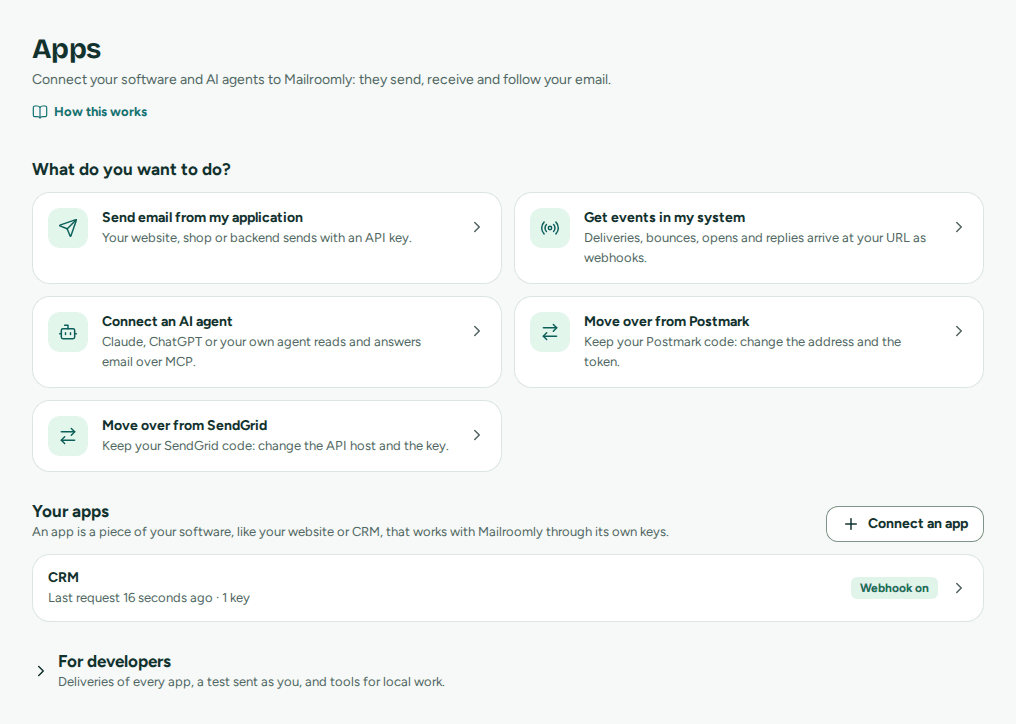 What do you want to do?, then your apps
Before an app sends, your organization needs a sending address: a verified domain or the free address (Addresses and domains).
In the web app
-
Open Apps › Connect an app (or Ctrl K › Connect an app).
-
Enter the App name, for example "Shop".
-
Under What it does, choose what its first key may do:
Choice The key may Sends email Send messages Sends and follows deliveries Send messages, Read activity Helpdesk Send messages, Read activity, List addresses, Read inboxes, Reply from inboxes -
Under Which emails does this key reach?, choose (which emails a key reaches). Nothing comes chosen, so a key never reaches every address because nobody looked.
-
Choose Create the app and its key.
… is connected shows the key in API key (to send), under Try it the code to send a first email in cURL, Node, Python and Postmark, and Waiting for a request with this app’s key, which turns into First request received … when the key is used. Continue to the app opens its page; Later closes.
Ask your agent
"Create an app called Shop, with a key that only sends from mail.example.com." The agent uses create_app, then create_api_key, and hands you the key once. It needs a personal token with Manage apps (Let your agent administer the organization). A key an agent creates may only Send messages, Read blocked addresses and Manage blocked addresses, and every administrator is told of it; a key that reads or answers mail is created in the web app.
Important
The key, starting with
mp_live_, is shown only once. Copy it into the app's configuration or secret store: Mailroomly keeps only a hash and can't show it again. The code under Try it reads it from theMAILROOMLY_API_KEYenvironment variable, so copying the code never spreads the key.
Apps and keys
Open an app from Your apps. Its page has two tabs, Set up and Deliveries. Set up has three numbered steps, each marked Done once it is:
- API key (to send): whether a key has been used, and the app's keys. Done after a key's first request.
- Webhook (optional): where Mailroomly posts the app's events (Webhooks).
- Send a test as this app: an email sent as the app to you only (Send a test email).
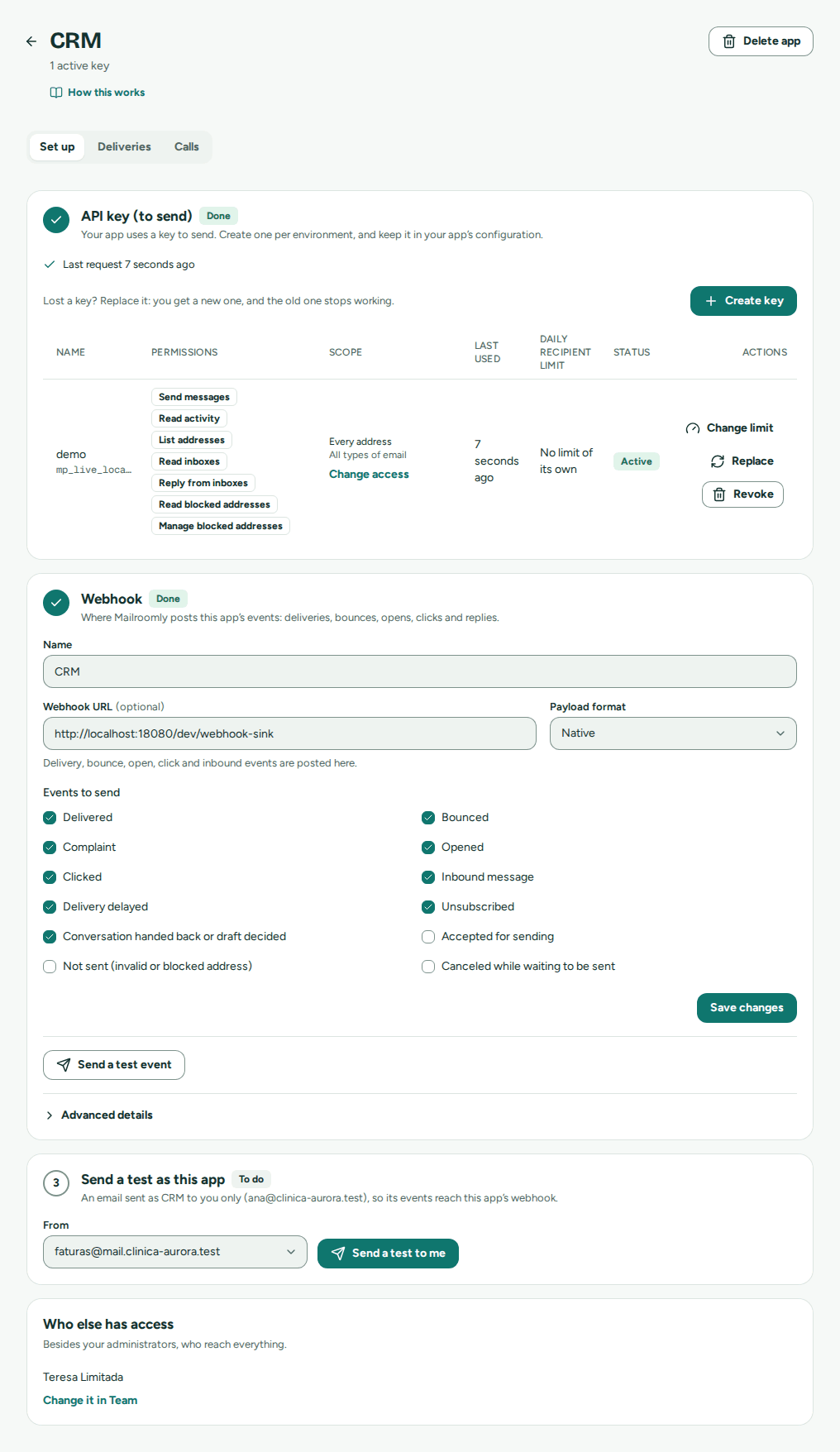 The steps of an app, with its keys
Create a key
Give each environment and each integration its own key, with only what it needs. Under Keys, choose Create key:
-
A Name, for example "Production".
-
The Permissions:
Permission Allows Send messages Sending email: the REST API, the Postmark-compatible endpoints and MCP Read activity Searching messages and their events List addresses Listing the organization's addresses Read inboxes Reading the addresses' conversations Reply from inboxes Replying and forwarding from the addresses, and leaving drafts Leave drafts for approval Leaving replies for a person to send, edit or discard, and handing conversations over. Without Reply from inboxes, the key never sends on its own. Read blocked addresses / Manage blocked addresses Viewing / adding and removing blocked addresses Contacts Adding and updating contacts and lists, and recording events that start automations (Contacts and lists) Campaigns Everything Contacts allows, and templates, images, newsletters and automations, sending included. What the key starts waits 15 minutes while administrators can cancel it (Marketing from your apps and agents) -
Which emails does this key reach? (below).
-
Restrict to specific types of email (optional): transactional, marketing, or both.
-
A Daily recipient limit (optional): how many recipients the key may send to per day, so a leaked or runaway key can't use your organization's whole allowance. Leave it empty for No limit of its own: your organization's limits still apply.
-
Choose Create key. Key created shows the key once, with sample code; copy it, then choose I’ve stored the key.
Each key's row shows its limit and Last used, which helps you find keys nobody uses. Change limit sets or removes the daily limit at any time. Over its limit, the key's sends are refused until midnight UTC, and administrators get one notice that day (notice). The limit counts every domain.
Which emails a key reaches
| Choice | The key |
|---|---|
| Every address | Reaches every address of the organization, including new ones. |
| The addresses of these domains | Reaches every address on the domains you choose, including new ones. |
| Only these addresses | Sees only those addresses, their conversations and messages, and sends only from them. Use it for an agent that handles one address. A key that reads or manages blocked addresses can't have it: those belong to a domain. |
Change access, on the key's row, changes it at any time. The key keeps its secret, and the change applies from its next request.
Warning
Taking addresses from a key stops whatever uses them at once: sending from them is refused, and their email can't be read. Before you save, Mailroomly lists them, says which ones the key sent from in the last 30 days and which ones belong to the app, and asks you to confirm. Reading email isn't shown there, so a quiet address can still be in use.
Giving a key more tells every administrator (notice). Only a person signed in to Mailroomly changes what a key reaches; an agent can't (what stays with a signed-in person).
Replace or revoke a key
- Replace, for a lost or exposed key: a new key with the same name, permissions, scope and daily limit takes its place, and the old one is revoked at once. The new key is shown once. Whatever still uses the old key stops working until it has the new one. If the old key can't be revoked, the dialog says it still works and offers Revoke the old key.
- Revoke stops a key immediately.
Warning
Revoking cannot be undone: requests with the key fail at once. Replace the key in the app before you revoke the old one.
Delete an app
Delete app revokes all its keys at once and stops its webhooks; deliveries still waiting are marked Dead. Before you delete an app that owns addresses, give those addresses another owning app or their own webhook, on each address's page (Addresses and domains).
Send your first email
Apps send through the REST API with the key in the Authorization: Bearer header. With the key in the MAILROOMLY_API_KEY environment variable, and a sender on your verified domain:
curl https://app.mailroomly.com/api/v1/messages \
  -H "Authorization: Bearer $MAILROOMLY_API_KEY" \
  -H "Content-Type: application/json" \
  -d '{"from": "Shop <hello@mail.example.com>", "to": ["customer@example.com"], "subject": "Your order", "text": "Thank you for your order."}'
Mailroomly answers 202 with the message's id and "status": "QUEUED": the email is accepted and goes out in the background. Follow it in Activity (A send's page) or through your webhook.
frommust be an address on a verified domain of your organization, within the key's scope.- Give an
htmlbody, atextbody, or both. Up to 50 recipients in all (to,cc,bcc). - Add an
idempotencyKeyper business event (for example"invoice-2026-0042"): a retried request then returns the first result instead of sending twice. - Recipients you have blocked are left out and listed in
suppressedRecipients. When none remains, the answer is422 ALL_RECIPIENTS_SUPPRESSED: don't retry. - Up to 500 messages at once go to
/api/v1/messages/batch.
Every field, error and limit is in the REST API reference. Code built for Postmark, SendGrid or Mailgun keeps its requests: Moving from Postmark, Moving from SendGrid, Moving from Mailgun.
Types of email
Every email is one of two types, and the type decides how it goes out:
| Type | For | In the API |
|---|---|---|
| Transactional | Order confirmations, invoices, password resets, notifications: email a person expects | "stream": "transactional" (the default) |
| Marketing | Newsletters and campaigns | "stream": "broadcast" |
- Transactional email always goes first.
- Marketing email gets an unsubscribe link and headers for each recipient: put
{{unsubscribe_url}}in the body where the link should show. Send one message per recipient (/api/v1/messages/batch), so recipients don't see each other. - Marketing needs a plan that includes it and an administrator's acceptance of the terms of service, can't be sent from the free address, and from your own domain needs the domain's DMARC record. A new account sends marketing in growing waves (Sending trust).
- A key can be restricted to one type with Restrict to specific types of email.
Campaigns and unsubscribes: Campaigns and marketing.
Webhooks
A webhook tells your app what happened to its email: Mailroomly posts each event to a URL of yours, signed so your app can check it comes from Mailroomly. Each app has one webhook URL, its format and the events it wants.
In the web app
-
On the app's page, open the Webhook step (or Apps › Get events in my system).
-
Enter the Webhook URL: an HTTPS address reachable from the internet, with no user name or password in it.
-
Choose the Payload format: Native, Postmark-compatible for apps built for Postmark, SendGrid-compatible for apps built for SendGrid, or Mailgun-compatible for apps built for Mailgun.
-
Under Events to send, tick what the app handles:
Event When Delivered The recipient's server accepted the email (one per recipient) Bounced The email bounced, or the address was refused before sending Complaint The recipient marked it as spam Opened The email was opened (when opens are tracked; an estimate) Clicked A tracked link was clicked Inbound message An address the app owns received an email Delivery delayed Not delivered yet; delivery keeps being tried Unsubscribed The recipient unsubscribed from marketing email Canceled while waiting to be sent An administrator canceled the email before it was sent (Canceling what is waiting). Not ticked unless you tick it Conversation handed back or draft decided For an agent: a person sent or discarded its draft, or handed a conversation back to the agents Accepted for sending A send was accepted and is on its way (not in the Postmark format; ticked for a new SendGrid- or Mailgun-compatible app) Not sent (invalid or blocked address) A recipient was left out of a send: blocked, or its domain takes no email (not in the Postmark format; ticked for a new SendGrid- or Mailgun-compatible app) -
Choose Save changes, then Send a test event: one sample event goes to the URL now, signed and in the app's format, and the step shows what your endpoint answered (Your endpoint answered 200 in 84 ms., or why it didn't accept it). The sample is not stored, retried or counted as a delivery.
Ask your agent
"Send Shop's events to https://shop.example.com/hooks/mail, in Postmark format, and test it." The agent uses update_app, then send_test_webhook. It needs a personal token with Manage apps. The webhook of an app that owns addresses, or has received their mail, is changed in the web app (What stays with a signed-in person).
The signing secret. Under Advanced details, the Signing secret (to verify the webhooks you receive) starts with whsec_. It is not an API key: your endpoint uses it to check the signature that comes with every webhook. Reveal secret shows it. How to check the signature, with code: Webhooks reference.
The verification key. An app in the SendGrid-compatible format also shows, under Advanced details, its Verification key (SendGrid’s signed Event Webhook): your SendGrid event handler checks each webhook's signature with it, in place of the key SendGrid gave you (Moving from SendGrid).
Mailgun's signing key. In the Mailgun-compatible format, the signing secret is also the webhook signing key: your Mailgun handler checks each webhook with it, in place of the one Mailgun gave you (Moving from Mailgun).
Warning
Rotate secret replaces the secret at once, for every delivery from then on, retries included, and a SendGrid-compatible app's verification key with it. Update your endpoint first, or let it accept both secrets for a while; a new verification key goes in the handler right after rotating.
Your endpoint should answer with any 2xx within 10 seconds, and do its work afterward. Events can arrive more than once and out of order: use each event's id to ignore repeats.
An address can also post every email it receives to its own Inbound webhook URL, signed with its owning app's secret and in that app's format (Addresses and domains).
Deliveries and replay
Apps › For developers › Webhook deliveries lists every delivery to your apps' and addresses' webhooks; the Deliveries tab of an app shows only that app's. Filter by status, app and event:
| Status | Means |
|---|---|
| Pending | Waiting, or being retried |
| Delivered | Your endpoint answered 2xx |
| Dead | Every attempt failed |
Details shows the content sent, the attempts, the URL it last went to and your endpoint's last answer. For a received email, the content shown is a reference to the message: its text and attachments are added each time it is sent, not stored with the delivery.
A failed delivery is tried again 1 minute later, then after 5 minutes, 30 minutes, 2, 6, 12 and 24 hours. After the 8th attempt it is marked Dead, and administrators get the notice Webhook deliveries failed (notice). A URL that points to an internal network is refused, and its deliveries are marked Dead at once.
Retries and replays always go to the current webhook URL, so fixing the URL is enough. Once your endpoint works again, select deliveries and choose Replay … selected, or Replay all dead for this app: they go back to the queue and get the full retry schedule again. An agent with Manage apps lists them with list_webhook_deliveries and replays them with replay_webhooks.
Requests
Apps › For developers › Requests lists every call your apps and AI agents made, through the API or MCP, for the last 30 days, newest first: when, the call (the endpoint, or the MCP tool), its result, who made it (the app and its key, or the agent's token) and how long it took. An app's Calls tab shows only its own; in My agents, See its calls shows a token's.
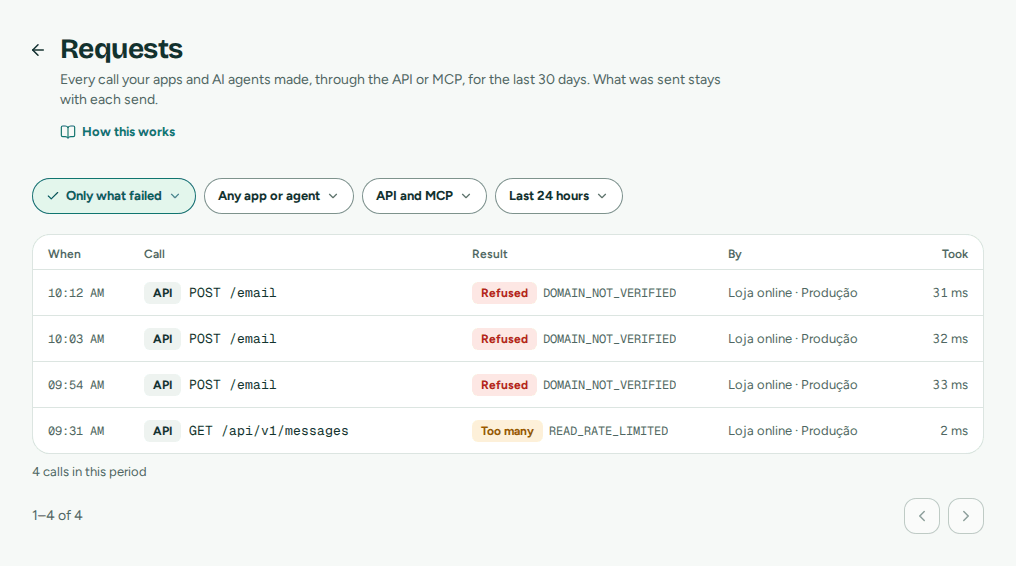 Every call, with its result and why it failed
| Result | Means |
|---|---|
| OK | The call worked. |
| Refused | Mailroomly refused it, with an error code and the reason, for example a sender domain that isn't verified yet. Nothing was sent. |
| Too many | It went over a limit of calls; try again a moment later. A key that keeps calling while refused shows one such call every 10 seconds, not each one. |
| Failed | Something went wrong on our side; try again. |
Filter by result (Only what failed), app or agent, channel (API or MCP) and period. Select a call to see its error code, the reason in plain words, the client it came from and its request ID; a call that sent an email links to it. What a call sent is never kept with it: the email keeps its own content.
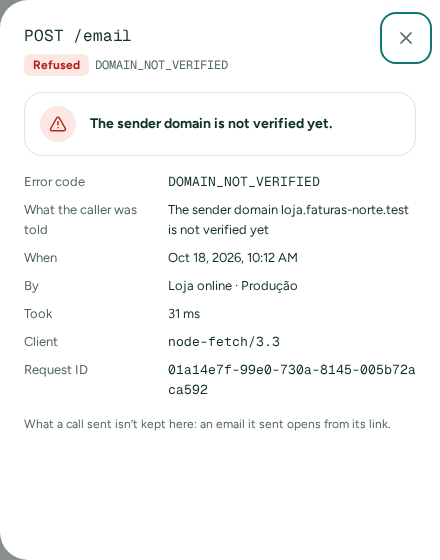 Why it was refused, in plain words, with its details
Administrators see every call of the organization. Anyone else sees the calls of their own agents, and an app's key or an agent's token reads only its own.
In the web app
Open Apps › For developers › Requests, then Only what failed.
Ask your agent
"Why did my last calls fail?" The agent uses list_requests with result set to failed, then get_request.
Send a test email
There are two tests, for two questions:
| Test | Answers | Where |
|---|---|---|
| Send a test as this app | Does the app's webhook get its events? | The app's page, step 3 |
| Send a test email | Does a domain, a type of email or my content work? | Apps › For developers › Send a test email as you, or Ctrl K › Send a test email |
In the web app
Send a test as this app: choose the From address and Send a test to me. The email goes as the app to you only, so its events reach the app's webhook. The step lists them as they arrive, with what your endpoint answered, and Open in Activity shows the email. If the webhook doesn't send Delivered events, tick Delivered in step 2 to see the test arrive. Done once a delivery succeeds.
Ask your agent
"Send me a test from Shop, from hello@mail.example.com." The agent uses send_test_message: the email goes as the app to you, the person the token acts for, and counts toward your daily limit. It needs a personal token with Manage apps.
Send a test email sends one email as you. It belongs to no app, so it never reaches your apps' webhooks. Choose the sender in From (one of your addresses, or Other address… on a verified domain), the recipients, the subject, the Type, the HTML body, the Text body or both, and Tags, then Send test. Email accepted shows the Current status: and Open the email and its timeline; recipients left out because they are blocked are listed. Under the form, The same email through the API shows it as cURL, Node and Python, ready to run with an app's key.
Test emails are real email: they count toward your daily limits like any other (Daily limits).
References
For developers, in English:
- REST API: authentication, sending, messages, blocked addresses, apps and keys, webhook deliveries.
- Webhooks: the events, the formats, the signature with code, retries and replay.
- Postmark compatibility: the
/emailendpoints and the Postmark webhook format. - SendGrid compatibility: the
/v3/mail/sendendpoint, the Event Webhook and Inbound Parse. - Mailgun compatibility: the
/v3/{domain}/messagesendpoints, Mailgun's webhooks and its routes' forwards. - MCP server: the tools an AI agent uses.