Notices
Notices tell your organization's administrators what needs attention in your sending, your limits and your setup, what to do about it and who can fix it. Each kind of notice is explained below.
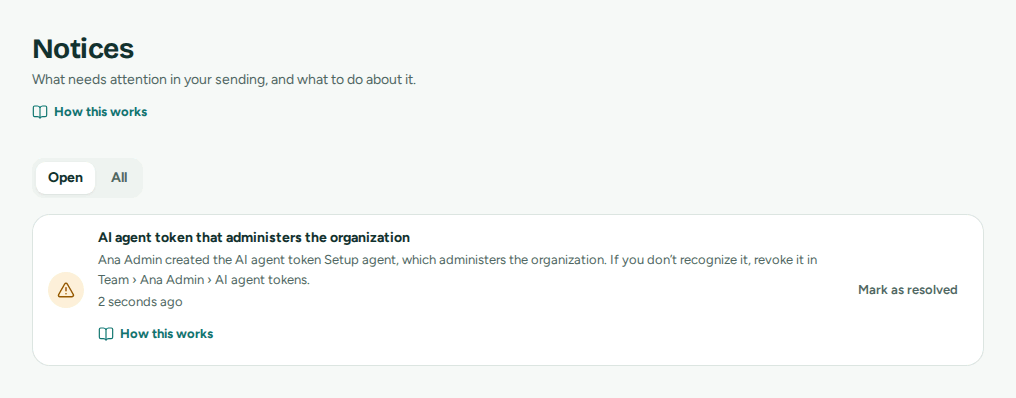 Each notice says what happened, what to do and who can fix it
What a notice is
Open Notices in the Manage group of the sidebar, or in More on a phone. Each notice shows:
- its title and a sentence that says what happened and what to do, with the names, rates and limits involved;
- when it was raised and, once closed, when it was Resolved;
- Review, which opens the screen where you act on it (a domain, an address, an app, Team, Apps or Plan), when there is one;
- Mark as resolved, while it is open.
Open shows the notices still open; All adds the ones already resolved. When nothing is open, the page says Nothing needs you.
Who gets notices
Notices are for administrators. They see them:
- counted in the sidebar next to Notices, on the bell of a phone's top bar and in More;
- on Home, under Needs you: the three most recent, with See all notices;
- by email: each new notice is emailed to every administrator of the organization, with a link to Notices. A notice that is already open is not emailed again, unless its email could not be sent: then it is tried again while the notice is open, for up to a day.
Notices about sending health, sending trust, DNS records and your own sending accounts also reach the Mailroomly platform team, so they can help. Notices about agents, daily limits, this month's emails, webhooks and receiving pauses go to your organization's administrators only.
An administrator's AI agent can read the open notices and mark them as resolved, with a token that has Read the organization (Administration scopes).
In the web app
Open Notices, read each open notice and select Review to act on it.
Ask your agent
"Which notices are open, and what should I do about each one?" The agent uses list_alerts, then acknowledge_alert for the ones you mark as resolved.
Marking a notice as resolved
Mark as resolved closes a notice once you have dealt with it (Marked as resolved.). It moves to All, with when it was resolved.
Many notices close by themselves when the cause clears: rate warnings when the rate falls, pauses when sending resumes, DNS notices when the records match again, account notices when the account is healthy. Others, such as a daily limit or a new trusted account, stay open until someone marks them as resolved.
After you mark a high bounce or complaint rate as resolved, only mail sent from then on counts for it: the notice is raised again only if new mail crosses the threshold.
Important
The notices AI agent token that administers the organization, API key created by an AI agent, API key given more addresses and Queued email canceled by an AI agent can only be marked as resolved by a signed-in administrator, never by an agent (What needs a signed-in person).
Sending health
These notices protect your sending. Mailbox providers judge every sender by how many emails bounce and how many are marked as spam; when those rates rise, Mailroomly warns you and, past a level, pauses the type of email concerned before it harms your organization or others. Rates count the last 14 days.
High bounce rate
What happened. One type of email (transactional or marketing) of one of your domains has a bounce rate of 2 % or more, once it has sent to at least 100 recipients: too many of its addresses do not exist.
What to do. Find the addresses that bounced in Activity, filtered by Bounced, and remove them from the app or list that sends to them. Review opens the domain, with its rates. The notice closes by itself when the rate falls below 2 %.
Who can fix it. An administrator, with whoever runs the app or list that sends the email.
High complaint rate
What happened. One type of email of one of your domains has a complaint rate of 0.08 % or more, once it has sent to at least 100 recipients: people are marking it as spam.
What to do. Send only to people who asked for this email, say clearly who it comes from, and make unsubscribing easy (Unsubscribe links). The notice closes by itself when the rate falls.
Who can fix it. An administrator, with whoever writes and sends the email.
Sending paused on a domain
What happened. One type of email of a domain reached a bounce rate of 4 % or a complaint rate of 0.2 %, once it has sent to at least 100 recipients, and was paused. Sends of that type from the domain are refused and queued mail waits; the other type keeps going.
What to do. Fix the cause first: clean the list, or stop sending to people who did not ask. Review opens the domain.
- On a domain that sends through your own sending account, an administrator resumes the type on the domain page, with the Paused switch.
- On a domain that sends through the platform, the switch is locked: Paused automatically to protect sending: only the platform’s support can resume it. Contact support.
After the type resumes, its rates start again from zero. The notice closes when it resumes.
Who can fix it. An administrator for a domain on your own sending account; the platform team for a domain that sends through the platform.
Bounce rate close to the pause level
What happened. Your organization's transactional or marketing email, across all its domains that send through the platform, has a bounce rate of 2 % or more, once it has sent to at least 200 recipients. At 3 % that type of email is paused.
What to do. Clean the lists now: remove the addresses that bounced (Activity, filtered by Bounced) and stop importing old or unverified addresses. Review opens Plan, where Sending shows your organization's sending. The notice closes by itself when the rate falls.
Who can fix it. An administrator, with whoever runs the apps and lists that send.
Complaint rate close to the pause level
What happened. Your organization's transactional or marketing email, across its domains that send through the platform, has a complaint rate of 0.05 % or more, once it has sent to at least 1,000 recipients. At 0.08 % that type of email is paused.
What to do. Send only to people who asked for your email, and make unsubscribing easy. The notice closes by itself when the rate falls.
Who can fix it. An administrator, with whoever writes and sends the email.
Sending paused automatically
What happened. Your organization's transactional or marketing email through the platform was paused because its bounce rate reached 3 % or its complaint rate 0.08 %. The notice gives the rate and the number of recipients it was measured on. Sends of that type are refused and queued mail waits. A trusted account also goes back to a new account (Back to a new account).
What to do. Fix the cause: clean the list, or stop sending to people who did not ask. Then contact the platform team, who resume it. Plan › Sending shows the paused types as Paused to protect sending: only the platform’s support can resume it. Contact support. The notice closes when sending resumes.
Who can fix it. The platform team resumes it, once an administrator has fixed the cause.
Sending paused for bounce or complaint rates
What happened. Your organization's transactional or marketing email was paused because of its bounce or complaint rates, outside Mailroomly's own checks. Sends of that type are refused and queued mail waits. A trusted account also goes back to a new account.
What to do. Clean the list and check who you send to. The type resumes on its own once the cause is cleared, and cannot be resumed by hand: the domain page says Paused automatically: it resumes on its own once the cause is cleared, and cannot be resumed by hand. The notice closes when it resumes.
Who can fix it. An administrator fixes the cause; the resume is automatic.
Marketing warm-up stopped
What happened. During the marketing warm-up, 5 % or more of a wave's recipients bounced as addresses that do not exist. Marketing was paused, and a trusted account goes back to a new account (Marketing warm-up).
What to do. Clean the list before anything else: remove the addresses that bounced, and the old or bought ones. Then contact the platform team, who resume marketing. Transactional email is not affected. The notice closes when marketing resumes.
Who can fix it. The platform team resumes it, once an administrator has cleaned the list.
Addresses refused by validation
What happened. Address validation refused 5 % or more of your transactional or marketing recipients through the platform, once at least 200 were sent: they look unlikely to be delivered (they do not exist, or are disposable or random). Nothing reached them, and they do not count as bounces. This notice never pauses sending.
What to do. Clean the list: the refused addresses are in Activity › Blocked with the reason Refused by validation. Find where they come from, such as a sign-up form without confirmation. The notice closes by itself when the share falls.
Who can fix it. An administrator, with whoever runs the list or the form.
Sending paused by the platform
What happened. The platform team paused all of your organization's sending, and the notice gives their reason. No email goes out: sends are refused and queued mail waits. Home and Plan › Sending show Sending is paused by the platform. Received email keeps arriving.
What to do. Read the reason and contact the platform team. The notice closes when they resume sending.
Who can fix it. The platform team.
Sending trust
New organizations start as a new account, with lower limits, and become a trusted account once they have shown good sending (Sending trust).
Now a trusted account
What happened. Your organization became a trusted account, with higher limits. The notice says why: the recipients your organization sent to since it started, with its bounce and complaint rates.
What to do. Nothing. Mark it as resolved once you have read it.
Who can fix it. No one needs to.
Back to a new account
What happened. Your organization went back to a new account, with lower limits. The notice says why: usually an automatic pause for bounce or complaint rates, or a decision of the platform team.
What to do. Fix what caused it (see the pause notice raised with it). After 14 days as a new account with good sending, your organization becomes a trusted account again on its own, and this notice closes.
Who can fix it. An administrator, by keeping the sending clean.
Limits and your plan
Daily limit of a person reached
What happened. A person reached the daily limit of recipients per person. Emails their AI agents send for them count towards it too. Their emails are refused until midnight UTC, with You reached your daily limit of recipients. It resets at midnight UTC. It is raised once per person and day.
What to do. Wait for midnight UTC, or ask the platform team to raise the limit if it is too low for your work. Review opens Team. Mark the notice as resolved once you have dealt with it (Daily limits).
Who can fix it. The platform team changes the per-person limit.
Daily limit of an API key reached
What happened. An app's API key reached the daily limit of recipients set on it. Its sends are refused until midnight UTC. It is raised once per key and day.
What to do. To send more today, raise the key's limit on the app's page, with Change limit (Apps and keys). If the key sent more than expected, check the app. Review opens Apps. Mark the notice as resolved once you have dealt with it.
Who can fix it. An administrator.
Monthly emails at 80%
What happened. Your organization has used 80 % of this month's emails, sent and received together. It is raised once a month.
What to do. Check what is left in Plan. On a paid plan, emails above the plan's are extra, at your plan's price; on Free, sending stops when they are used up. If you expect to need more, contact us to change plan. The notice closes when the month changes.
Who can fix it. An administrator.
Monthly emails used up
What happened. Your organization has used this month's emails. On a paid plan, the emails above them are extra, at your plan's price, and nothing stops. On Free, sending is stopped until your month starts again (the notice says the day); received email keeps arriving. It is raised once a month.
What to do. On Free, choose a paid plan, or contact us, if you need to send before then. On a paid plan, nothing is required; Plan shows what the extra comes to. The notice closes when the month changes.
Who can fix it. An administrator.
Your organization rests soon
What happened. On Free, an organization nobody has used for 90 days rests: no one signed in, no app or AI agent used one of its keys or tokens, and nothing was sent. This notice comes a week before, with the date, and is also emailed to the administrators (When a Free organization rests).
What to do. If you still use Mailroomly, sign in, or let your app or agent work as usual: the notice closes and nothing changes. If you don't, nothing is required: while it rests, its email keeps arriving and nothing is deleted.
Who can fix it. Anyone in the organization, by signing in.
Your organization is back from resting
What happened. Your organization rested after 90 days without activity, and woke when someone signed in or one of its keys or tokens was used. Its email kept arriving while it rested. Sending is set up again and is back within a few minutes.
What to do. Nothing. Email written in those minutes waits and goes out by itself. An app or AI agent that sends then is asked to try again in a few minutes.
Who can fix it. No one needs to.
Payment failed
What happened. A payment for your plan didn't go through: the card was declined, expired or needs confirming. Your plan stays while we try again over the next days. The notice is also emailed to the administrators, and a band at the top of every screen reminds them (Failed payments).
What to do. Choose Update payment method and give another card on Stripe's secure page. The next attempt uses it, and the notice closes once the payment goes through. If every attempt fails, your organization moves to Free.
Who can fix it. An administrator.
Extra emails payment failed
What happened. The payment for a month's extra emails didn't go through. They were charged on their own, as they are on a yearly plan or in a plan's last month (Extra users and extra emails), so your plan isn't affected. We try again over the next days.
What to do. Choose Update payment method and give another card on Stripe's secure page. The notice closes once that payment goes through, or once we no longer ask for it.
Who can fix it. An administrator.
VAT number removed
What happened. Your organization's VAT number couldn't be confirmed with VIES, the EU's register of VAT numbers, so it was removed from your billing details. Your next charges include VAT (VAT).
What to do. Choose Manage billing and give the right number. It is checked again, and the notice closes once VIES confirms it.
Who can fix it. An administrator.
Plan ended
What happened. Your paid plan ended, because every payment attempt failed or because the subscription was canceled. Your organization is on Free now, with its limits. For 30 days, mail is still kept as on the previous plan; then Free's retention applies (When a paid plan ends).
What to do. To go back to your plan, choose it on Plan and pay for it: its limits come back at once and its retention applies again. If Free is enough, nothing is required; before the 30 days are over, export what you want to keep of the older mail.
Who can fix it. An administrator.
Campaigns
Campaign started by an app or an AI agent
What happened. An app or an AI agent started a newsletter, or turned an automation on. It waits 15 minutes before anything goes out, so that an administrator can stop what nobody expected (Marketing from your apps and agents).
What to do. If you expect it, there is nothing to do: it starts at the time the notice says. If you don't, Cancel stops it. Review opens the newsletter or the automation, where a signed-in administrator can also Send now.
Who can fix it. Any administrator.
Newsletter paused
What happened. A newsletter stopped going out because something no longer allows it: this month's emails ran out, the marketing of its domain was paused, or a check it passed at the start no longer holds. Emails already on their way still go.
What to do. Review opens the newsletter, which says why and how to fix it. Once fixed, Resume: it carries on where it stopped, and a spread newsletter keeps its pace.
Who can fix it. Any administrator; a plan change, by whoever manages the plan.
Automation turned off
What happened. An automation stopped sending, for the same reasons as a newsletter. People in it wait where they are.
What to do. Review opens the automation, which says why. Fix it, then Turn on.
Who can fix it. Any administrator.
Import with rows not added
What happened. An import of contacts ended, and some rows were not added: addresses that aren't valid, dates it couldn't read, repeated addresses, erased addresses or the contact limit (Importing a CSV).
What to do. Review opens the import, with how many rows were left out for each reason and their row numbers. Correct them in your file and import those rows again, if they belong.
Who can fix it. Any administrator.
Plan’s contacts reached
What happened. Your organization has as many contacts as its plan includes. Imports, your apps and people added by hand can't add more; sign-ups from your forms still come in (How many contacts your plan includes).
What to do. Remove contacts you no longer write to, or change to a plan with more. People who unsubscribed don't count. Review opens Plan.
Who can fix it. Any administrator.
Domains and receiving
DNS records changed
What happened. A domain's DNS records changed or disappeared, or the domain is no longer verified for sending (… is no longer verified: check its DKIM record.). Mail from the domain may stop being delivered, or stop arriving.
What to do. Review opens the domain: compare its records with those your DNS provider publishes, and put back the missing or changed ones (DNS records). The notice closes by itself once the records match again.
Who can fix it. Whoever manages your domain's DNS.
Receiving paused by support
What happened. Mailroomly support paused receiving for an address or a domain, for a volume far above fair use or a flood of spam. Its email is not being received. The address's or domain's page says so, with how many emails were not received.
What to do. Write to us at hello@mailroomly.com to find out why and what to change. Review opens the address or the domain. The notice closes when receiving resumes.
Who can fix it. Mailroomly support.
Apps and AI agents
Webhook deliveries failed
What happened. Deliveries to one of your apps' webhooks failed 8 times in a row and were given up. Your app is missing those events.
What to do. Fix the endpoint: check that it is up and answers each delivery with a success code. Then replay the failed deliveries in Webhook deliveries (Webhooks). Review opens the app. Mark the notice as resolved once the deliveries go through.
Who can fix it. Whoever runs the app, with an administrator for the replay.
AI agent token that administers the organization
What happened. An administrator created an AI agent token that can change the organization's setup: its domains, addresses, apps, team or blocked addresses (An agent that administers the organization). Every administrator is told, so that a token nobody expects does not go unnoticed.
What to do. If you recognize it, mark it as resolved. If you don't, revoke it in Team › the person › AI agent tokens, and talk to the person who created it.
Who can fix it. Any administrator. Only a signed-in administrator can mark it as resolved.
API key given more addresses
What happened. Someone signed in gave an API key more addresses to reach, with Change access.
What to do. If you expect it, mark the notice as resolved. If you don't, change the key's access back or revoke it on the app's page. Review opens Apps.
API key created by an AI agent
What happened. An AI agent token that administers the organization created an API key for one of your apps. A key works until it is revoked, even after the token that created it.
What to do. If you expect the key, mark the notice as resolved. If you don't, revoke the key on the app's page, and check the token that created it in Team. Review opens Apps.
Who can fix it. Any administrator. Only a signed-in administrator can mark it as resolved.
Queued email canceled by an AI agent
What happened. An AI agent token with Manage domains canceled the email waiting to be sent, for one type of email of a domain or for all of it (Canceling what is waiting). Those emails are never sent and show as Canceled in Activity. The notice says whose token it was and how many emails it canceled.
What to do. If you expected it, mark it as resolved. If you didn't, check the token in Team › the person › AI agent tokens and talk to its owner; an app sends a canceled email again only if it sends it as a new email. Review opens All sending.
Who can fix it. Any administrator. Only a signed-in administrator can mark it as resolved.
Your own sending accounts
These notices appear only when your organization sends through its own sending accounts, an option the platform team enables (Own sending accounts). Review opens the account's page.
Account health check failed
What happened. Mailroomly cannot send with one of your own sending accounts. The types of email of its domains were paused, and the notice lists the checks that failed. Queued mail waits.
What to do. Fix the account as the failed checks say, then select Run health check on the account's page. The paused types resume by themselves once the account is healthy, and the notice closes.
Who can fix it. Whoever manages that account in your organization.
Account check warning
What happened. A check of one of your own sending accounts failed, but sending continues. The notice lists the check.
What to do. Fix what the check names before it affects sending. The notice closes by itself when the check passes.
Who can fix it. Whoever manages that account in your organization.
Account under enforcement
What happened. The provider of one of your own sending accounts put it under review, or stopped its sending (then the notice is critical). Sending from it may stop.
What to do. Check the account with its provider and fix what they ask for: usually bounce or complaint rates. The notice closes by itself once the account is back in good standing.
Who can fix it. Whoever manages that account in your organization.
Inbound email stopped
What happened. One of your own sending accounts has domains that receive email, but its receiving setup is not the one Mailroomly installed, so incoming email does not reach Mailroomly.
What to do. The notice says what to change in the account. Make the change, then check the domain again. The notice closes by itself once email is received again.
Who can fix it. Whoever manages that account in your organization.