Inbox
Read and answer the conversations of your organization's addresses, such as support@ or billing@, from the address itself, alongside the AI agents that answer them with you.
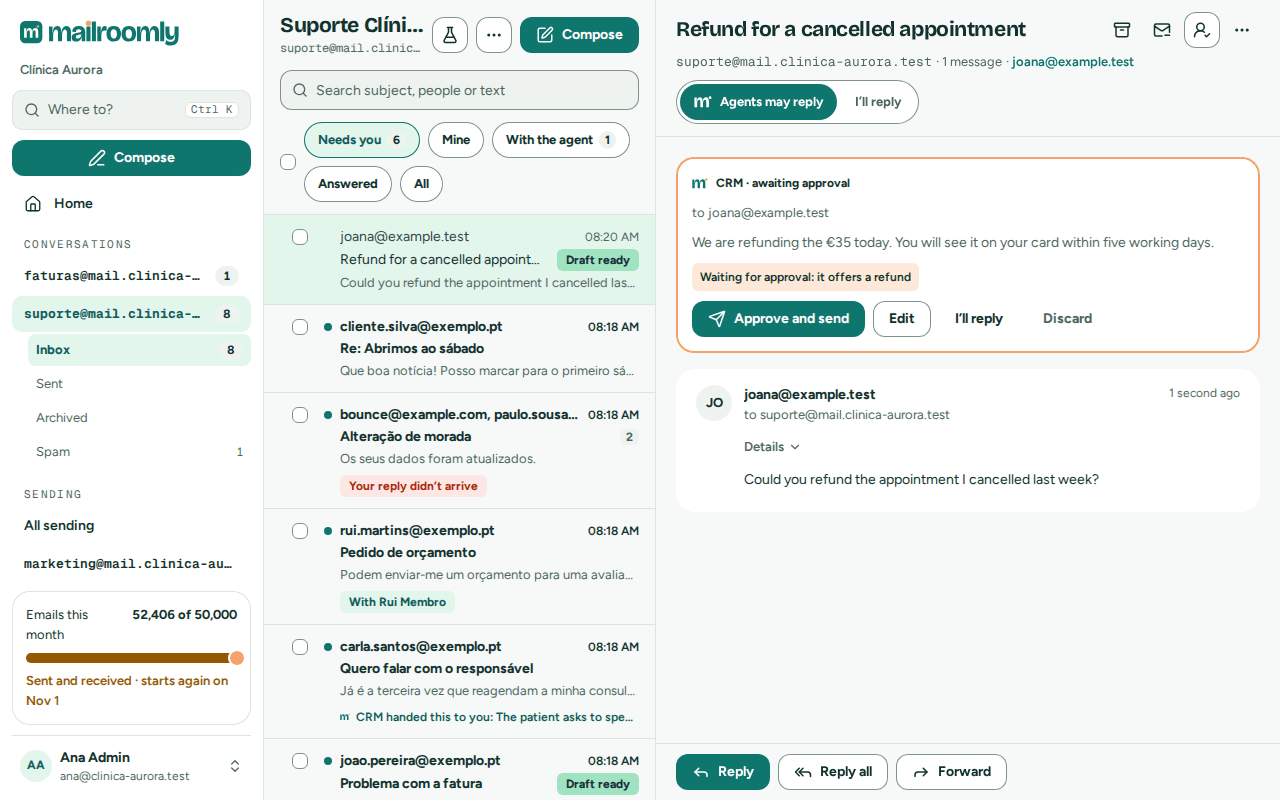 The boxes in the sidebar, the chips sort the Inbox by who holds each conversation
Open it with Inbox, in the tab bar or the sidebar. You see the addresses an administrator gave you access to; administrators see every address of the organization. In the sending experience, Inbox appears once one of the organization's addresses receives email (Finding your way).
Addresses and boxes
Inbox opens the address you used last on this device, or your first one. Each address has four boxes:
| Box | Holds |
|---|---|
| Inbox | Every conversation in which something came in, unless it is archived or spam. |
| Sent | Every conversation the address wrote in, newest send first, archived ones too (marked Archived). A conversation your app or a colleague started that nobody answered is only here. |
| Archived | Conversations you archived. |
| Spam | Mail flagged as spam when it arrived, and conversations someone reported as spam. |
To move between addresses and boxes:
- On a computer, the sidebar lists your addresses under Inbox, each with its number of unread conversations; the open address shows its boxes underneath (with how many conversations Spam holds).
- On a phone or tablet, select the list's title (the box and the address) to choose another address or box.
- Anywhere, Where to? (Ctrl K, ⌘ K on a Mac, or the search button in the top bar of a phone) lists your addresses under Inboxes: type part of the address and open it.
- In the inbox experience, Home shows Your inboxes, each address with how many conversations are left to read.
The browser tab shows how many conversations are unread across your addresses, for example (3) Mailroomly.
If you cannot open any address yet, the inbox says No inbox yet. Ask an administrator to give you access to one (Who can open an address).
Needs you and the other chips
The Inbox opens on Needs you. The chips at the top sort its conversations by who holds them:
| Chip | Shows |
|---|---|
| Needs you | What a person has to look at: a conversation waiting for an answer that no agent is working on, and every conversation with an agent's draft waiting for approval (marked Draft ready). A conversation is here until an agent picks it up, and when a person took it over or was assigned it, when the agent handed it to you, or when the agent didn't answer in time. When there are none: Nothing needs you right now. |
| Mine | The conversations you hold: those you took over with I’ll reply or that were assigned to you (Assigning a conversation). |
| With the agent | Only on an address an AI agent can answer from: the conversations an agent picked up and is working on. Each one comes back to Needs you when the agent lets go of it or doesn't answer in time (see When an agent picks up a conversation). |
| Answered | Conversations whose latest message that counts went out, from the inbox, from an agent or from an app sending from the address; a forward counts too. A reply that could not be sent, or that bounced for everyone it went to, does not count: its conversation stays in Needs you, marked Your reply didn’t arrive. |
| All | Everything in the Inbox. |
Needs you, Mine and With the agent show how many conversations they hold (999+ beyond that).
What never needs a reply
Only mail a person wrote can need a reply. Mail that doesn't stays in All, unread like any new mail, with a label that says why it is not in Needs you:
- Automatic: an automatic reply (such as an out-of-office) or a delivery report.
- Updates: bulk mail, such as newsletters and notifications, and mail from addresses that don't read replies (no-reply). A website's contact form that writes from a no-reply address with the visitor's address to reply to counts as a person writing.
- Spam goes to the Spam box instead (Spam).
The list
Conversations are sorted by latest activity (in Sent, by the address's latest send). Each row shows who you are talking to, the subject, the beginning of the latest message, when it happened, how many messages it has, a paperclip when there are attachments, and bold text while it is unread. Below them, labels say what a person should know at a glance: Draft ready, Automatic or Updates, Your reply didn’t arrive, and With … with the colleague who holds it. A line with the agent's mark names the agent working on it (CRM is working on it), one that handed it over, or one that didn't answer in time (CRM didn’t answer in time.). Older conversations load as you scroll (Load more does the same).
The search box looks in the subjects, the people and the beginning of each conversation's latest message, in the box you are in.
The list refreshes on its own every 15 seconds, and an open conversation every 10 seconds, so new messages appear without reloading the page.
Messages are grouped into conversations automatically: by the reply references email programs add or, without them, by the same subject with the same person in the last 30 days. Messages your apps send from the address appear here too.
Selecting several conversations
On a computer, each row has a box to tick; the box above the list selects every conversation shown, up to 100 at a time. On a phone, touch and hold a row to start selecting, then tap the others.
The bar that appears names how many you selected and what you can do with them: Mark as read, Mark as unread, Archive (in the Archived box, Move to inbox) and Assign. Each change offers Undo for a few seconds; undoing Mark as read only marks unread again the conversations that were unread.
Mark all as read
The list's ⋯ menu has Mark all as read, for every conversation of the address, and Mark every address as read, for all the addresses you can open. Read state is yours alone. Nothing asks you to confirm, and Undo puts back what was unread. Something that arrives afterwards is unread as usual.
Reading a conversation
A conversation reads like a mail client. Its header stays at the top: the subject, the address, the number of messages and the person you are writing with, then Archive (or Move to inbox), Mark as unread, Assign and More actions (Report spam or Not spam).
- The newest message is at the top, open, together with the received messages that came after your team's last reply (what is waiting for an answer). Older messages follow below it and fold into one-line rows: select one to open it. Two or more folded rows in a row become N older messages: select it to unfold them all.
- Each message shows the sender, to … and the date. Details shows From, Reply to (when the sender asks for replies to go elsewhere), To, Cc, Date and, for a message sent from the address, its Status. Administrators also get See its route, which opens the message in Activity with its route and event timeline (A send's page).
- Replies written in the inbox carry a Team badge and Sent by with the colleague's name. Messages an agent wrote carry an Agent badge and Written by with its name (for example Claude (Ana Lima) for a colleague's personal agent); an approved draft adds Approved by and the person.
- Messages appear newest first, in the order they reached Mailroomly; one that arrives while the conversation is open appears at the top. For a received message, the date shown is the one the sender's email program set, which can be much older for a forwarded or resent message.
- Opening a conversation marks it as read for you. Read state is personal: colleagues still see it as unread until they open it. A new message makes it unread again, and so does a colleague's or an agent's reply; your own reply, and a send of your apps that starts a conversation, never do.
The email is shown at its full height, in a frame that never runs scripts; links open in a new tab.
- Images. Remote images are blocked to protect your privacy, since they are often used to track reading: Remote images are blocked to protect your privacy. Select Show images to load them. Images embedded in the message are always shown, except in a message with a virus.
- Attachments appear below the message: select one to download it.
- Virus and spam warnings. Every received message is scanned. When the scan finds a virus, the message is marked Virus and shows This email contains a virus: its attachments are blocked and cannot be downloaded or forwarded, and its embedded images are not shown. When the scan could not finish, a note asks you to open the attachments only if you trust the sender. Messages classed as spam are marked Suspected spam: be careful with their links and attachments.
- Status of a sent message, on its route: Accepted, Sent, Delivered, Opened, Delayed, Bounced, Not sent or Blocked. Activity explains each one.
| Action | What it does |
|---|---|
| Mark as unread | Shows the conversation as unread again, only for you, and goes back to the list. Marked as unread. offers Undo for a few seconds. |
| Archive | Moves the conversation from the Inbox to Archived (Sent still lists it) and goes back to the list. Conversation archived. offers Undo for a few seconds. A new message from the other person brings an archived conversation back automatically. Needs Read and reply access. |
| Move to inbox | Brings an archived conversation back. Needs Read and reply access. |
| Assign | Gives the conversation to you or a colleague (Assigning a conversation). Needs Read and reply access. |
| Report spam | Moves the conversation to Spam and goes back to the list, with Undo. Needs Read and reply access. |
The person's other conversations
Select the person's address under the subject to see who they are and what else they wrote: their name, since when they write to you, how many messages went each way, and up to 10 of their other conversations in the addresses you can open. See all in this address searches the address for them. On a wide screen they open beside the conversation (select the address again to hide them); on smaller screens, in a panel.
Spam
Mail flagged as spam when it arrived goes straight to the Spam box: it never shows in the Inbox, Needs you or the unread counts. A conversation in Spam says so at the top, with Not spam to move it back to the Inbox, where its messages count as a person's again. Report spam, in More actions, moves a conversation there yourself. A spam message that arrives in a conversation you already have stays in it with its Suspected spam warning, without making the conversation need a reply.
Assigning a conversation
Assign, in the conversation header or the selection bar, gives a conversation to someone who may reply from the address:
- Me takes it over, as I’ll reply does.
- A colleague's name gives it to them: it shows in their Mine and in Needs you with With … and their name, their Home says A conversation is assigned to you (a member, who has no Home, sees it above the inbox), and agents stop sending in it, as when a person takes it over.
- Agents may reply (on an address an agent can answer from) gives it back to the agents.
Only colleagues who may reply from the address are offered (administrators, and members with Read and reply access). An agent can also hand a conversation to one person by name (AI agents).
Keyboard shortcuts
On a computer, single keys work whenever you are not typing in a field. ? shows them all, and so does Keyboard shortcuts in the list's ⋯ menu.
| Key | What it does |
|---|---|
| j / k | Next or previous conversation (with one open, it opens the next one) |
| Enter or o | Open the conversation |
| u | Back to the list |
| x | Select the conversation |
| e | Archive |
| Shift+I / Shift+U | Mark as read / unread |
| r, a, f | Reply, reply all, forward |
| c | New email |
| / | Search |
| g then i, m or s | Go to the Inbox, Mine or Sent |
Agents and you
When an AI agent can answer from an address, its conversations show who replies: the agent or a person. An agent picks up the conversations it works on, so you see which ones are in hand; the others wait in Needs you. Agents answer on their own; nothing waits for approval unless the agent was set up to leave drafts, and you can step in at any time. An agent is an app's API key (Apps and keys) or a colleague's personal token (Personal tokens), and how it works is your organization's choice when it creates the key or token.
Who replies
The conversation header shows Agents may reply · I’ll reply, with a line on what is happening:
- I’ll reply takes the conversation over. Agents can no longer send in it (they can still leave drafts), and the header says You’re replying. Agents won’t send here until you hand it back; they can still leave drafts. A colleague who took it over is named instead (Ana Lima is replying.).
- Agents may reply hands it back to the agents. While an agent works on it, the line names the agent and how long it has (CRM has been working on it since 10:42, until 11:12.); while none does, it says No agent is working on it yet, so it’s in Needs you.
- Replying yourself takes the conversation over too. If an agent is working on it, the composer says so (CRM is working on this conversation): your reply answers it, so the agent stops (its app is told). To let the agent carry on after your reply, tick The agent carries on in this conversation in the composer before you send.
- A new email you write from the address is yours as well, unless you tick The agents answer what comes back on the New email page.
With Read only access you see who replies, but cannot change it.
Drafts awaiting approval
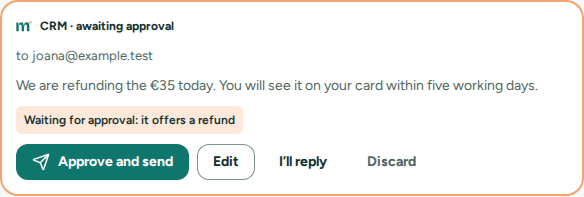 Approve and send, edit, take over or discard
An agent can leave a reply for a person to approve, with the reason it held it (for example Held because it mentions an amount). The draft appears at the top of the conversation, above the latest message, outlined and headed
- Approve and send sends it as the agent wrote it (Approved and sent.).
- Edit opens it in the composer; Send sends your version, which goes out as the agent's reply approved by you. Cancel leaves the draft waiting. Images in the draft are not kept when you edit it.
- I’ll reply discards the draft and takes the conversation over, with an empty reply open.
- Discard deletes the draft after you confirm (Discard this draft?). Who replies does not change.
If a message arrived after the agent wrote the draft, the draft says so: check that it still fits (approving it still answers the message it was written for). A draft can also be a forward, with its recipients and the files that go with it. Images from the web are hidden in the preview; the recipients will see them. When a colleague decided the draft first, you see Someone already sent or discarded this draft. A draft left waiting longer than your organization keeps mail is deleted.
Your own reply replaces any draft the agent left in that conversation.
When an agent hands a conversation to you
An agent that cannot or should not answer hands the conversation over: it moves to Needs you with the agent's note, for example CRM handed this to you: The patient asks to speak to the person in charge. The conversation is now a person's, so agents no longer send in it. Answer it yourself, or select Agents may reply to give it back.
When an agent picks up a conversation
An agent picks up a conversation before it works on it, so everyone sees it is in hand: the conversation moves to With the agent, and the header names the agent and how long it has (CRM has been working on it since 10:42, until 11:12.). Other agents leave it alone. Until an agent picks it up, a conversation waits in Needs you, even on an address agents can answer from, so nothing sits unseen when no agent is running.
The conversation comes back to Needs you when:
- the agent doesn't answer in time (CRM didn’t answer in time.);
- the agent lets go of it, or its key or token stops working on the address;
- the agent leaves a draft for approval or hands the conversation to you.
When the agent replies, the conversation moves to Answered. You can step in at any time: replying, I’ll reply or assigning the conversation stops the agent, and its app is told.
An administrator chooses how long an agent may hold a conversation on the address's page, in How long an agent may hold a conversation: 15 minutes, 30 minutes (the default), 1 hour, 4 hours, or Until it replies. An agent may ask for less time, and picks the conversation up again to keep working on it.
Tip
If conversations stay in Needs you although an agent is connected, check that the agent picks them up before it works on them (AI agents). If agents often run out of time, ask an administrator for a longer time on that address.
Reply, reply all and forward
Reply, Reply all and Forward stay at the bottom of the conversation. The composer opens at the top, above the latest message; on a phone it takes the whole screen.
- Reply answers the latest message. It goes to its sender, or to the Reply to address when the message has one (as contact forms and no-reply senders do). If the latest message was sent from the address, it goes to that message's recipients.
- Reply all goes to the same recipient as Reply and adds in Cc everyone else who was on the latest message (its To and Cc), except the address itself.
- Forward starts with no recipient and includes the attachments of the latest message (Attachments included in the forward); remove any you do not want to send. The attachments of a message with a virus are never included.
To write the message:
- Add or remove recipients in To, Cc and Bcc. From the second character you type, suggestions show the people your addresses wrote with or heard from and your colleagues (marked Teammate), found by their address, its domain or any word of their name, accents or not; one marked Won’t receive mail is blocked (Blocked addresses). Choose one with the arrow keys and Enter or Tab, or with a tap. Only the addresses you can open suggest people. You can also type or paste addresses separated by commas, semicolons or spaces, also in the form Maria Silva <maria@example.com> (only the address is kept). An invalid address stays in the field with an error, and nothing is sent until you correct or remove it.
- Format with the toolbar (bold, italic, lists, links) and add files with Attach. Each file can be up to 7.5 MB, and the whole message up to 10 MB. Attachments count about a third more once encoded for sending, so two 4 MB files are already too much. The composer tells you before sending; if Mailroomly still refuses the message, the reason appears next to Send.
- The address's signature and the quoted original are added below your text (The address’s signature is added on its own.). Images larger than 2 MB, or more than fit the 10 MB limit, are left out of the quote (their description stays), so you can always reply to mail with large photos. When you forward, those images go as ordinary attachments instead, as long as they fit the limit.
- Select Send, or press Ctrl+Enter (⌘+Enter on a Mac) while writing. Discard closes the composer and throws the draft away.
The message goes out from the address with its display name (for example Support Aurora Clinic <support@…>) and stays in the same conversation in the recipient's email program. Mail written in the inbox is never tracked: it carries no invisible image and its links stay as they are. It appears in the conversation straight away, and its status updates as it is delivered.
When a reply is refused
- If every recipient is blocked (for example an address that bounced before), Mailroomly does not send and tells you; if only some are, the others still receive it. See Blocked addresses.
- On a domain that sends through the platform, recipients whose domain cannot receive mail are skipped the same way. Mail from the inbox still reaches disposable addresses, as long as their domain receives mail.
- Replies count towards your organization's daily sending limit and, when your organization sets one, towards your own daily limit of recipients. Emails your AI agents send for you count towards your limit too. When a limit is reached, or sending is paused for your organization, the reply is refused with the reason, for example You reached your daily limit of recipients. It resets at midnight UTC. If you need more, ask an administrator. Your text stays in the composer, so you can send it later. See Daily limits.
New email
Compose starts a new email from an address:
- on a tablet or computer, above the conversation list;
- on a phone, as a floating button above the tab bar;
- on a computer, also at the top of the sidebar, where it uses the last address you used that you can reply from.
The New email page shows the address it goes out from (From …). Fill in To (and Cc or Bcc if needed), Subject and the message, attach files if needed, and select Send. The same rules for recipients and attachment sizes apply as for replies, and the signature is added on its own. The message starts a new conversation in the address, which opens once it is sent. Tick The agents answer what comes back to leave the replies to the agents.
Drafts
These are your own drafts; an agent's drafts are in Drafts awaiting approval. What you write is saved on this device as you type, and Draft saved appears next to the signature note. If you close the tab, lose the connection or open another conversation, the draft is still there when you come back to the same reply, reply all, forward or new email of that address.
- A draft keeps the recipients, the text and, for a new email, the subject. Attachments are not kept: attach them again.
- Drafts never leave your browser: they are not on your other devices, and colleagues do not see them.
- Sending or Discard removes the draft.
Warning
Signing out deletes every draft saved on the device.
Phones and computers
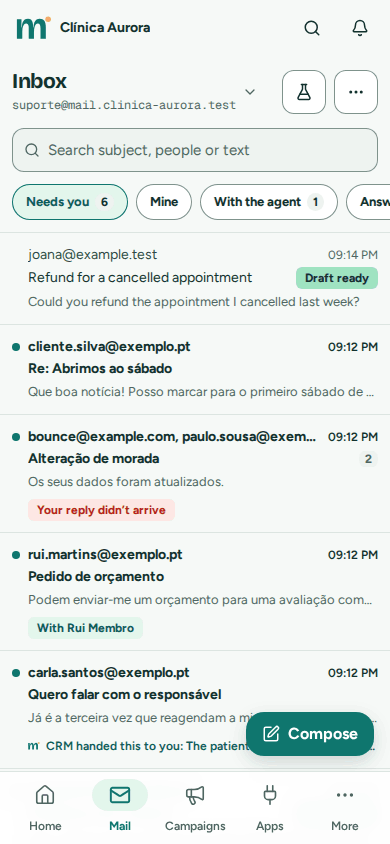 The list fills the screen; a conversation opens full screen
- Tablets and computers: the conversation list and the open conversation sit side by side.
- Phones: the list fills the screen, and a conversation opens full screen with a back arrow (Back to conversations) to return to the list. Compose floats above the tab bar, and the Inbox tab shows how many conversations are unread. Select the list's title to change the address or the box, and touch and hold a conversation to select it.
Permissions
An administrator sets your access to each address: on the address's page, when inviting you, or when creating the address (Who answers gives Read and reply). See Who can open an address.
| Access | Read conversations | Mark as read or unread | Reply, forward, compose | Archive, spam | Decide drafts, who replies, assign |
|---|---|---|---|---|---|
| Read only | yes | yes | – | – | – |
| Read and reply | yes | yes | yes | yes | yes |
| Administrator (every address) | yes | yes | yes | yes | yes |
With Read only access, the conversation shows You can read this address, not reply from it. instead of the reply buttons, and an agent's draft says You can read this address, so you see the draft but can’t send it.
Good to know
- Conversations with no activity for the time your organization keeps mail are deleted with all their messages; an active conversation keeps its older messages, up to two years. The count starts when Mailroomly received or sent the message, not at the date the sender's email program shows. Plan shows how long your organization keeps mail.
- To let your own AI agent read and answer your addresses, create a personal token in My agents, in the account menu, when your organization allows them (Personal tokens). Give it Leave drafts for approval without Reply and write emails and it can only leave drafts for you to approve.
- In test environments, a Simulate inbound email button lets developers create a received message without sending real email. It does not exist in production.