AI agents
Connect Claude, ChatGPT, Cursor or your own agent to Mailroomly over MCP, so it reads and answers your addresses, leaves drafts for you to approve and, if you are an administrator and allow it, sets up and runs the organization.
Two kinds of agent
An agent works in Mailroomly in one of two ways. Choose by who it works for:
| Your own agent | An agent for the organization | |
|---|---|---|
| Works for | You | The whole organization, for example a support agent for support@ |
| Connects with | A personal token (mp_pat_…), which you create in Settings › My agents, or by signing in from Claude, ChatGPT or Grok (Connected apps) |
An app's API key (mp_live_…), which an administrator creates in Apps |
| Reaches | The addresses you can open, or only the ones you choose, within the access you give it | The addresses, domains and types of email its key allows |
| Its replies are signed | With the token's name and yours, for example Claude (Ana Lima) | With the app's name |
| Who can set it up | Anyone in the organization, when the organization allows personal tokens | Administrators |
Both connect to the same MCP server, with the same tools. The rest of this page is about your own agent first; the agent for the organization is in An agent for the organization.
Create a personal token
A personal token lets your own agent work as you: it only reaches the addresses you can open, and does nothing an administrator does unless you give it the Administration scopes, within what you can do yourself. Give each agent its own token, so you can revoke them separately.
-
Open My agents: Settings › My agents › Open My agents, the account menu, or Ctrl K › Connect an AI agent (administrators then choose As you).
-
Under AI agent tokens, choose Create token. Create a personal token opens.
-
Give it a Name you will recognize later, for example "Claude on my laptop".
-
Under Access, keep only what the agent needs:
Access The agent can List addresses See which addresses it can use Read conversations Read the conversations of those addresses Leave drafts for approval Leave replies for you to approve, and hand conversations over to people Reply and write emails Reply, reply to all, forward and write new emails from those addresses (it can also leave drafts) Replying and leaving drafts include reading conversations, and both need Read and reply access to the address. With Leave drafts for approval and without Reply and write emails, the agent never sends on its own: every reply waits for you in the inbox.
-
Under Which addresses does this agent handle?, choose All my addresses (every address you can access, now or later) or Only the ones I choose, for example a support agent that only sees
support@. When you choose a single address, the name is suggested for you (Support agent, Sales agent, Billing agent, or Agent for and the address) until you type your own. -
Administrators, and people who run some domains and apps, first choose What may this agent do?: Only answer email (the default), Everything I can do or Only what I choose, which shows Administration (optional) with every area unchecked. An agent never does more than you: someone who runs part of the organization hands over only that part (Let your agent administer the organization).
-
Under Expires, choose In 30 days, In 90 days (the default), In 365 days or Never. A token without expiry works until you revoke it.
-
Choose Create token.
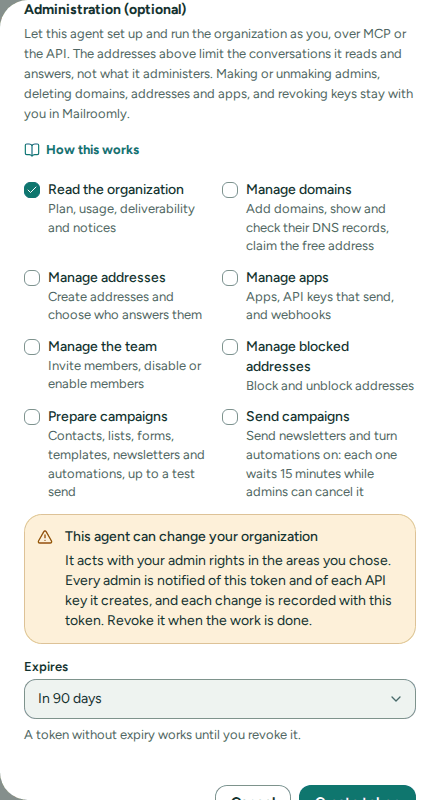 Access, the addresses the agent handles, Administration and the expiry
Personal token created shows the token, which starts with mp_pat_, the MCP server URL and the configuration for Claude Code, Cursor, JSON and cURL with the token already filled in. Copy what your agent needs, then choose Confirm the token is stored.
Important
The token is shown only once. Mailroomly keeps only a hash of it and can't show it again. If you lose it, revoke it and create another.
Revoke a token
In My agents, each token is listed with its access, its addresses, when it expires and when it was last used. See its calls shows every call it made, with its result (Requests). Revoke stops it at once.
Warning
Revoking cannot be undone: every agent and script using the token loses access immediately.
A token belongs to the organization you created it in, and works only there: if you belong to several, My agents lists the tokens of the one you're in (Switching organization). It also stops working when your role in that organization changes, when you're disabled there or leave it, when your password changes (that ends every token of yours), or when the organization turns personal tokens off. It is then listed as revoked and no longer counts. You can have up to 20 active tokens in each organization.
When personal tokens are turned off for your organization, My agents says so, Create token is not available, and existing tokens don't work until they are turned on again.
Connect an MCP client
Every client needs two things:
| Server URL | https://app.mailroomly.com/mcp |
| Header | Authorization: Bearer <token> |
Plug it in, at the top of My agents, has the same settings ready to paste, with a placeholder in place of the token. The configuration shown when you create a token already carries it. Claude, ChatGPT and Grok need only the server URL: you sign in instead of copying a token (Claude, ChatGPT, Grok and other agent platforms).
Claude Code
Run this once, with your token in place of mp_pat_…:
claude mcp add --transport http mailroomly https://app.mailroomly.com/mcp --header "Authorization: Bearer mp_pat_…"
Then ask, for example, "List my addresses and summarize the unanswered conversations in support@."
Tip
To keep the token out of your shell history, put it in an environment variable first and write
--header "Authorization: Bearer $MAILROOMLY_TOKEN": the shell expands it when the server is added.
Cursor, VS Code and other clients
Clients configured with a JSON file use this shape:
{
  "mcpServers": {
    "mailroomly": {
      "type": "http",
      "url": "https://app.mailroomly.com/mcp",
      "headers": { "Authorization": "Bearer mp_pat_…" }
    }
  }
}
- Cursor reads it from
.cursor/mcp.json. A remote server there is itsurlandheaders, withouttype. Cursor can read the token from an environment variable:"Authorization": "Bearer ${env:MAILROOMLY_TOKEN}". - VS Code reads
.vscode/mcp.json, where the same entry goes underserversinstead ofmcpServers. - Claude Code's project file
.mcp.jsontakes exactly the shape above, and expands${MAILROOMLY_TOKEN}.
A client that does not expand variables sends the text as it is, and the server answers that the token is not valid: put the token itself in that client's configuration, and keep the file out of version control.
To check the token without a client, list the tools it can use:
curl https://app.mailroomly.com/mcp \
  -H "Authorization: Bearer mp_pat_…" \
  -H "Content-Type: application/json" \
  -H "Accept: application/json, text/event-stream" \
  -d '{"jsonrpc":"2.0","id":1,"method":"tools/list"}'
Claude, ChatGPT, Grok and other agent platforms
Claude, ChatGPT and Grok connect by signing in to Mailroomly, with no token to copy. So does any client that follows the MCP standard for signing in.
- In Claude, ChatGPT or Grok, add a custom connector with the server URL
https://app.mailroomly.com/mcp. The empty Connected apps list in My agents has the address ready to copy. - Connect it. The platform opens Mailroomly in your browser: sign in if you aren't already.
- Connect Claude to Mailroomly (or the name of your agent) shows where you will return, for example Returns you to claude.ai, and the organization you're in. If you belong to several, choose the one the agent works in.
- Choose what it can do and which addresses it handles, as for a personal token. Administrators also see Administration (optional), unchecked, and which areas the agent asked for: give only those it needs (Let your agent administer the organization).
- Choose Allow. You return to the platform, which can now use your addresses. Cancel returns you without connecting anything.
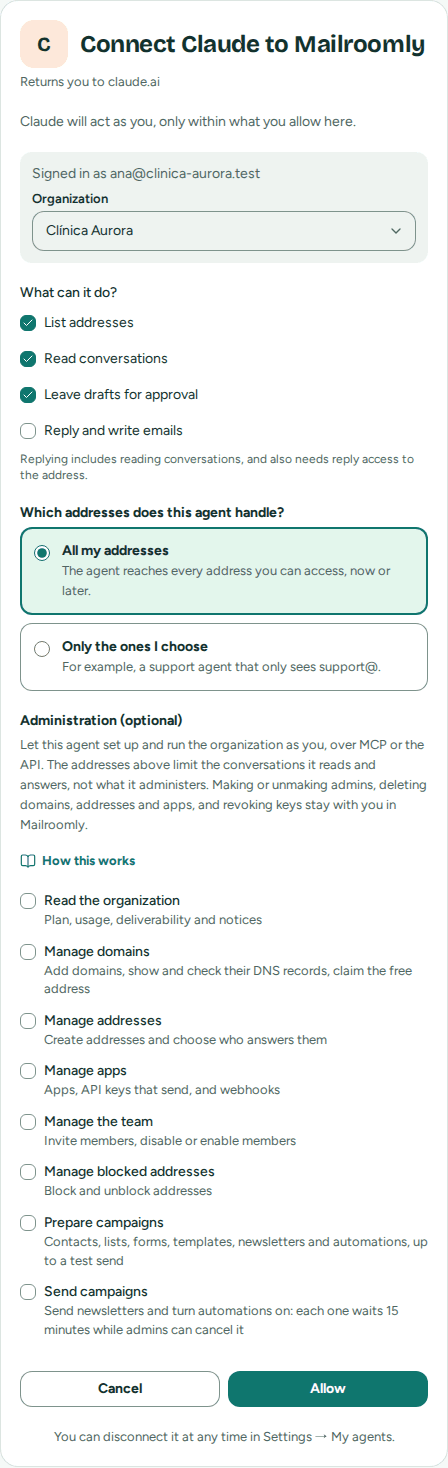 Where it returns you, what it can do and which addresses
Caution
Check the address under the agent's name before you choose Allow: it is where Mailroomly sends you back. If it isn't the platform you started from, choose Cancel.
Mailroomly emails you each time an app connects to your account. An agent connected this way counts as one of your tokens: it signs its replies with its name and yours, and it stops working in the same cases as a token.
Connected apps
My agents lists the platforms you connected under Connected apps, with what they can do, their addresses, where they return you, when you connected them and when they were last used. See its calls shows every call one made (Requests). Disconnect stops one at once; to use it again, connect it again from the platform. Administrators see them in Team, with each person's tokens, marked Connected app.
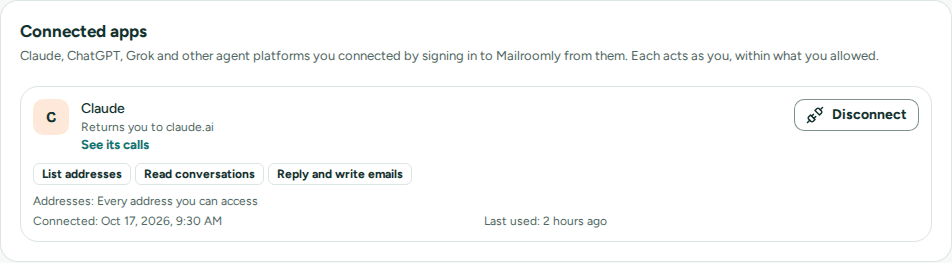 A connected Claude, with its access and where it returns you
What you can ask your agent
Ask in your own words; the agent picks the tool. It only sees the tools its token or key allows, and only on its addresses.
| You ask | The agent uses | It needs |
|---|---|---|
| "Which addresses can you see?" | list_mailboxes |
List addresses |
| "What is waiting for an answer in support@?" | list_threads, with the inbox's boxes and chips (Needs you, With the agent, Answered, Sent, Archived, Spam) |
Read conversations |
| "Archive the newsletters in support@." | update_threads (archive, spam; read state only for a personal token) |
Read conversations, and Reply and write emails to archive |
| "Read me the conversation about the invoice." | get_thread: every message's text, who holds the conversation and what became of its latest draft |
Read conversations |
| "Reply that the order ships tomorrow." | reply_to_thread: a reply, a reply to all or a forward, from the conversation's address, with its signature |
Reply and write emails |
| "Draft a reply offering a refund. I'll check it." | draft_reply, with the reason you will see |
Leave drafts for approval or Reply and write emails |
| "Take the next conversation waiting in support@." | claim_next_thread, then get_thread; claim_thread picks up a given one, release_thread lets it go |
Leave drafts for approval or Reply and write emails |
| "This one is for the team. Pass it on." | hand_over_thread, with a note for the people of the address |
Leave drafts for approval or Reply and write emails |
| "Write to maria@example.com from sales@." | compose_message: a new conversation from the address |
Reply and write emails |
| "Send the order confirmation from our shop." | send_message, from a verified domain |
An app's key with Send messages (a personal token never sends app email) |
| "Did last week's invoice to João bounce?" | search_messages, then get_message for its timeline |
An app's key with Read activity |
| "Send the order confirmation again, to the corrected address." | resend_message, after search_messages (Send it again) |
An app's key with Send messages and Read activity |
| "Why did my last calls fail?" | list_requests with result set to failed, then get_request |
Any token or key: it reads its own calls (Requests) |
| "Is maria@example.com blocked? Unblock her." | list_suppressions, add_suppression, remove_suppression |
An app's key with Read blocked addresses or Manage blocked addresses, or a token with Manage blocked addresses |
What an agent sends counts toward the daily limits like any other email: through a personal token, yours and your organization's; through a key, the key's and your organization's (Daily limits). Reading tools share your organization's reads per minute: past them, the agent is told how long to wait.
Picking up a conversation
An agent picks up a conversation before it works on it, with claim_thread, or takes the one that has waited longest with claim_next_thread. The conversation moves to With the agent with the agent's name, other agents leave it alone, and the people of the address see it is in hand. A conversation nobody picked up stays in Needs you, so ask your agent to pick up what it works on.
The agent has as long as the address allows (30 minutes by default; When an agent picks up a conversation) and picks it up again to keep working. Its reply, a draft or handing the conversation over ends it, and release_thread gives it back to the people. When a person replies, takes the conversation over or assigns it, the agent stops; an app is told with a conversation webhook (Webhooks).
Drafts for approval and handing over
Your agent can choose not to send:
- A draft for approval. With
draft_reply, the agent leaves the reply below the latest message with the reason it held it, for example Held because it offers a refund. The conversation shows Draft ready in Needs you, and you approve, edit or discard it from the Inbox. A newer draft from the same agent replaces its pending one. - Handing over. With
hand_over_thread, the agent gives the conversation to the people of its address: it moves to Needs you with the agent's note, and agents stop replying there until a person hands it back. Given a colleague's email (assignee), it hands it to that person, who finds it in Mine (Assigning a conversation).
While a person holds a conversation (after I’ll reply, or after replying in it), the agent's replies there are refused: it leaves a draft instead. While another agent works on a conversation, an agent may read it but not pick it up, reply, leave a draft or hand it over. An agent that should never send on its own gets Leave drafts for approval without Reply and write emails.
Note
An agent or an app can always ask what it reaches:
get_my_accessanswers in plain words, by name, and every tool it can't use is already hidden. Past that, a refusal says so:OUTSIDE_YOUR_ACCESSmeans it isn't part of the access, and an administrator can change that in Team.
Let your agent administer the organization
As an administrator, you can let your own agent set up and run the organization for you, for example while onboarding it. Someone who runs some domains and apps can do the same with those, and with Campaigns if they have them. Administration (optional) in Create a personal token shows only what you can hand over, and the agent still gets only what both the areas you tick and your own access allow. Tick only the areas it needs:
| Area | Scope | What the agent can do |
|---|---|---|
| Read the organization | organization:read |
Read the plan, usage, deliverability and notices, where Getting started stands, and the audit log: who changed what. Never your mail: reading conversations is the Access above, on the addresses you chose. |
| Manage domains | domains:manage |
Add domains, show and check their DNS records, email them to whoever runs your DNS, claim the free address, change a type of email's tracking, pause it or cancel the email waiting to be sent |
| Manage addresses | addresses:manage |
Create and change addresses, and choose who can open them |
| Manage apps | apps:manage |
Create and change apps, create API keys that send (it gets each key once, to hand to you), set up webhooks and test them, send you a test email |
| Manage the team | team:manage |
Invite members, and disable or enable members |
| Manage blocked addresses | suppressions:manage |
Block and unblock addresses |
| Prepare campaigns | campaigns:manage |
Add and update contacts and lists, make sign-up forms, upload images, write templates and newsletters, and send tests |
| Send campaigns | campaigns:send |
All of that, and send newsletters and turn automations on. Each one waits 15 minutes while every administrator is told and can cancel it (Marketing from your apps and agents) |
Ticking any of them shows This agent can change your organization. What the agent does is recorded as done by you, with this token. Which addresses does this agent handle? limits the conversations it reads and answers, not what it administers.
Then ask your agent to "set up the organization". Clients that offer MCP prompts also list Set up the organization (set_up_organization), which takes your own domain if you have one. It walks the agent through the order of Getting started: the free address or your domain and its DNS records, the addresses (support@, sales@, billing@), the team and who can open each address, apps and their keys, and a test email. It tells the agent to describe each change and wait for your go-ahead, to leave deletions to you, and to invite no one and send nothing you did not ask for. An agent that answers an address gets its own token, which you create yourself.
Every administrator is told:
- When you create a token with any Administration area, every administrator gets the notice AI agent token that administers the organization, also by email (notice). The token shows Administers the organization in the lists, so another administrator can revoke a token they don't recognize, in Team › the person › AI agent tokens.
- When such a token creates an API key, every administrator gets API key created by an AI agent (notice). The key keeps working after the token is revoked, until someone revokes the key.
- When such a token cancels email waiting to be sent, every administrator gets Queued email canceled by an AI agent (notice).
Revoke the token when the work is done.
What stays with a signed-in person
Important
Some things are never done with a token, whatever its scopes, over MCP or the API. A person signed in to Mailroomly does them in the web app.
- What cannot be undone: deleting a domain, an address (with its conversations) or an app; revoking an API key or someone's personal token; renewing a webhook secret; in Campaigns, deleting a list, a template, a sign-up form, an automation or a hosted image, and removing one of your own fields from every contact.
- Administrator rights: inviting an administrator, making a member an administrator, and changing an administrator's role or status (which also ends that administrator's tokens). A token invites members, and disables or enables members.
- Mail: an API key that reads mail or answers addresses (a key a token creates may only send and read or manage blocked addresses); sending an address's mail to an app or a webhook, which includes setting an address's owning app or inbound webhook URL, and changing the webhook of an app that owns addresses or has received their mail.
- What a key reaches: changing the domains and addresses of an existing key (which emails a key reaches).
- Notices about agents and keys: closing AI agent token that administers the organization, API key created by an AI agent and API key given more addresses.
- Your organization's own sending account: adding a domain there (own accounts).
- Everything else that belongs to a person: creating and revoking personal tokens, erasing a person's data, accepting the terms of service, and exporting or closing the organization.
When the agent asks for one of these, it gets a refusal that names it, for example:
SIGNED_IN_ONLY: Deleting a domain needs a person signed in to Mailroomly: ask them to do it in the web app (https://app.mailroomly.com/docs/en/ai-agents#signed-in-only)
The agent then tells you what to do in the web app.
Your client asks before changes
Every tool tells your client what kind of action it is: one that only reads, one that adds or changes something, one that removes something that can be given back, or one that sends email. Clients use this to ask you before acting, so you confirm each change and each send while reading runs on its own. How and when a client asks is its own setting: keep confirmations on for anything that changes or sends.
When the agent creates an API key, or reads an app's webhook secret, the secret comes back once with the instruction to hand it to you and not to repeat it. Store it where it belongs, and don't paste it into chats.
An agent for the organization
An agent that works for the whole organization, rather than as one person, is an app with its own key. It acts as no one in particular, and its replies are signed with the app's name. Administrators connect it:
- Open Apps › Connect an AI agent (or Ctrl K › Connect an AI agent), and choose For the organization.
- Give it an App name, for example "Support agent".
- Under How it replies, choose:
- Replies on its own: it answers conversations itself and leaves a draft when it wants a person to check. You can step in at any time.
- Leaves drafts for approval: every reply is a draft for a person to send, edit or discard. It never sends on its own.
- Under Which emails does this key reach?, choose what it needs. To keep an agent to
support@, choose Only these addresses (which emails a key reaches). - Choose Create the app and its key.
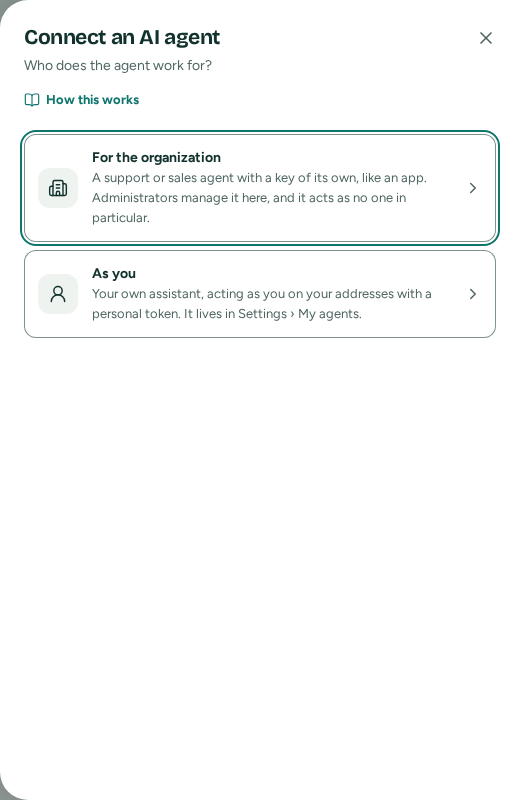 Who the agent works for: the organization, or you
The key, starting with mp_live_, is shown once in API key (to send): copy it into the agent's configuration or secret store. Plug it into your agent has the settings for Claude Code, Cursor, JSON and cURL. They read the key from the MAILROOMLY_API_KEY environment variable, so the code never carries it; in a client that doesn't read environment variables, put the key in place of the variable. The server URL and the header are the same as for a personal token: Connect an MCP client.
Change access, on the app's page, changes which emails the key reaches later (Apps and keys).
Good practices
- One token per agent, and one key per agent for the organization, so you can revoke one without stopping the others.
- The smallest access. Give Reply and write emails only to an agent you trust to send; Leave drafts for approval is enough for most new agents.
- Only the addresses it handles. A support agent sees
support@, notbilling@. - Administration only while it is needed, only the areas the task needs, and revoke the token when the work is done.
- An expiry. 30 or 90 days for a token you use for a project; Never only for an agent you watch.
- Secrets out of files you share. Read tokens and keys from environment variables or a secret store, never from a repository.
- Check the lists. In My agents, Last used shows tokens nobody uses any more: revoke them. Administrators review everyone's tokens in Team.
For developers: MCP server reference and REST API.