Settings and privacy
Change your own account and how Mailroomly looks, and, as an administrator, see how long mail is kept, export your organization's data, erase a person's data or close the organization.
Open Settings from Account and settings in the account menu (your name, at the bottom of the sidebar) on a computer, or from More › Settings on a phone.
 Your account, Appearance and Organization data
Your settings
Everyone has these:
- Your account: your Name and the Language: English, Português (Portugal) or Same as browser, which uses each browser's language. Your choice follows you to every device you sign in to. Save with Save changes. The account menu also has a quick Language switch.
- Appearance: Same as device (the default), Light or Dark. It is remembered on each device. Ctrl K switches it too.
- My agents, when your organization allows personal tokens: Open My agents connects your own AI agents to your addresses, acting as you (AI agents).
- Organization: your email, your role and your organization.
- How you sign in: whether you have a password, codes by email, and the Google, Microsoft or LinkedIn accounts linked to yours (Signing in).
- Recovery address: an address of your own outside your organizations' domains, where sign-in codes and password-reset links also go. Changing it asks you to confirm it's you, and the address you sign in with is told (Your recovery address).
- Delete your account (below).
Organization settings
Administrators also have:
- How people sign in: the ways people of your organization may sign in: Password, Code by email, Google, Microsoft and LinkedIn (How your organization lets people sign in).
- Audit log: who changed what in the organization, and when (below).
- Organization data: the terms of service your organization accepted, Export the data, Erase a person's data… and Close the organization… (below).
The rest of the organization's setup has its own pages: Addresses and domains, Team, Plan and limits and the apps and agents in Apps and API.
Audit log
The audit log shows who changed what in your organization, and when, newest first. Every administrator sees it, on every plan: Settings › Audit log › Open the audit log.
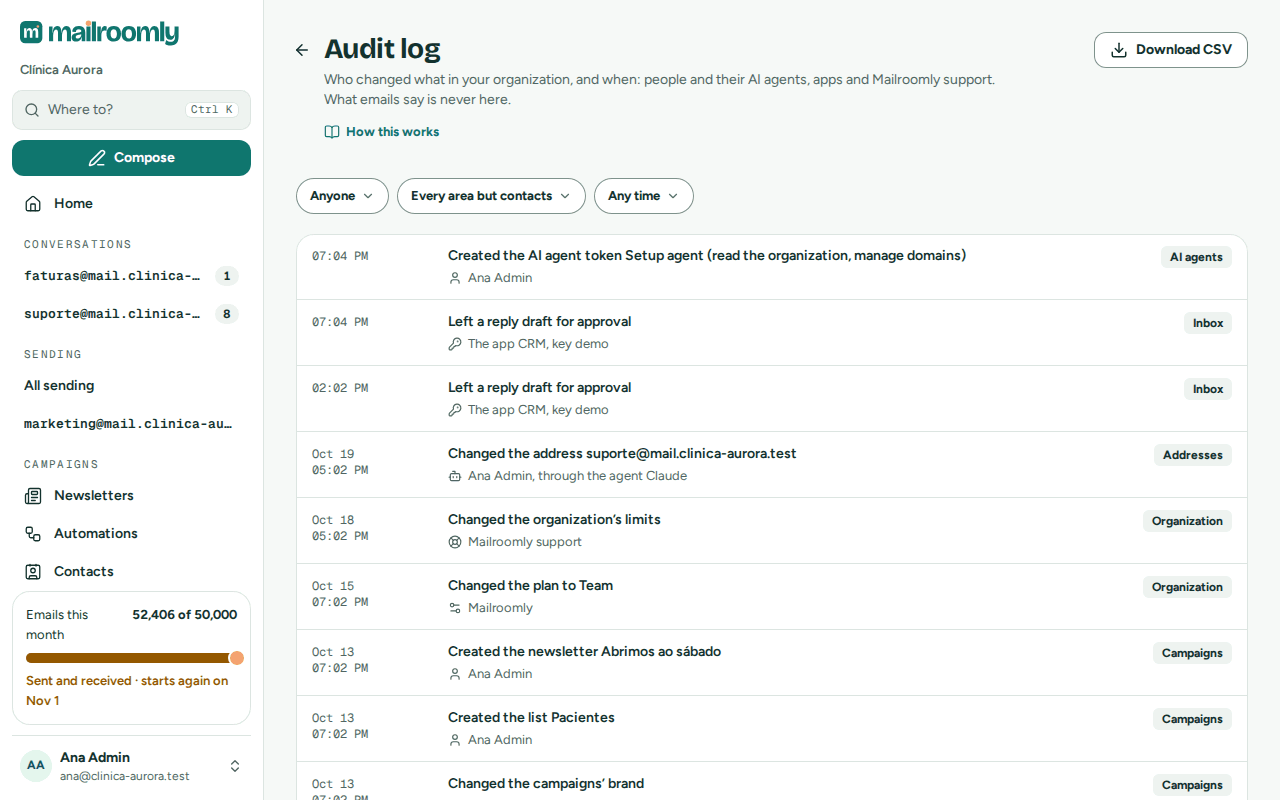 Who changed what, with the filters and Download CSV
Each line says what changed, such as Created the app Invoices or Added the domain mail.example.com, then who did it and when:
- a person of your organization, by name;
- a person's AI agent: Ana Silva, through the agent Claude;
- an app's key: The app Invoices, key Production;
- Mailroomly support, when our team changed something for you, such as pausing receiving on an address; never a name;
- Mailroomly, for what happens by itself, such as a newsletter canceled because its mail was past your organization's retention.
Someone who has since left, or deleted their account, shows as A former member.
The log covers your team and its roles, AI agents' tokens, apps with their keys and webhooks, domains, addresses and who can open them, who handled a conversation (assigned, handed over, a draft sent or discarded), sending and its pauses, blocked addresses, campaigns, contacts, your organization's plan and settings, exports and erasures. What emails say is never in it, and neither is who was erased: an erasure shows only how many messages went.
The filters:
- Who: one person (with their agents), one agent, one app's key, Mailroomly support or Mailroomly. Someone who has left isn't offered on their own: their changes are under Anyone, and their agents stay in the list.
- Area: Every area but contacts at first, because apps that keep your contacts in sync add a line for each contact. Choose Contacts, or Every area, contacts too, to see them.
- Period: Last 7 days, Last 30 days, Last 90 days or Any time.
Download CSV saves what the filters show as a spreadsheet, with times in UTC. Each download is itself in the log.
In the web app
Open Settings › Audit log › Open the audit log, then choose Who, Area and Period.
Ask your agent
"Who changed our domains this week?" An agent with Read the organization (organization:read) uses list_changes (Let your agent administer the organization).
How long mail is kept
Mailroomly keeps your organization's mail for two periods, set by your plan (Plan › Limits › How long mail is kept):
- Conversations are kept a number of days after their last message. A conversation that is still going on is kept whole; one with no new message for the whole period is deleted whole.
- Other email, such as the email your apps send and sends nobody answered, is kept by age.
On the current plans, other email is kept 60 days, and conversations from 30 days (Free) to 365 days (Business) after their last message; Compare plans shows each plan's periods. Webhook deliveries are kept for the longer of the two periods.
Whatever the periods, nothing is kept longer than 2 years: messages older than that are deleted, even in a conversation that is still going on. The daily counts on Plan (Last 30 days) are kept even after the mail itself is deleted.
Deletion runs every night. When your plan's period gets shorter, older mail goes at the next nightly run. To keep a copy of your mail beyond the period, export it (below).
Exporting the data and closing the organization
Exporting the data
Settings › Organization data › Export the data prepares one .zip file with everything your organization has in Mailroomly. You get an email when it's ready, usually within minutes. Download it from Settings for 7 days. It holds:
- your email as .eml files, which any email program opens: conversations by address and conversation, and the email your apps sent, by month, each with its text, formatting, attachments and threading;
- your members, addresses, domains and apps (never their keys or secrets) and the changes your people, their agents and your apps made as JSON (the whole audit log, Mailroomly support's and Mailroomly's changes too, is a CSV of its own), and your blocked addresses, the events of each email and your daily usage as CSV.
A README in the file, in your language, says what is where; times are in UTC. Files of emails flagged as carrying a virus are never included, and not-included.txt lists those emails. One export is prepared at a time. Only your organization's administrators ask for one and download it; the Mailroomly team never does.
Closing the organization
When your organization stops using Mailroomly, Settings › Organization data › Close the organization… closes it.
- Read what happens, in Close
? . - Type the organization's name to confirm.
- Choose Close the organization.
At once:
- its members' sessions in it end and they can't use it (their other organizations stay as they are), its apps' API keys and its AI agent tokens stop working, nothing is sent (mail waiting to be sent is canceled) and no webhook goes out;
- email that arrives is still kept, unseen, so canceling loses nothing;
- an export of its data starts, and every administrator is emailed.
For 7 days, administrators can still sign in, to a single screen:
After those 7 days, all of its data is deleted: its email and files, addresses, domains, members, apps, settings and history, well within the 30 days the privacy policy promises. Its people's accounts go with it, except for someone who also belongs to another organization: they keep their account, and only their place in this one goes. Database backups expire 7 days later. Mailroomly keeps only a record that the organization existed and was deleted (its name and the dates, no email and no personal data).
Warning
Once the 7 days are over, the organization and all of its data are gone, and can't be brought back. Download the export before then.
Important
Exporting the data and closing the organization need an administrator signed in to Mailroomly. An AI agent can't do either (what stays with a signed-in person).
Erasing a person's data
When someone asks your organization to delete their data, an administrator erases it by their email address:
- Open Settings › Organization data › Erase a person's data….
- Enter Their email address and choose Find their data. Nothing changes yet: you see what will go, for example 8 messages they sent or received alone will be deleted, 3 conversations will be deleted and They are removed from 5 messages others also received.
- Tick I understand this can't be undone, then choose Erase.
What happens:
- Their messages, the conversations left with none, the history of what happened to those emails, drafts addressed to them and their blocked entries are deleted.
- Messages other people also received stay for those people, without this person: their address shows as
[erased]wherever it was quoted, and their name goes with it. - Your organization's data exports are deleted too: export again if you need one.
- From then on, email to the address is blocked (Blocked), and nothing new about them is kept: they are left out of what your organization sends and of email others send you. Anything still on its way at that moment is erased by itself within a few minutes.
- An email received through your organization's own sending account (the enterprise option) is deleted from that account too.
- Database backups keep the data for up to 7 more days, then it is gone.
Email they send you themselves afterwards is new email and arrives as usual; erase again if it must go too. If the person later asks to hear from you again, Allow an erased address again…, under Activity › Blocked, lifts the block.
Good to know:
- Your organization's own addresses, and any address on your own domains, can't be erased this way (This is one of your organization's own addresses): delete the address under Addresses instead.
- Text inside messages kept for others, such as a reply that quotes the person, isn't rewritten: delete those conversations from the inbox if they must go too.
Warning
Erasing can't be undone. Only an administrator signed in to Mailroomly can erase a person's data; an AI agent can't.
Deleting your account
You can delete your own Mailroomly account: Settings › Delete your account › Delete my account, type the email you sign in with, and choose Delete my account again.
- It is refused while you are the last administrator of an organization: Delete your account names those organizations, and Delete my account stays off. Make someone else an administrator there (Team), or close the organization (Closing the organization), first. An organization that is being closed doesn't count: it goes anyway.
- If that organization is suspended, you can't open it to hand it over or close it. Contact us at hello@mailroomly.com: we close it at your request, or reopen it so you can hand it over.
- Your account goes, with your place in every organization, your access to their addresses, your personal tokens, your recovery address, your linked Google, Microsoft and LinkedIn accounts, and every session you have open.
- What you did stays in each organization, without your name: the mail you wrote keeps its sender address, and the organizations' activity records that you deleted your account.
Warning
Deleting your account can't be undone. Only you can do it, signed in to Mailroomly: not an administrator, and not an AI agent. To leave one organization only, use Leave the organization under Organization instead (Team).
Terms of service and privacy policy
An administrator accepts Mailroomly's terms of service on your organization's behalf: the first administrator when accepting the invitation, and an administrator at their next sign-in after the terms change. Settings › Organization data shows Terms of service accepted on
The terms include four commitments for marketing email:
- marketing email goes only to people who chose to receive it, and you can show when and how they did;
- no bought, rented or scraped lists;
- every marketing email says who sends it, and every unsubscribe is honored;
- the acceptable use rules in the terms are followed.
Your organization sends marketing email only once the terms are accepted; transactional email isn't affected. When the terms change, marketing keeps going out while an administrator has yet to accept the new version.
New terms can be published ahead of the day they apply from, 30 days or more before it. Every administrator of your organization gets an email when they are published, with what changes and the day; the terms page shows the new version, the day it applies from, and the terms in force until then. Nothing changes before that day, and Organization data says New terms apply from
The privacy policy explains what Mailroomly does with the data of your organization, your team and the people you email.